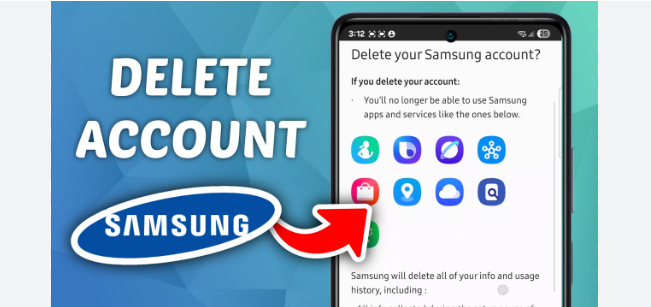
Many users search for How to Remove Samsung Account when they change phones or face login issues. Removing a Samsung account is important when you buy a new Samsung device or sell your old phone. With the right steps, you can easily remove Samsung account from any Samsung smartphone, including new models like the Samsung Galaxy A76 5G. In this simple guide, you will learn how to remove Samsung account safely, without losing your important data or facing errors.
Today, almost everyone uses a smartphone for daily tasks like calling, messaging, social media, online shopping, and work. If you are a Samsung user, you already know how useful a Samsung account is. It helps with backup, Samsung Cloud, Find My Mobile, Samsung Pass, and Galaxy Store apps.
But sometimes we need to remove the Samsung account from our phone. Maybe you are selling your phone, switching to a new account, giving the phone to a family member, or you simply do not want to use Samsung cloud services anymore.
Whatever the reason is, removing a Samsung account is very easy if you follow the correct steps. In this guide, we will learn how to remove Samsung account safely, without any confusion or risk.
⭐ Why You May Want to Remove Samsung Account
People remove Samsung account for many reasons:
- Getting a new smartphone
- Giving the phone to someone else
- Selling old phone
- Changing to a different Samsung account
- Fixing account login or sync issues
- Privacy and security reasons
No matter why you want to remove it, the process stays the same.
🔒 Important Things to Do Before Removing the Account

Before removing your Samsung account, keep these points in mind:
- Make sure your internet is on
- Backup your photos and files if needed
- Sync your contacts to phone storage or Google
- Turn off Samsung Cloud and Find My Mobile
- Know your Samsung account password
If you forget your password, first reset it officially from Samsung account recovery.
Never use unsafe tools or unofficial tricks. It can damage your device or your data.
📱 Step-By-Step Guide: How to Remove Samsung Account
Now let’s follow the official and safe steps:
✅ Step 1: Open Settings
Go to your phone’s Settings app.
✅ Step 2: Tap Your Profile
At the top, you will see your Samsung account name and email. Tap on it.
✅ Step 3: Go to Account Settings
Select Samsung Account or Account and Backup.
✅ Step 4: Tap Sign Out
Scroll down and tap Sign Out.
✅ Step 5: Enter Password
Enter your Samsung account password for confirmation.
✅ Step 6: Confirm
Press Sign Out again and your Samsung account will be removed.
That’s it. Your phone is now free from Samsung account.
💡 What Happens After Removing the Account?
When you remove Samsung account:
- Samsung Cloud will stop syncing
- Find My Mobile will turn off
- Samsung Pass and Samsung Wallet will not work
- Galaxy Store login will be removed
However, your personal files like photos, videos, contacts, apps, and messages will stay in your phone. Removing Samsung account does not delete your phone data unless you reset the phone.
Read also:-How to Increase RAM Memory in Android Phone: 7 Powerful Ways to Boost Speed Fast
🎯 When This Guide Helps

This guide is useful if:
- You want to change Samsung account
- You are facing login or sync problems
- You are giving the phone to someone
- You bought a new phone and want to clear the old one
Following official steps always keeps your device safe.
❓ FAQs — Removing Samsung Account
Q1: Will removing Samsung account delete my photos?
No, your photos stay safe unless you delete them yourself.
Q2: Can I remove Samsung account without internet?
No, you need internet to verify account removal.
Q3: Do I need password to remove Samsung account?
Yes, Samsung needs password for security.
Q4: Can I still use Play Store after removing Samsung account?
Yes. Google account works separately.
Q5: Does removing Samsung account reset the phone?
No. Phone remains as it is.
✅ Final Thought
Removing a Samsung account is simple and safe when you do it through the official settings. This process protects your privacy and keeps your phone clean before passing it to someone else or switching accounts.
Always remember to backup your data and know your password before starting. With a few easy steps, your Samsung account will be removed and your phone will be ready for fresh setup or new use.
If you want reliable performance and long-term security, always follow official methods — they are safe, quick, and problem-free.