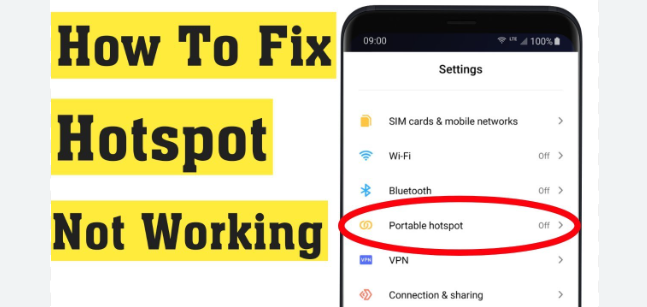
Hotspot is one of the most useful features on Android phones. It lets you share your mobile data with other devices like laptops, tablets, or another phone. But sometimes the hotspot stops working or does not connect properly. If you are facing the fix Android hotspot not working problem, don’t worry — this guide explains simple steps in clear language to help you solve it quickly.
Every Android brand may look slightly different — Samsung, Xiaomi, Realme, Vivo, Oppo, OnePlus, Motorola — but the solutions are almost the same. Most hotspot issues happen due to wrong settings, weak mobile data, network glitches, or device restrictions. Follow these steps one by one to fix it.
1. Make sure mobile data is ON
Hotspot only works when mobile data is active. Sometimes people enable hotspot but forget to turn on mobile data.
📍 Go to: Settings → Network & Internet → Mobile data → Turn ON
If data is already on, turn it OFF and ON again.
2. Restart your phone

Restarting clears temporary glitches and fixes network problems. This is the easiest and most effective step.
Press the power button → Tap Restart
3. Check hotspot password
If other devices see your hotspot but can’t connect, the password may be wrong. Re-enter the password or reset it.
📍 Go to: Settings → Hotspot & Tethering → Wi-Fi Hotspot → Password
Use a simple temporary password to test, like:
12345678
4. Change hotspot band (2.4GHz / 5GHz)
Some older devices cannot detect 5GHz hotspot.
📍 Hotspot settings → AP Band
✅ Select 2.4GHz for better compatibility
5. Check mobile data plan

Your data plan may not support hotspot or may be finished. Some networks block hotspot on certain plans. Check data balance and plan details from your telecom app or SMS.
6. Turn OFF battery saver / power saving
Battery saver mode may block hotspot function to save power.
📍 Settings → Battery → Power Saver → Turn OFF
7. Turn OFF VPN
VPN can block internet sharing on hotspot.
If you installed a VPN app, disconnect it before using hotspot.
8. Reset hotspot name
Rename hotspot to a simple name.
Example: AndroidHotspot
Avoid emojis or special symbols like @#$% because some devices can’t read them.
9. Disable Data Saver

Data saver can stop hotspot data sharing.
📍 Settings → Network & Internet → Data Saver → Turn OFF
Read also:-How to Increase RAM Memory in Android Phone: 7 Powerful Ways to Boost Speed Fast
10. Update your phone
Buggy software can cause hotspot errors. Check for updates.
📍 Settings → About phone → Software update
11. Reset Network Settings
If nothing works, reset network settings. This will not delete your data, but Wi-Fi passwords will reset.
📍 Settings → System → Reset → Reset Network Settings
12. Try another device
Connect hotspot to another device. If it works there, the problem may be in the first device (not your phone).
13. Check carrier settings
Some network providers block hotspot for unlimited plans. Contact support if you think this is the issue.
Bonus Tip: Avoid overheating
If your phone is too hot, hotspot may turn off automatically. Let it cool and try again.
FAQ — Fix Android Hotspot Not Working
Q1: Why is my hotspot not sharing internet?
Your mobile data may be weak, or data saver/VPN/battery saver may be blocking hotspot. Check settings and restart the phone.
Q2: Why is hotspot connected but no internet?
The network signal may be weak. Try switching mobile data to 4G/5G or refresh APN settings.
Q3: Why other phones can’t find my hotspot?
Your hotspot name or band might not be compatible. Set a simple name and choose 2.4GHz band.
Q4: Can battery saver stop hotspot?
Yes. Battery saver and low power mode can disable hotspot automatically.
Q5: Does hotspot use more battery?
Yes, hotspot uses high battery and heats up the phone. Use a charger if needed.
Q6: Should I reset network settings?
Yes, it’s a safe step when all other methods fail.
Q7: Does hotspot work without mobile data?
No. Hotspot needs mobile data to share internet.
Final Thought
Hotspot issues are common on Android phones, but most of the time, the problem is simple — wrong settings, low signal, or background restrictions. By following the steps above, you can easily fix Android hotspot not working without stress. Always start with basic checks like restarting the phone, turning mobile data ON, and updating settings. These small actions solve the issue in most cases. Keep your phone cool, avoid battery saver mode while using hotspot, and check your data plan regularly to enjoy smooth internet sharing