Introduction
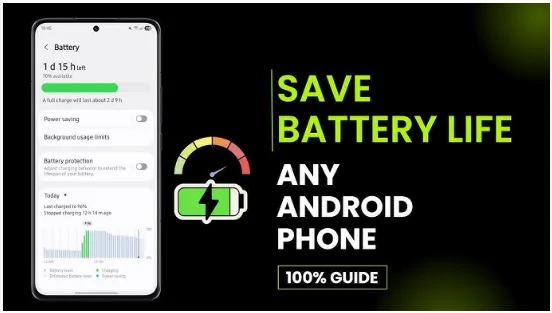
Every Android user faces one common issue battery draining too fast and phone performance slowing down (How to Optimize Battery and Performance on Android). Over time, as apps pile up and background processes keep running, your phone starts losing speed and power efficiency. But the good news is that you don’t need any special tools or apps to fix it. With some simple steps, you can easily optimize your Android’s battery and performance and make your device feel new again.
1. Adjust Screen Brightness and Timeout
The display is one of the biggest battery consumers. Keeping the brightness high all the time drains power quickly. To save battery, lower your screen brightness or enable Adaptive Brightness so your phone adjusts automatically based on light conditions.
Also, shorten your screen timeout setting it to 15 or 30 seconds can save noticeable battery over time
2. Turn Off Unused Connectivity Features
Features like Bluetooth, GPS, Wi-Fi, and NFC consume power even when not in use. If you’re not using them, turn them off from the quick settings panel. For travelers, using Airplane Mode in areas with poor signal can prevent unnecessary battery drain.
3. Manage Background Apps

Many apps continue running in the background, using both data and power. Go to Settings > Battery > Background usage and restrict unnecessary apps. You can also force stop or uninstall apps you rarely use.
This helps your device run faster and extends battery life at the same time.
4. Enable Battery Saver Mode
Most Android phones come with a built-in Battery Saver Mode. When turned on, it limits background activity, reduces performance slightly, and extends battery life.
You can even schedule it to activate automatically when your battery level drops below a certain percentage.
5. Keep Software Updated
Every software update includes performance and battery optimization improvements. Check for system updates regularly under Settings > System > Software Update. Updated software helps apps run efficiently and reduces system bugs that may slow down performance.
6. Clear Cache and Junk Files
Over time, cache and temporary files accumulate, taking up valuable storage and slowing down your phone. Regularly clear app cache through Settings > Storage > Cached Data or use the built-in cleanup feature.
Avoid third-party cleaner apps — they often consume more power themselves.
7. Disable Auto-Start Apps

Some apps automatically start when you reboot your phone. These can slow down your system and drain battery. You can disable auto-start apps through Settings > Apps > Startup Manager (if available) or use the phone’s battery optimization settings to restrict them.
8. Avoid Live Wallpapers and Heavy Widgets
Live wallpapers and multiple home screen widgets may look attractive, but they constantly use CPU and GPU resources. Switch to a static wallpaper and limit widgets to only what’s necessary. This simple change can noticeably improve both speed and battery performance.
9. Monitor Battery Usage
Go to Settings > Battery > Battery Usage to see which apps consume the most power. Social media and streaming apps are often the biggest culprits. If an app is draining too much, restrict its background activity or use it less frequently.
10. Restart Your Phone Regularly
Restarting clears temporary files and gives your phone a fresh start. A simple reboot once or twice a week can solve many performance-related issues and keep your device running smoothly.
11. Use Lite Versions of Apps
If your phone has limited storage or RAM, consider installing “lite” versions of heavy apps — like Facebook Lite, Messenger Lite, or Twitter Lite. These use less data, take up less space, and help your phone stay fast.
Read also:-How to Samsung Account Remove:7 Easy Ways for a Safe and Hassle-Free Experience
12. Uninstall Unused Apps
Many users download apps once and forget about them. Each installed app takes up memory and can run hidden background services. Uninstall unused apps to free up storage and improve overall speed and battery efficiency.
13. Avoid Extreme Temperatures
Overheating is bad for both battery health and performance. Avoid using your phone under direct sunlight or while charging and gaming at the same time. Heat damages battery cells and reduces its lifespan.
Final Thoughts
Optimizing battery and performance on Android doesn’t require advanced knowledge. Simple actions like turning off unused features, clearing cache, and keeping the phone updated can make a big difference. When you take care of your device, it rewards you with better speed, smoother multitasking, and longer battery life.
How to Optimize Battery and Performance on Android
FAQs
1. Does dark mode save battery on Android?
Yes, dark mode helps save battery on phones with OLED or AMOLED screens by reducing power use for darker pixels.
2. Should I use third-party cleaner apps?
No, they often use more battery than they save. Use your phone’s built-in optimization tools instead.
3. How often should I clear cache?
Once every few weeks is enough to keep storage and performance optimized.
4. Why does my phone still drain fast even after optimizing?
Check for rogue apps or battery health issues. Old batteries naturally degrade over time.
5. Can restarting the phone improve performance?
Yes, restarting helps clear temporary background processes and refreshes system memory.