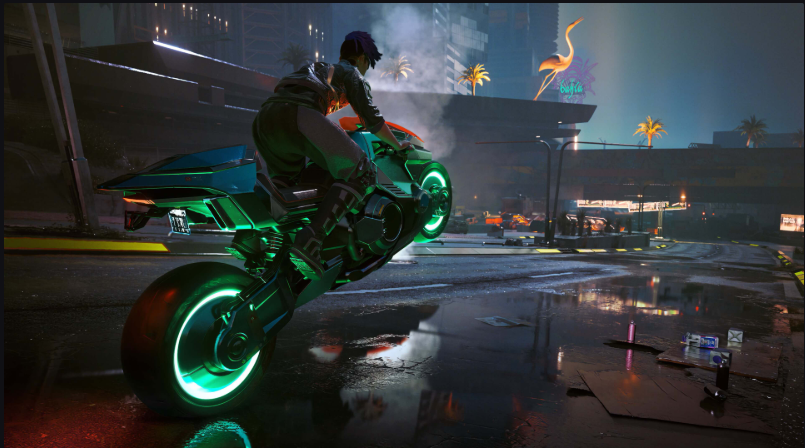
How to Optimize Gaming PC for Ray Tracing,Ray tracing is one of the most exciting visual features in modern PC gaming. It improves lighting, shadows, and reflections so that games look more realistic and immersive. However, ray tracing can be demanding on your hardware. If you simply turn it on without adjustments, your game might feel slow and laggy. To enjoy gorgeous visuals without a big drop in performance, you need to know how to optimize your gaming PC for ray tracing. This article will walk you through practical steps you can take to balance amazing graphics with smooth gameplay.
What Is Ray Tracing and Why Does It Need Optimization?

Ray tracing simulates how light interacts with surfaces in a game world. Instead of using simple lighting tricks, the system calculates light paths like they would behave in real life. This makes reflections, shadows, and highlights more realistic, but it also increases the workload on your graphics card. Without optimization, many systems will struggle to reach stable frame rates when ray tracing is enabled.
Enable AI Upscaling Tools
One of the best ways to optimize your gaming PC for ray tracing is to activate AI upscaling technologies available in many modern games. These include tools like DLSS, FSR, or XeSS. AI upscaling renders the game at a lower resolution and then uses intelligent algorithms to scale it up to your display resolution. This reduces GPU workload while maintaining visual quality, which makes it easier to keep playable frame rates even with ray tracing.
Try using balanced or performance upscaling modes if your frame rate feels low. Upscaling improves smoothness significantly, especially at high resolutions like 1440p and 4K.
Adjust In-Game Ray Tracing Settings

Not all ray tracing effects impact performance equally. Some, like reflections and global illumination, use more GPU power than others. To optimize performance:
- Lower ray traced reflections.
- Reduce global illumination quality.
- Begin with medium presets instead of ultra.
Tuning these settings down slightly can improve your gaming experience without making the visuals look bad.
Tweak Other Graphics Settings
Ray tracing eats a lot of GPU resources, so turning down other non-ray traced settings helps your PC focus on what matters most. Lowering or disabling extra graphical effects such as ambient occlusion, high shadow detail, or full screen motion blur frees up performance. This creates more headroom for ray tracing to run smoothly.
Adjust Resolution and Render Scaling
Setting your display resolution a little lower can have a big impact on performance. Many games let you reduce internal render resolution or use a render scale option. Start at native resolution and step down if performance is too low. Combined with AI upscaling, render scaling often balances visuals and performance well.
Enable System and BIOS Tweaks
Some hardware features can improve performance at no cost. One such option is Resizable BAR in BIOS. Turning on Resizable BAR allows your processor to access all of the GPU memory at once instead of in smaller chunks, reducing performance bottlenecks especially in ray tracing workloads.
Also consider setting your power plan in Windows to a high performance mode so your PC does not reduce power during gameplay.
Keep Drivers and Games Updated
Make sure your graphics card drivers, operating system, and game versions are always up to date. Driver updates often include performance optimizations for new ray tracing features and fixes for known issues. Game patches may also improve efficiency and balance how ray tracing impacts performance. Regular updating ensures your system always gets the best possible support from hardware and software.
Read also:-Infinix Note 50 Pro Specifications – Complete Details in Simple English
Improve Cooling and Manage System Load
Ray tracing increases heat output because the GPU works harder. If your system overheats, it may reduce performance to stay within safe temperatures. Good case airflow, quality CPU and GPU coolers, and clean ventilation help maintain consistent performance.
Closing background applications also helps. Programs running while you game can take CPU, memory, and power away from your gaming session, so shut down unnecessary apps before starting a game.
Upgrade Hardware When Needed

No amount of optimization can fully make up for weak hardware. If your PC still struggles with ray tracing, it might be time to upgrade components. A graphics card with more power and more ray tracing cores will handle complex lighting effects better. Having enough RAM and a fast CPU also ensures your system does not bottleneck performance.
Frequently Asked Questions (FAQs)
Q: Does ray tracing always lower FPS?
A: Yes, ray tracing increases GPU workload, which usually lowers FPS. Using AI upscaling and adjusting settings helps improve performance while keeping ray tracing enabled.
Q: What is the best upscaling mode for smooth gameplay?
A: Balanced or performance upscaling modes usually offer the best trade-off between visuals and frame rate.
Q: Should I reduce game resolution to optimize ray tracing?
A: Lowering resolution or using render scaling can boost performance and make ray tracing smoother.
Q: Is enabling Resizable BAR helpful?
A: Yes, Resizable BAR can reduce performance bottlenecks and give a small boost in ray tracing workloads.
Q: How often should I update drivers?
A: Update drivers and games regularly to take advantage of performance improvements and bug fixes.
Q: Does cooling affect ray tracing performance?
A: Good cooling helps maintain high performance because overheating can cause your system to throttle and lower FPS.
Q: What hardware upgrades improve ray tracing most?
A: A more powerful GPU with dedicated ray tracing cores and sufficient RAM will improve performance significantly.
Conclusion:
Optimizing your gaming PC for ray tracing is about balancing visuals and performance. By enabling upscaling tools, tuning graphics settings, updating drivers, adjusting system settings, and managing cooling and hardware, you can enjoy smooth gameplay with beautiful ray traced graphics without frustration.