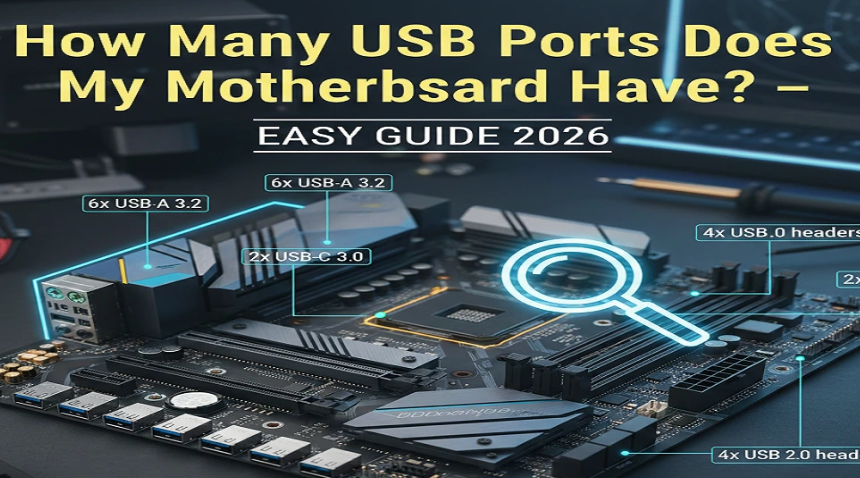
Find out how many USB ports your motherboard has, how to check them, what types exist, and how to count them easily for your PC setup.
If you’ve ever built a computer or are thinking about buying one, a common question people ask is “How many USB ports does my motherboard have?” This is an important question because USB ports let you connect keyboards, mice, printers, game controllers, external hard drives, phones, and many other devices. Knowing how many ports your motherboard has and what types of ports they are can help you plan your setup and avoid having too few connections.
The total number of USB ports on a motherboard depends on its design, size, and intended use. Some motherboards are simple and budget-friendly, while others are built for gamers or professionals and offer many more ports. There isn’t one fixed number for every motherboard, so it helps to understand what defines the count and how you can check it on your computer.
What USB Ports Are on a Motherboard?

USB ports on a motherboard are the connectors you see either on the back of your computer case or connected to the front panel through cables. These ports fall into several categories:
- USB 2.0 Ports: Older but common ports for keyboards, mice, and basic accessories.
- USB 3.x Ports: Faster ports used for external drives and high-speed devices.
- USB-C Ports: Modern reversible connectors that can be fast and versatile.
Motherboards may also support internal USB headers, which are special connectors on the board used to bring USB ports to the front or top of your computer case. These headers are not ports by themselves but allow additional ports to be connected via the case’s front or top panel.
Typical USB Port Counts
Motherboards vary widely in how many USB ports they offer. A typical range for modern desktop motherboards is:
- Basic or budget boards: Often 6–8 total USB ports.
- Mid-range boards: Usually 8–12 USB ports.
- High-end boards: Can provide 12–16 or even more ports.
These totals include both the visible USB ports on the back of the PC and the potential ports connected through front panel headers. High-end motherboards may even support many USB ports for advanced setups, with extra headers and connectors for multiple devices.
Rear I/O vs. Internal USB Headers

When you hear people talk about how many USB ports a motherboard has, there are two important parts to understand:
Rear I/O USB Ports
These are the ports you see on the back of your PC. They are built directly into the motherboard and include a mix of USB-A and USB-C ports of different speeds. This is what most people think of when they count USB ports.
Internal USB Headers
These are connectors on the motherboard itself. They don’t look like USB ports until you connect cables from your computer case or expansion modules. Each header typically supports two USB ports (for example, one USB 2.0 header can support two USB 2.0 ports). Adding up all headers with the rear ports gives the full capability of the motherboard.
How to Check How Many USB Ports You Have

There are several ways to find out exactly how many USB ports your motherboard has:
1. Check the Motherboard Specification Sheet
The most reliable way is to find your motherboard model name and look up its specifications online. The spec sheet usually lists all USB ports on the rear panel and the number of internal USB headers.
2. Physically Count the Ports
You can simply count all the USB ports on the back of your PC case. Then, count any USB conected to the front of your case. Add them together to get a practical total for everyday use.
3. Inspect Internal Headers
If you are comfortable opening your PC, you can count the USB headers on the motherboard. Each header usually supports two more USB connections through front or case panel ports.
4. Use System Tools
Some system tools or BIOS/UEFI screens can also show USB controllers and ports, but these often list controllers and not every physical port. They help to identify which ports are active.
These methods help you accurately answer the question “how many USB ports does my motherboard have?” and ensure you understand all possible ways USB can be used on your PC.
Why the Number of USB Ports Varies
Not all motherboards are the same. The number of USB ports your board has depends on:
- Form factor (size): Smaller boards like Mini-ITX have fewer ports than larger ATX boards.
- Chipset and controller support: The chipset and CPU influence how many USB lanes are available.
- Design priorities: Some boards focus on audio, storage, or expansion slots over USB ports.
- Internal layout: How many internal headers the board includes affects potential future expansion.
Read also:-When Was Bluetooth Invented? A Simple Story Everyone Can Understand
Do Internal Headers Count as USB Ports?
Yes and no. Internal headers support potential USB ports, but only become usable when connected to your case’s front or top panel, or to expansion brackets. Therefore, a motherboard might technically support more USB ports than you currently see. Knowing this helps when planning your build or upgrades.
USB Port Versions and Why They Matter
USB ports come in different versions. Even if two motherboards both have eight USB ports, the performance could differ:
- USB 2.0: Older and slower. Good for keyboards and mice.
- USB 3.x: Much faster. Better for external drives and high-speed devices.
- USB-C: Often reversible and can support powerful features.
When counting ports, it helps to know both how many ports you have and what type they are.
Frequently Asked Questions (FAQs)
Q: How many USB ports does my motherboard usually have?
A: It varies, but most modern desktop motherboards have between 6 and 14 total USB ports, including both rear panel ports and internal headers.
Q: Do USB headers count as USB ports?
A: Internal headers do not appear as ports until connected to front panel ports or add-on brackets.
Q: Can I add more USB ports if I need them?
A: Yes. You can use USB hubs or add a PCIe USB expansion card to get more ports.
Q: Why does a motherboard have fewer USB ports than I expected?
A: Smaller form factors or lower-tier chipsets often provide fewer USB lanes and ports.
Q: Does a USB-C port count as one port?
A: Yes, but USB-C is a different connector type that can support higher speeds or additional features.
Q: How do I count all possible USB ports?
A: Add all visible rear ports plus potential ports from internal headers to get the total number your motherboard supports.
Q: Are all USB ports the same speed?
A: No. USB ports vary in speed and version, and newer standards like USB 3.2 and USB-C are faster than USB 2.0.
Conclusion
There is no single number that applies to all motherboards when asking “how many USB ports does my motherboard have?” Most boards today range from about 6 to 14 usable USB ports, depending on their design. Counting both rear I/O ports and internal header-powered ports gives you the best understanding of your system’s connectivity potential. Always check your specific motherboard’s specifications or manually count ports to be sure you have enough for your devices.