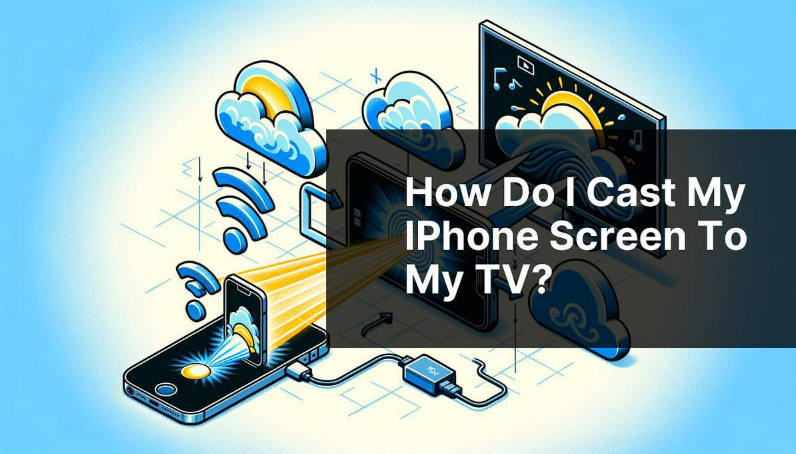
Casting from your iPhone allows you to display your phone screen on a bigger screen like a TV or smart display. Many users search for how do I cast from iPhone because they want to watch videos, share photos, or present content on a larger screen.
This feature is very useful for entertainment, work, and presentations. You can stream movies, show pictures to family, or even play games on a bigger display. Apple provides simple ways to cast your iPhone using built in features.
In this guide, you will learn how do I cast from iPhone in simple English with easy steps that anyone can follow.
What Does Casting Mean
Casting means sending content from your iPhone to another device like a TV.
When you cast, the video or screen appears on the larger display while your phone acts as a controller.
This feature is also called screen mirroring or wireless display.
Casting makes it easier to enjoy content on a bigger screen without using cables.
Requirements for Casting From iPhone

Before learning how do I cast from iPhone, make sure you have a few basic things ready.
Your iPhone and TV should be connected to the same WiFi network.
Your TV should support screen mirroring or AirPlay.
If your TV does not support it, you can use a streaming device.
A stable internet connection is also important for smooth casting.
These simple requirements help ensure the process works properly.
Method 1 Using Screen Mirroring

Screen Mirroring is the easiest way to cast your iPhone screen.
Open Control Center on your iPhone by swiping down from the top right corner.
Tap on Screen Mirroring.
A list of available devices will appear.
Select your TV from the list.
Your iPhone screen will appear on the TV instantly.
This method shows everything from your phone on the big screen.
Method 2 Using AirPlay for Videos

AirPlay is another popular method for how do I cast from iPhone.
Open a video app on your iPhone.
Play the video you want to watch.
Look for the AirPlay icon on the screen.
Tap on it and select your TV.
The video will start playing on your TV.
This method is perfect for watching movies and streaming content.
Method 3 Using Smart TV Apps
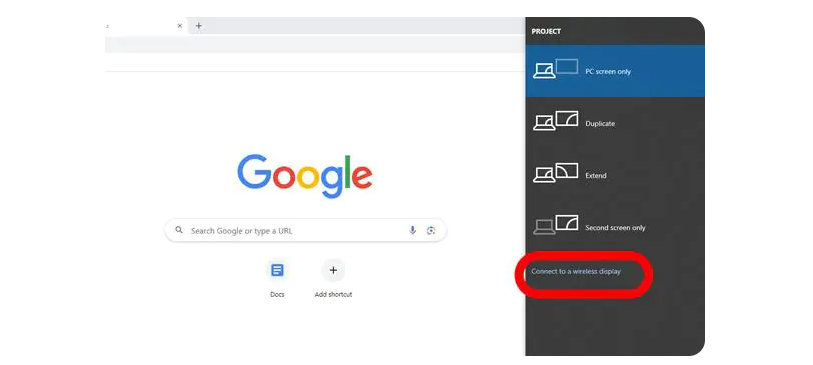
Many smart TVs support direct casting from apps.
Open apps like video or music apps on your iPhone.
Look for the cast icon inside the app.
Tap the icon and select your TV.
The content will play directly on the TV.
This method is simple and does not require screen mirroring.
Method 4 Using HDMI Cable
If wireless casting is not available, you can use a cable.
Connect your iPhone to the TV using an HDMI adapter.
Attach the HDMI cable to your TV.
Select the correct input source on your TV.
Your iPhone screen will appear on the TV.
This method works even without WiFi.
Read more:-How to Delete Grindr Account: The Complete Account Deletion Guide
Common Problems and Solutions
Sometimes users face issues while casting.
If your TV is not showing, check if both devices are on the same WiFi.
Restart your iPhone and TV if connection fails.
Make sure your TV supports screen mirroring.
If the video is not playing smoothly, check your internet speed.
These simple fixes solve most casting problems.
Tips for Better Casting Experience
Keep your iPhone close to the TV for a stable connection.
Use a strong WiFi network to avoid buffering.
Close unnecessary apps running in the background.
Update your iPhone and TV software regularly.
These tips help improve your casting experience.
Conclusion
Understanding how do I cast from iPhone is very useful for enjoying content on a bigger screen. Whether you are watching videos, sharing photos, or presenting work, casting makes everything easier and more enjoyable.
There are multiple methods available such as Screen Mirroring, AirPlay, smart TV apps, and HDMI connection. Each method is simple and works for different situations.
By following the steps in this guide, you can easily connect your iPhone to a TV and enjoy a better viewing experience anytime.
FAQ
How do I cast from iPhone to TV
You can use Screen Mirroring or AirPlay to connect your iPhone to a TV.
Do I need WiFi to cast from iPhone
Yes, most casting methods require both devices to be on the same WiFi network.
Why is my iPhone not connecting to TV
Make sure both devices are on the same network and restart them if needed.
Can I cast without a smart TV
Yes, you can use an HDMI adapter to connect your iPhone to the TV.
Is screen mirroring the same as casting
They are similar, but screen mirroring shows the full screen while casting may stream specific content.