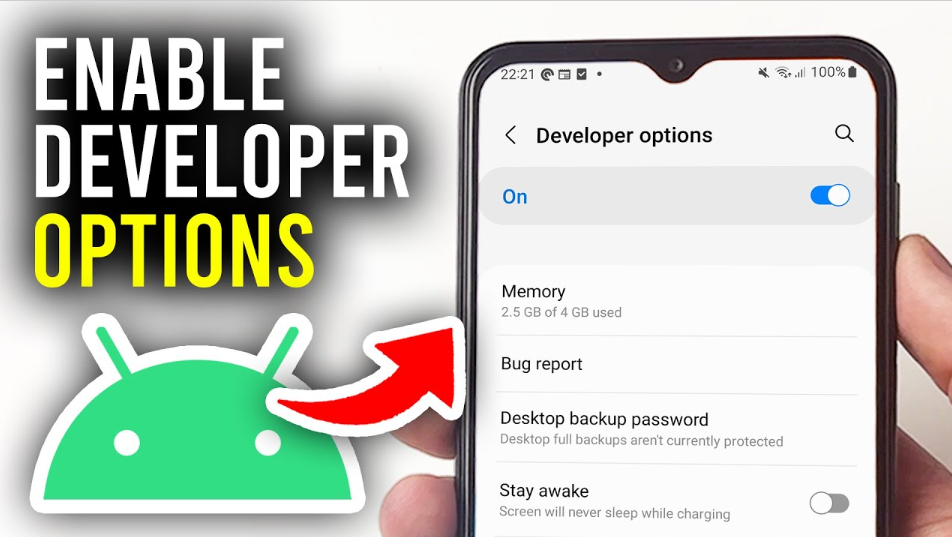
Android phones come with many hidden features that are not visible by default. One of these is Developer Options. Many users search for how to enable developer options on Android because it gives access to advanced settings that can improve performance and help in testing apps.
Developer Options is mainly designed for developers, but regular users can also use it for useful tasks like enabling USB debugging, improving speed, or customizing animations.
In this guide, you will learn how to enable developer options on Android in simple English so anyone can follow easily.
What Are Developer Options
Developer Options is a hidden settings menu in Android devices.
It contains advanced tools that help in testing apps, debugging, and improving performance.
Some popular features include USB debugging, animation control, and background process limits.
Even if you are not a developer, you can still use these features for better control over your device.
Why You Should Enable Developer Options

There are many benefits of learning how to enable developer options on Android.
You can enable USB debugging to connect your phone to a computer.
You can speed up your phone by reducing animation scale.
It helps in app testing and troubleshooting.
You can also monitor system performance.
These features make your Android experience more powerful.
Step by Step Guide to Enable Developer Options

Follow these simple steps to enable Developer Options on your Android phone.
Open the Settings app on your phone.
Scroll down and tap on About Phone.
Look for Build Number in the list.
Tap on Build Number seven times quickly.
You may be asked to enter your phone password or PIN.
After that, you will see a message saying Developer Options has been enabled.
Now go back to Settings.
You will find Developer Options in the system or additional settings section.
This is the easiest way for how to enable developer options on Android.
How to Access Developer Options

Once you enable Developer Options, accessing it is simple.
Open Settings on your phone.
Scroll down and find Developer Options.
Tap on it to open.
You will see many advanced settings.
Be careful while changing options because some settings can affect device performance.
Important Features Inside Developer Options
There are many useful features available inside Developer Options.
USB Debugging allows your phone to connect with a computer for data transfer or app testing.
Animation Scale settings help you make your phone faster by reducing animation time.
Background Process Limit lets you control how many apps run in the background.
Show Touches displays touch points on the screen.
These features make Developer Options very useful.
Read also:-A Complete Guide to Nightscout API Integration for Developers
How to Disable Developer Options
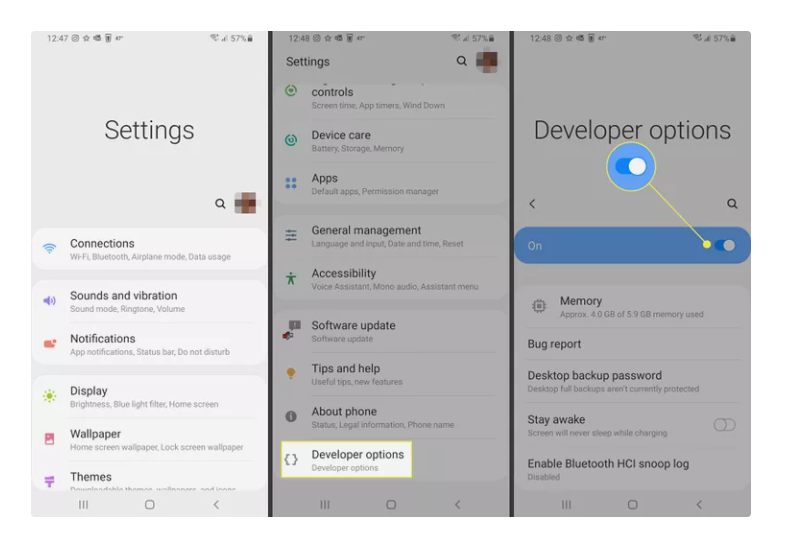
If you do not want to use Developer Options, you can turn it off easily.
Open Settings.
Go to Developer Options.
Turn off the toggle at the top.
This will disable all developer settings.
You can enable it again anytime using the same steps.
Safety Tips While Using Developer Options
Developer Options includes advanced settings, so use it carefully.
Do not change settings if you do not understand them.
Avoid enabling unnecessary features.
Always keep a backup of important data.
Using these options carefully will prevent problems.
Common Problems and Solutions
Sometimes users face issues while enabling Developer Options.
If Build Number is not visible, check inside Software Information.
If tapping does not work, try again slowly.
Restart your phone if the option does not appear.
Make sure your device is updated.
These simple solutions can fix most problems.
Conclusion
Learning how to enable developer options on Android is very useful for unlocking hidden features and improving your device performance. It allows you to access advanced tools that are not available in normal settings.
By following the simple steps in this guide, you can easily enable and use Developer Options on your Android phone. Just remember to use these settings carefully to avoid any issues.
With the right usage, Developer Options can make your Android experience more powerful and flexible.
FAQ
How to enable developer options on Android easily
Go to Settings, open About Phone, and tap Build Number seven times.
Where is Developer Options located
It is usually found in Settings under System or Additional Settings.
Is it safe to enable Developer Options
Yes, it is safe if you use it carefully and avoid changing unknown settings.
What is USB debugging
USB debugging allows your phone to connect with a computer for advanced tasks.
Can I disable Developer Options later
Yes, you can turn it off anytime from the settings.