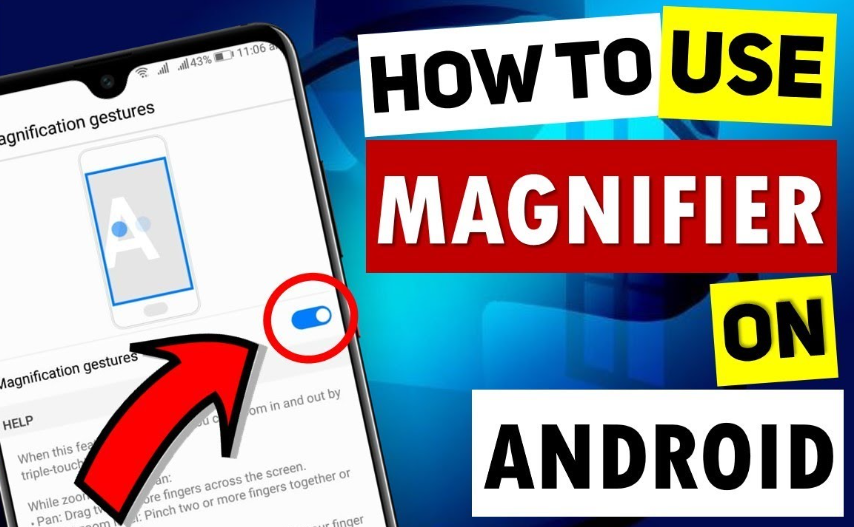
If you find it difficult to read small text or see details on your phone, learning how to magnify Android screen can be very helpful. Android devices come with built-in accessibility features that allow you to zoom in on any part of the screen.
This feature is especially useful for people with vision problems or anyone who wants a closer view of images, text, or apps. The best part is that you do not need any extra apps. Everything is already available in your phone settings.
In this guide, you will learn how to magnify Android screen in simple English with easy steps.
What Is Screen Magnification
Screen magnification is an accessibility feature that allows you to zoom in on your phone screen.
It makes everything appear bigger, including text, images, and icons.
You can move around the screen while zoomed in to see different parts.
This feature is very helpful for reading small text or viewing details.
Why You Should Use Screen Magnification
There are many reasons to learn how to magnify Android screen.
It helps people with weak eyesight.
You can read small text easily without straining your eyes.
It is useful for viewing photos or detailed content.
You do not need to install any third-party apps.
This feature makes your phone easier to use.
Method 1 Enable Magnification from Settings
Follow these simple steps to enable screen magnification.
Open Settings on your Android phone.
Scroll down and tap on Accessibility.
Look for Magnification or Magnification Gestures.
Tap on it and turn it on.
Once enabled, you can zoom in using gestures.
This is the most common way for how to magnify Android screen.

Method 2 Use Triple Tap to Zoom
After enabling magnification, you can use gestures.
Quickly tap the screen three times.
The screen will zoom in.
Use two fingers to move around the screen.
Pinch with two fingers to adjust zoom level.
Tap three times again to zoom out.
This method is easy and quick.

Method 3 Use Magnification Button
Some Android phones provide a magnification button.
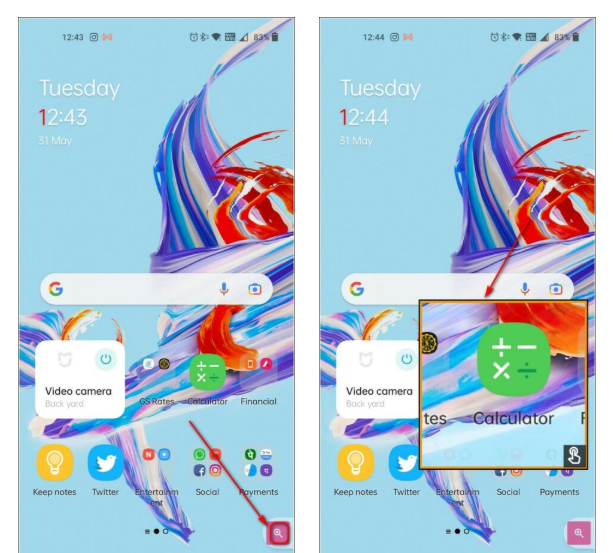
After enabling magnification, a small icon appears on the screen.
Tap the icon to activate zoom.
Move your finger to explore different areas.
Tap again to turn it off.
This method is useful for users who do not like gestures.

How to Adjust Magnification Settings
You can customize magnification settings based on your needs.
Go to Accessibility settings.
Open Magnification settings.
Adjust zoom level according to your comfort.
Enable full screen or partial zoom.
These options make magnification more flexible.
Read more:-How to Stop Magnifying Screen on Android – Complete Step by Step Guide
Tips for Better Usage
Use moderate zoom to avoid confusion.
Practice gestures to use the feature smoothly.
Keep your screen clean for better visibility.
Combine magnification with larger text settings.
These tips improve your experience.
Common Problems and Solutions
Sometimes users face issues while using magnification.
If triple tap is not working, check if the feature is enabled.
Restart your phone if the feature stops working.
Make sure your phone software is updated.
If the screen feels stuck, zoom out using triple tap.
These simple fixes can solve most problems.
Conclusion
Learning how to magnify Android screen is very useful for improving visibility and making your phone easier to use. It is a simple feature that can help you read text, view images, and navigate your device comfortably.
By following the steps in this guide, you can quickly enable and use screen magnification on your Android phone. This built-in feature is powerful, easy to use, and helpful for everyday tasks.
FAQ
How to magnify Android screen quickly
Enable magnification in accessibility settings and use triple tap to zoom.
Can I zoom only a part of the screen
Yes, some phones allow partial screen magnification.
Is magnification available on all Android phones
Most modern Android phones support this feature.
How do I turn off magnification
Go to settings and disable magnification option.
Does magnification affect performance
No, it does not affect performance significantly.