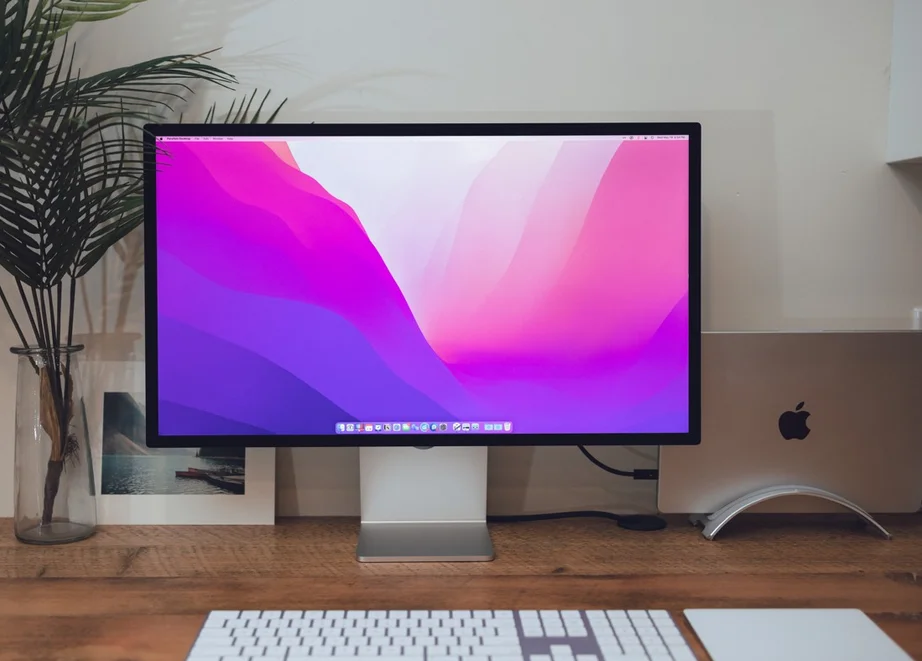
The Apple Studio Display is a high quality monitor designed for clear visuals and comfortable viewing. Many users search for how to adjust brightness Apple Studio Display to improve screen visibility and reduce eye strain.
Adjusting brightness is important because it helps match your screen with your environment. Too much brightness can hurt your eyes, while low brightness can make it hard to see clearly.
In this guide, you will learn how to adjust brightness Apple Studio Display in simple English.
Why Brightness Adjustment Is Important

Brightness control helps protect your eyes.
It improves visibility in different lighting conditions.
It enhances color accuracy.
It reduces screen fatigue during long use.
Proper brightness makes your experience better.
Method 1 Using Mac Settings
The easiest way to adjust brightness is through your Mac.
Click on the Apple menu.
Go to System Settings.
Select Displays.
Find the brightness slider.
Move the slider to increase or decrease brightness.
This is the most common method for how to adjust brightness Apple Studio Display.
Method 2 Using Keyboard Controls

Some keyboards allow brightness control.
Look for brightness keys on your keyboard.
Press the increase or decrease key.
Brightness will change instantly.
This method is fast and convenient.
Method 3 Using Control Center
You can also adjust brightness from Control Center.
Click on Control Center icon.
Find Display section.
Use the brightness slider.
Adjust as needed.
This method is useful for quick changes.
Enable Auto Brightness

Auto brightness adjusts screen automatically.
Go to System Settings.
Select Displays.
Turn on Automatically Adjust Brightness.
Your display will change brightness based on lighting.
This improves comfort and saves effort.
Read more:-A Complete Guide to Apple Watch CGM App Integration and Features
Use Night Shift for Better Viewing
Night Shift reduces blue light.
Go to System Settings.
Select Displays.
Turn on Night Shift.
It makes screen warmer at night.
This helps reduce eye strain.
Tips for Best Brightness Settings
Keep brightness at comfortable level.
Avoid maximum brightness for long time.
Adjust based on room lighting.
Use auto brightness if available.
Take breaks to protect your eyes.
These tips help improve viewing experience.
Common Problems and Solutions
Sometimes brightness may not change.
Check if display is connected properly.
Restart your Mac.
Update your system software.
Check display settings again.
These steps fix most issues.
Conclusion
Learning how to adjust brightness Apple Studio Display is important for a comfortable and clear viewing experience. It helps protect your eyes and improves screen quality in different lighting conditions.
By using simple methods like system settings, keyboard controls, and auto brightness, you can easily manage your display. Regular adjustment ensures better comfort and productivity.
FAQ
How to adjust brightness Apple Studio Display easily
Use System Settings and move the brightness slider.
Can I use keyboard to change brightness
Yes, if your keyboard supports brightness keys.
What is auto brightness
It adjusts screen brightness based on environment.
Why is my brightness not changing
Check connection and system settings.
Is high brightness harmful
Yes, it can cause eye strain over time.