
Taking photos with your iPhone is simple, but sometimes you need a little extra time before the picture is taken. That is why many users search for how to set a timer on your iPhone camera. This feature allows you to take photos without holding your phone, making it perfect for group photos, selfies, and stable shots.
The timer feature is built into the iPhone camera and is very easy to use. You do not need any extra app or tool. With just a few taps, you can capture perfect photos every time.
In this guide, you will learn how to set a timer on your iPhone camera in simple English.
What Is Camera Timer on iPhone
The camera timer is a built in feature.
It delays the photo capture for a few seconds.
You can choose between 3 seconds or 10 seconds.
It gives you time to get ready before the photo is taken.
It helps improve photo quality and composition.
Why Use Camera Timer
There are many reasons to learn how to set a timer on your iPhone camera.
It helps you take hands free photos.
You can join group pictures easily.
It reduces camera shake.
It allows better positioning and framing.
It is useful for tripod photography.
Steps to Set Timer on iPhone Camera

Follow these simple steps.
Open the Camera app on your iPhone.
Tap the arrow icon at the top of the screen.
Look for the timer icon.
Tap on the timer icon.
Select 3 seconds or 10 seconds.
Place your phone in position.
Tap the shutter button.
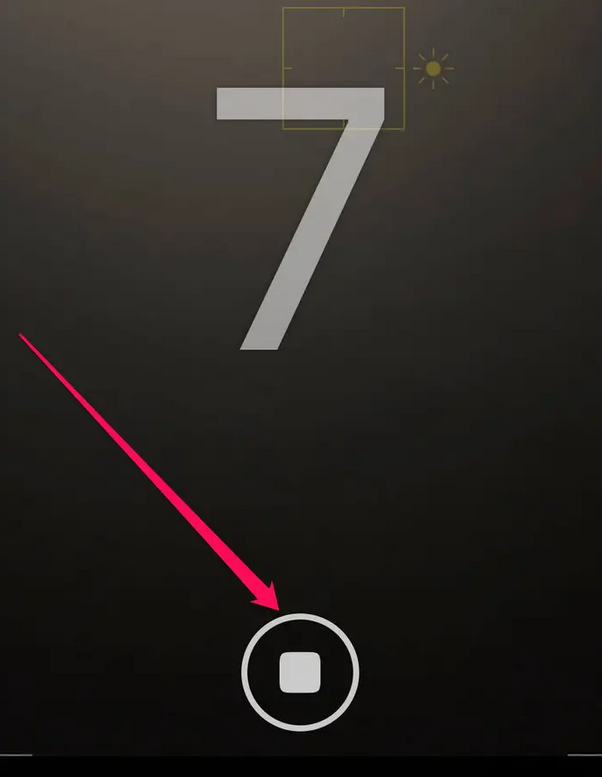
The timer will start and take the photo automatically.
This is the easiest method for how to set a timer on your iPhone camera.
Where to Find Timer Option
The timer option may be hidden in the camera menu.
Tap the arrow or swipe up on the screen.
You will see different options like flash, live photo, and timer.
Tap the clock icon to access timer settings.
This helps you quickly find the feature.
Tips for Better Photos Using Timer

Use a tripod or stable surface.
Choose good lighting conditions.
Use 10 second timer for group photos.
Check your framing before clicking.
Stand still while taking the photo.
These tips help improve your results.
Read also:-Apple iPhone Camera Tips: Capture Stunning Photos Like a Pro
Use Burst Mode with Timer
When you use the timer, iPhone may take multiple photos.
This is called burst mode.
It captures several shots at once.
You can choose the best photo later.
This increases chances of getting a perfect shot.
Common Problems and Solutions

Sometimes the timer may not work properly.
Restart the Camera app.
Check if timer is selected.
Update your iPhone software.
Clean camera lens for better quality.
Restart your phone if needed.
These steps solve most issues.
Alternative Ways to Take Photos
You can also use other methods.
Use volume buttons to click photos.
Use Apple Watch as remote shutter.
Use voice control to capture photos.
These methods add flexibility.
Conclusion
Learning how to set a timer on your iPhone camera is very useful for capturing better photos without holding your phone. It allows you to take stable shots, join group photos, and improve overall image quality.
By following simple steps, you can easily use the timer feature and take professional looking pictures. It is a small feature that makes a big difference in photography.
With regular use, you will become more comfortable and take better photos every time with your iPhone.
FAQ
How to set a timer on your iPhone camera easily
Open camera, tap timer icon, choose time, and click photo.
Can I take group photos using timer
Yes, it allows you to join the group before photo is taken.
What timer options are available
You can choose 3 seconds or 10 seconds.
Why is my timer not working
Check settings or restart your camera app.
Does timer improve photo quality
Yes, it reduces shake and improves stability.