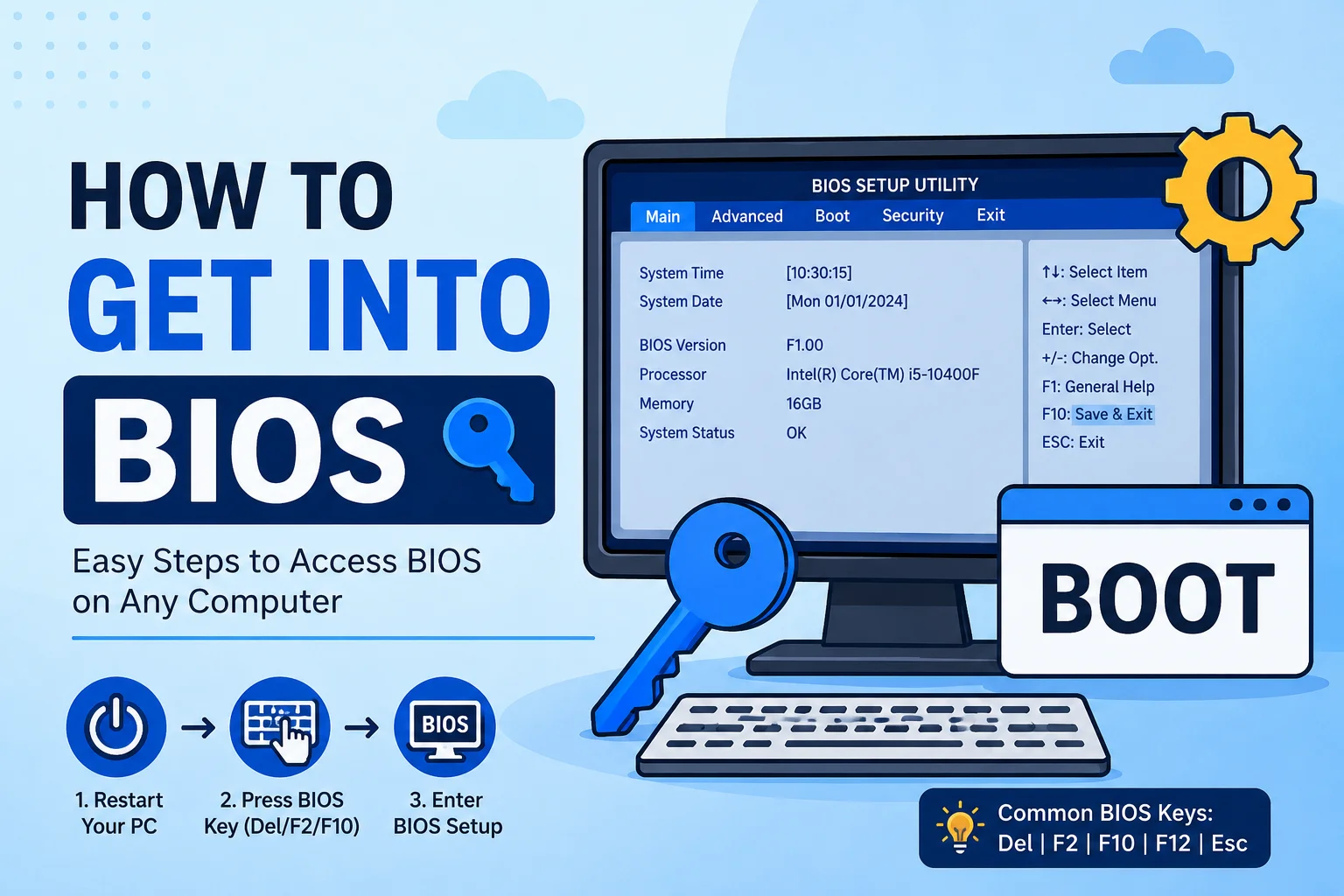
If you want to change boot settings, install Windows, enable virtualization, check hardware information, or adjust system performance, you first need to learn how to get into BIOS.
BIOS stands for Basic Input Output System. It is firmware built directly into your computer’s motherboard. Before Windows starts, BIOS checks your hardware and prepares your system to boot.
Many users think entering BIOS is difficult, but once you know the correct steps, it becomes simple. In this guide, you’ll learn how to get into BIOS on desktops, laptops, and custom-built PCs using safe and easy methods.
What Is BIOS?
BIOS is low-level system software stored on your motherboard. It starts running as soon as you power on your computer.
BIOS handles important hardware functions such as:
- Detecting RAM
- Checking CPU status
- Detecting storage drives
- Managing boot devices
- Loading operating system
Modern systems may use UEFI firmware, which is an advanced version of traditional BIOS, but the access process is very similar.
Why Would You Need to Enter BIOS?
There are many reasons people search for how to get into BIOS.
Common Reasons Include:
- Installing Windows from USB
- Changing boot priority
- Enabling virtualization
- Checking CPU or RAM information
- Overclocking hardware
- Resetting motherboard settings
- Enabling TPM or Secure Boot
BIOS gives you direct control over important system settings.
How to Get Into BIOS Using Keyboard Keys
The easiest way to enter BIOS is during system startup.
Follow these steps carefully.
Step 1: Restart Your Computer
Click Start → Power → Restart
If your PC is off, simply turn it on.
As soon as the screen turns black and your computer begins starting, get ready to press the BIOS key.
Step 2: Watch the Startup Screen
During startup, you may see a message like:
- Press DEL to enter Setup
- Press F2 for BIOS
- Press ESC for Setup
- Press F10 for System Configuration
This message usually appears for only a few seconds.
This is your opportunity when learning how to get into BIOS.
Step 3: Press the BIOS Access Key
Quickly press the required key multiple times.
Common BIOS keys include:
- Delete (DEL)
- F2
- F10
- F12
- ESC
Different brands use different keys.
Common BIOS Keys by Computer Brand
ASUS
Usually:
DEL or F2
HP
Usually:
ESC or F10
Dell
Usually:
F2
Lenovo
Usually:
F1, F2, or Novo Button
Acer
Usually:
F2 or DEL
MSI
Usually:
DEL
Gigabyte
Usually:
DEL
Knowing your manufacturer helps make how to get into BIOS much easier.
What If Your PC Boots Too Fast?
Some modern computers start very quickly, making it hard to catch the BIOS screen.
Try this method:
Restart your PC and immediately begin pressing the BIOS key repeatedly.
Do not hold the key continuously. Press it steadily until BIOS opens.
How to Get Into BIOS From Windows Settings
If keyboard timing is difficult, Windows offers another method.
Step 1: Open Settings
Press:
Windows + I
This opens Settings.
Step 2: Open Recovery
Go to:
System → Recovery
Under Advanced Startup, click:
Restart Now
Your computer will restart into recovery mode.

Step 3: Choose Advanced Options
After restart, select:
Troubleshoot → Advanced Options → UEFI Firmware Settings
Then click:
Restart
Your system will now open BIOS automatically.
This is one of the easiest ways to learn how to get into BIOS.
What Can You Do Inside BIOS?
After entering BIOS, you can access many system settings.
Boot Settings
Change boot order for:
- USB drives
- SSD
- HDD
- DVD drives
Useful when installing Windows.
Hardware Information
View system details like:
- Processor model
- RAM size
- Storage devices
- Fan speeds
Security Settings
Enable or disable:
- TPM
- Secure Boot
- Password protection
Performance Settings
Advanced users may adjust:
- CPU settings
- Memory profiles
- Voltage settings
- Fan curves
Be careful when changing advanced settings.
How to Exit BIOS

After making changes, you can exit BIOS safely.
Usually press:
F10
Then choose:
Save and Exit
If you do not want to keep changes, select:
Exit Without Saving
Read more:-How Many USB Ports Does My Motherboard Have? A Complete Guide to Checking USB Ports
Troubleshooting BIOS Access Problems
Sometimes entering BIOS can be tricky.
Problem 1: Startup Screen Disappears Too Quickly
Solution:
Restart and press the BIOS key repeatedly immediately after power on.
Problem 2: USB Keyboard Not Working
Older systems may not detect USB keyboards during startup.
Try:
- Connecting keyboard to another USB port
- Using a wired keyboard
- Using a PS/2 keyboard if supported
Problem 3: Wrong BIOS Key
Different systems use different keys.
Check your laptop or motherboard brand.
Problem 4: Fast Boot Enabled
Fast Boot can skip keyboard detection.
Use the Windows Recovery method explained earlier.
BIOS vs UEFI
Many people confuse BIOS and UEFI.
BIOS
Older firmware system.
UEFI
Modern firmware with:
- Faster boot times
- Better security
- Larger drive support
- Mouse support
Even if your system uses UEFI, many users still search how to get into BIOS because the process feels similar.
Safety Tips Before Changing BIOS Settings
Before making changes:
- Only change settings you understand
- Write down original settings
- Do not change voltage settings unless experienced
- Save important data first
BIOS controls critical hardware settings.
Learning how to get into BIOS is an important skill for every PC user. Whether you want to install Windows, change boot settings, enable virtualization, or troubleshoot hardware, BIOS gives you full system control.
By following the steps in this guide, you can safely access BIOS on almost any Windows computer with confidence.
Final Thoughts
Learning how to get into BIOS is an important skill for every PC user. Whether you want to install Windows, change boot settings, enable virtualization, or troubleshoot hardware, BIOS gives you full system control.
By following the steps in this guide, you can safely access BIOS on almost any Windows computer with confidence.
Frequently Asked Questions
What key opens BIOS?
Common BIOS keys include DEL, F2, ESC, F10, and F12.
Can I enter BIOS without restarting?
No, BIOS loads before Windows starts, so a restart is required.
Is BIOS the same on every computer?
No, BIOS layout and options vary by motherboard manufacturer.
Can changing BIOS settings damage my PC?
Basic settings are usually safe, but incorrect advanced settings can cause boot issues.
How do I reset BIOS settings?
Inside BIOS, choose Load Default Settings or Restore Factory Defaults.