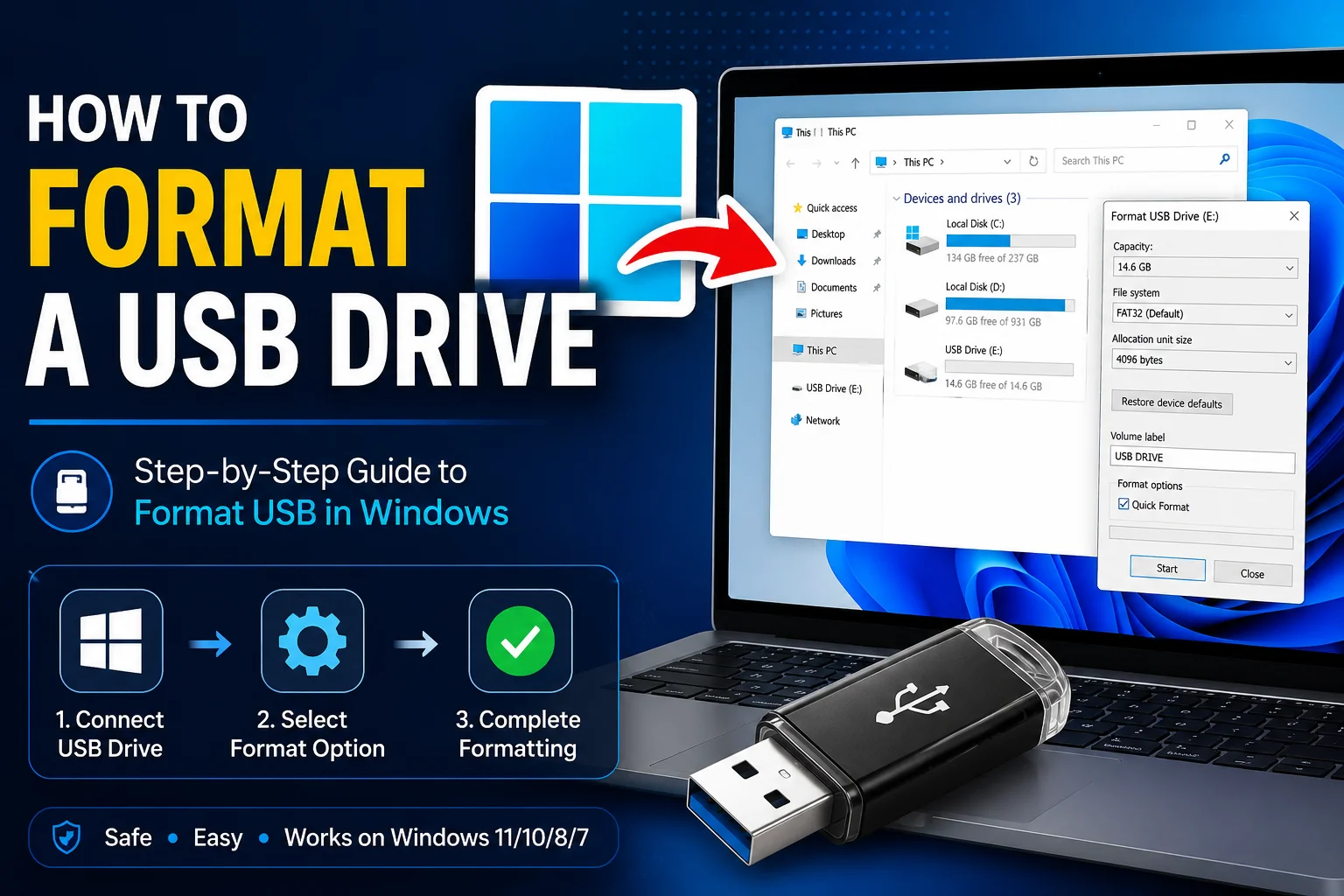
USB drives are one of the most useful storage devices in everyday life. Whether you use them for transferring files, backing up documents, storing photos, or installing operating systems, knowing How to Format a USB Drive is an essential computer skill.
Formatting a USB drive helps clean the device, remove viruses, fix file errors, improve compatibility, and prepare the drive for a new purpose. Many users feel nervous when formatting because they worry about damaging the drive, but the process is actually simple when done correctly.
In this complete guide, you will learn How to Format a USB Drive on Windows and Mac, understand different file systems, and choose the best format for your needs.
What Does Formatting a USB Drive Mean?
Before learning How to Format a USB Drive, it’s important to understand what formatting actually does.
Formatting removes all files, folders, and stored data from the USB drive. It also creates a fresh file system that organizes how data will be stored on the device.
After formatting, your USB drive becomes clean and ready to use again.
Formatting is useful for:
- Removing unwanted files
- Clearing virus-infected data
- Fixing storage errors
- Changing file system compatibility
- Preparing USB for backup or installation
Important: Formatting deletes everything, so always back up your important files first.
Why You May Need to Format a USB Drive
There are many situations where learning How to Format a USB Drive becomes useful.
Common reasons include:
- USB drive not opening properly
- Files becoming corrupted
- Drive showing wrong storage size
- Preparing USB for gaming consoles
- Creating bootable installation media
- Changing file system compatibility
- Cleaning an old flash drive
A properly formatted USB drive usually performs better and works with more devices.
How to Format a USB Drive in Windows

Windows makes formatting a USB drive very easy.
Follow these simple steps.
Step 1: Connect the USB Drive
Insert your USB drive into one of your computer’s USB ports.
Wait a few seconds until Windows detects the device.
Step 2: Open File Explorer
Press:
Windows + E
This opens File Explorer.
Now click:
This PC
You will see all connected drives.
Step 3: Locate Your USB Drive

Find your USB device under:
Devices and Drives
Make sure you select the correct drive to avoid deleting the wrong storage.
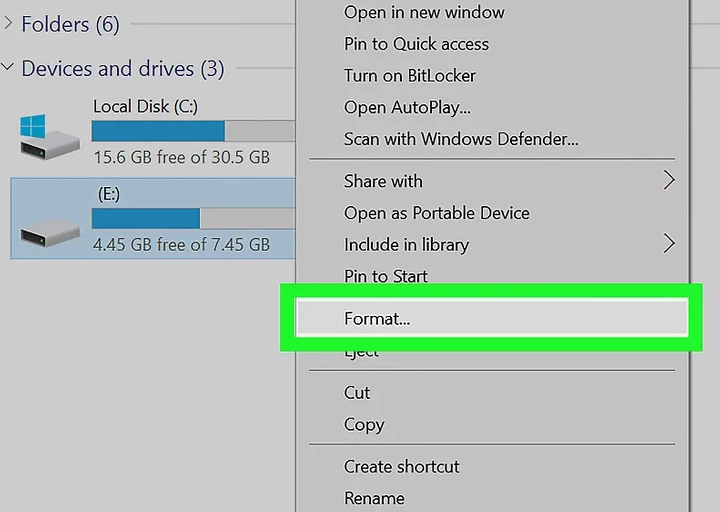
Step 4: Right Click the USB Drive
Right-click on the USB drive.
A menu will appear.
Select:
Format
This opens the formatting window.
Step 5: Choose File System

Now choose your file system.
You’ll usually see three options:
FAT32
FAT32 is highly compatible.
Works with:
- Windows
- Mac
- Linux
- Smart TVs
- Gaming consoles
- Car audio systems
Best for smaller drives and maximum compatibility.
exFAT
exFAT is ideal for modern devices.
Benefits:
- Supports large files
- Works across Windows and Mac
- Better for large USB drives
A great choice for most users.
NTFS
NTFS is designed mainly for Windows.
Best for:
- Windows backups
- Large file storage
- Advanced file permissions
Not always fully compatible with all devices.
Understanding File System Differences
Choosing the right file system is an important part of How to Format a USB Drive.
FAT32
Best for universal compatibility.
Limitations:
- Maximum file size of 4GB
exFAT
Best for modern use.
Advantages:
- Supports files larger than 4GB
- Better for high-capacity drives
NTFS
Best for Windows-specific tasks.
Advantages:
- Better security
- Advanced file management
Step 6: Quick Format Option
You may see a checkbox called:
Quick Format
Quick Format
This removes file records quickly.
Benefits:
- Fast process
- Suitable for normal cleaning
Full Format
A full format:
- Checks for bad sectors
- Takes more time
- Better for fixing drive issues
If your USB is working fine, Quick Format is usually enough.
Step 7: Start Formatting
Click:
Start
Windows will show a warning because all data will be erased.
Click:
OK
Wait until the process completes.
Once finished, your USB drive is ready.
This completes How to Format a USB Drive on Windows.
Read more:-How to Enable USB Debugging on a Locked Motorola: The Complete Setup Guide
How to Format a USB Drive on Mac
Mac users can also format USB drives easily.
Step 1
Insert your USB drive.
Step 2
Open:
Disk Utility
You can find it using Spotlight Search.
Step 3
Select your USB drive from the sidebar.
Step 4
Click:
Erase
Step 5
Choose your file system.
Mac offers options like:
- exFAT
- FAT32
- APFS
- Mac OS Extended
For universal compatibility, exFAT is often the best option.
Click:
Erase
Your USB drive will be formatted successfully.
Common Problems While Formatting
Sometimes users face issues during formatting.
Here are some common problems.
USB Drive Not Showing
Try:
- Changing USB port
- Restarting computer
- Testing another device
Write Protected USB
If your USB is write-protected, formatting may fail.
You may need to remove write protection first.
Format Option Not Working
Try:
- Disk Management
- Command Prompt
- Device Manager
These tools can often fix stubborn drives.
Safety Tips Before Formatting
Before learning How to Format a USB Drive, keep these safety tips in mind:
Always Backup Important Files
Formatting permanently deletes data.
Select the Correct Drive
Formatting the wrong drive can cause data loss.
Avoid Removing USB During Formatting
Removing the drive early may damage it.
Use Trusted USB Devices
Low-quality drives may fail during formatting.
Benefits of Formatting Your USB Drive
A properly formatted USB drive offers several benefits.
Better Performance
Fresh formatting can improve read and write speed.
Virus Removal
Formatting helps remove infected files.
Improved Compatibility
A correct file system works better across devices.
Organized Storage
Formatting creates a clean storage structure.
Final Thoughts
Learning How to Format a USB Drive is one of the most useful computer skills. Whether you want to clean old files, fix USB errors, or prepare a drive for new devices, formatting helps keep your storage organized and reliable.
By following the steps in this guide, you can safely format your USB drive on Windows or Mac and choose the best file system for your needs.
Frequently Asked Questions
Does formatting delete everything?
Yes, formatting removes all files from the USB drive.
Which format is best for USB drives?
For most users, exFAT is the best option because it supports large files and works across multiple devices.
Is FAT32 still useful?
Yes, FAT32 offers excellent compatibility with older devices and gaming consoles.
Can formatting repair a USB drive?
In many cases, yes. Formatting can fix file system errors and corrupted data issues.
How long does formatting take?
Quick formatting usually takes only a few seconds, while full formatting can take several minutes.