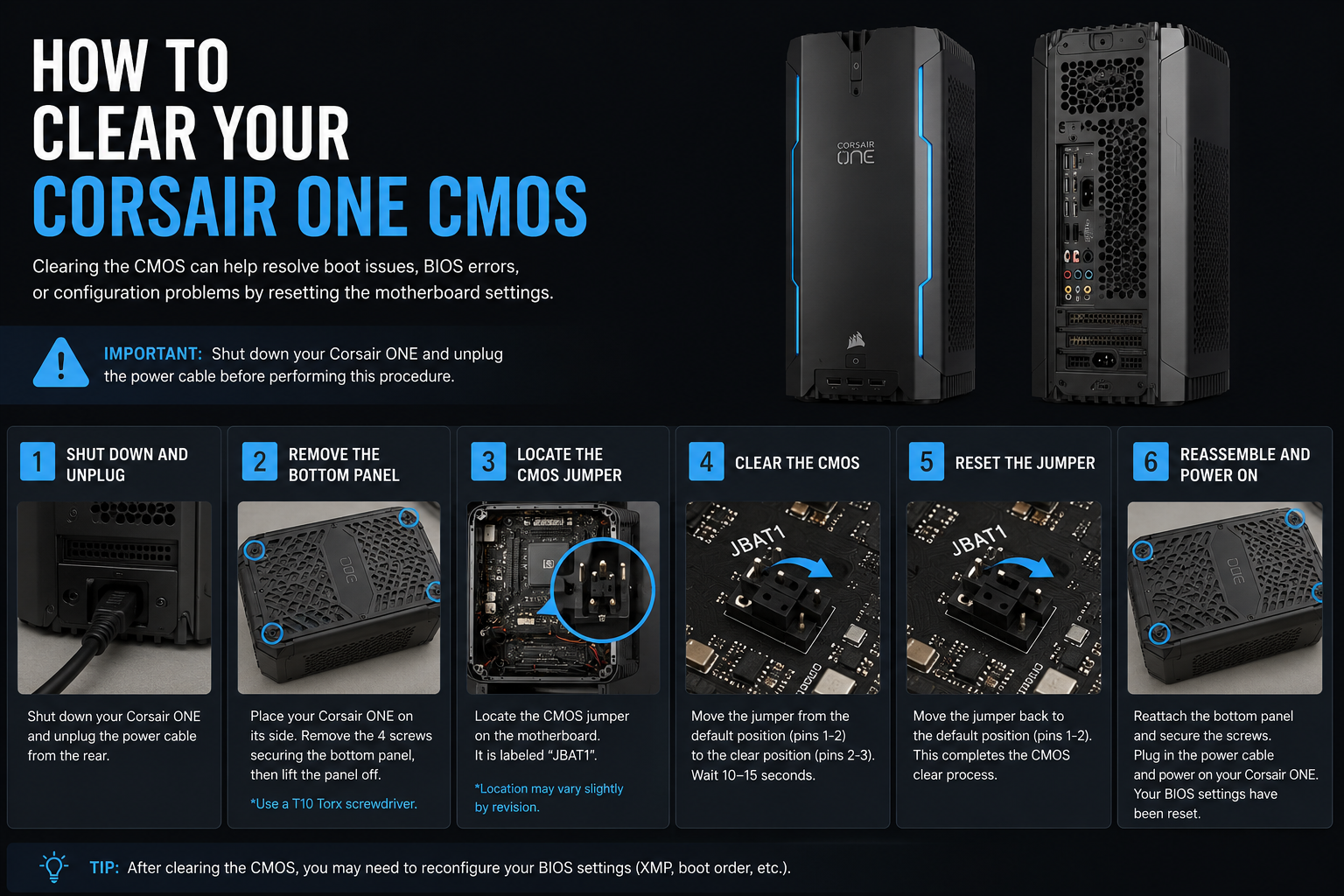
If your gaming PC suddenly starts showing boot errors, BIOS problems, hardware detection issues, or system instability, clearing the CMOS can often solve the problem. Learning How to Clear Your Corsair ONE CMOS is an important troubleshooting skill that helps restore default BIOS settings and fix many startup-related issues.
Many users experience problems after changing BIOS settings, installing new hardware, updating firmware, or dealing with failed overclocking attempts. In such situations, a CMOS reset can quickly bring the system back to stable working condition.
This guide explains everything you need to know about How to Clear Your Corsair ONE CMOS safely and correctly.
What Is CMOS?
CMOS stands for Complementary Metal-Oxide Semiconductor. It is a small memory chip on the motherboard that stores BIOS settings.
These settings include:
- Boot order
- CPU configuration
- RAM settings
- Fan profiles
- Voltage adjustments
- System time and date
The CMOS memory is powered by a small battery located on the motherboard.
When you clear the CMOS, all BIOS settings return to factory defaults.
Why You May Need to Clear Your Corsair ONE CMOS

There are several situations where clearing the CMOS becomes necessary.
BIOS Settings Causing Boot Failure
Incorrect BIOS settings may stop your system from starting properly.
This commonly happens after:
- Overclocking
- Voltage changes
- RAM timing adjustments
Hardware Upgrade Problems
Installing new RAM, SSDs, or graphics cards can sometimes create compatibility issues.
Clearing the CMOS helps the motherboard detect hardware correctly again.
Random System Crashes

Unstable BIOS settings may lead to:
- Freezing
- Blue screens
- Restart loops
- Startup failures
A CMOS reset often fixes these issues.
Forgotten BIOS Password
Clearing the CMOS may remove stored BIOS passwords on some systems.
Failed BIOS Update
Sometimes BIOS updates create configuration conflicts.
Resetting the CMOS restores default motherboard settings.
Important Things Before Clearing CMOS
Before starting the process, take some precautions.
Shut Down Your Computer Completely
Power off the Corsair ONE properly before opening the system.
Disconnect All Power Sources
Unplug the power cable completely.
Never work inside the PC while power is connected.
Press the Power Button
After unplugging the system, press the power button for several seconds.
This helps discharge remaining electrical power.
Ground Yourself
Static electricity can damage computer components.
Touch a metal surface before handling internal parts.
How to Clear Your Corsair ONE CMOS
There are multiple ways to clear the CMOS on a Corsair ONE system.
Method 1: Using the CMOS Reset Button
Some Corsair ONE models include a dedicated CMOS reset button.
Step 1
Turn off the PC completely.
Step 2
Disconnect the power cable.
Step 3
Locate the CMOS reset button on the rear or motherboard area.
Step 4
Press and hold the button for about 10 to 15 seconds.
Step 5
Reconnect power and restart the system.
The BIOS settings should now be reset.
Method 2: Removing the CMOS Battery
If your system does not have a reset button, you can remove the CMOS battery manually.
Step 1: Open the Corsair ONE Case
Carefully remove the side panel according to your model instructions.
Step 2: Locate the CMOS Battery
Find the small silver coin-shaped battery on the motherboard.
Step 3: Remove the Battery
Gently remove the battery using your fingers or a plastic tool.
Avoid using metal objects aggressively.
Step 4: Wait Several Minutes
Leave the battery removed for about 5 to 10 minutes.
This allows stored BIOS settings to clear completely.
Step 5: Reinstall the Battery
Place the battery back into its slot carefully.
Step 6: Reassemble and Restart
Close the case, reconnect power, and turn on the PC.
The CMOS should now be cleared successfully.
Method 3: Using the CMOS Jumper
Some motherboards include a CMOS jumper.
Step 1
Locate the CMOS jumper pins on the motherboard.
Step 2
Move the jumper cap to the clear position.
Step 3
Wait 10 seconds.
Step 4
Return the jumper to the original position.
Step 5
Restart the system.
This resets the BIOS configuration.
What Happens After Clearing CMOS?
After clearing the CMOS:
- BIOS settings return to default
- System clock resets
- Boot order may change
- Overclocking settings are removed
- Fan profiles reset
You may need to reconfigure some settings afterward.
Read more:-How to Get Into BIOS: 6 Simple Ways for Quick BIOS Access
Common Problems Fixed by Clearing CMOS
A CMOS reset can solve many PC issues.
PC Not Booting
Incorrect BIOS settings often prevent startup.
RAM Not Detected
New memory modules may work properly after a reset.
Black Screen Problems
Display initialization issues can sometimes be fixed by clearing CMOS.
BIOS Freezing
Resetting BIOS settings removes corrupted configurations.
Continuous Restart Loops
Boot loops caused by unstable settings may stop after CMOS reset.
Tips for Safely Clearing CMOS
Follow these safety recommendations carefully.
Avoid Static Electricity
Always ground yourself before touching motherboard components.
Use Proper Lighting
Work in a well-lit area to avoid damaging parts accidentally.
Handle Components Gently
Never force connectors or batteries.
Follow Your Corsair ONE Manual
Different Corsair ONE models may have slightly different layouts.
Do Not Interrupt BIOS Recovery
Allow the system enough time to restart after resetting.
When You Should Not Clear CMOS
Although clearing CMOS is useful, it should not be done unnecessarily.
Avoid clearing CMOS if:
- Your system works perfectly
- You are unsure about opening the PC
- Hardware damage exists
- Power supply problems are suspected
In some cases, professional support may be safer.
Can Clearing CMOS Damage Your PC?
No, clearing CMOS is generally safe when done properly.
However, improper handling can damage:
- Motherboard components
- Connectors
- Internal wiring
Careful handling is important.
How Often Should You Clear CMOS?
You only need to clear CMOS when troubleshooting BIOS or hardware problems.
It is not regular maintenance.
Does Clearing CMOS Delete Files?
No, clearing CMOS does not remove:
- Windows files
- Games
- Applications
- Documents
It only resets motherboard BIOS settings.
Conclusion
Learning How to Clear Your Corsair ONE CMOS is extremely useful for solving many startup, BIOS, and hardware-related issues. Whether your system is stuck in a boot loop, failing to recognize hardware, or suffering from unstable BIOS settings, clearing the CMOS can often restore stability quickly.
By carefully following the proper steps and safety precautions, you can safely reset your Corsair ONE BIOS settings and get your gaming PC working normally again.
FAQ
What does clearing CMOS do?
Clearing CMOS resets all BIOS settings back to factory defaults.
Can clearing CMOS fix boot problems?
Yes, it often fixes startup and BIOS configuration issues.
Will clearing CMOS delete my files?
No, your personal files and Windows installation remain safe.
How long should I remove the CMOS battery?
Usually 5 to 10 minutes is enough.
Is clearing CMOS safe?
Yes, it is safe when done carefully and correctly.
Can clearing CMOS fix RAM issues?
Yes, resetting BIOS settings may help the motherboard detect RAM properly.
Why is my Corsair ONE stuck in a boot loop?
Incorrect BIOS settings or unstable hardware configurations can cause boot loops.
Do I need to reinstall Windows after clearing CMOS?
No, clearing CMOS only resets BIOS settings and does not affect Windows installation.