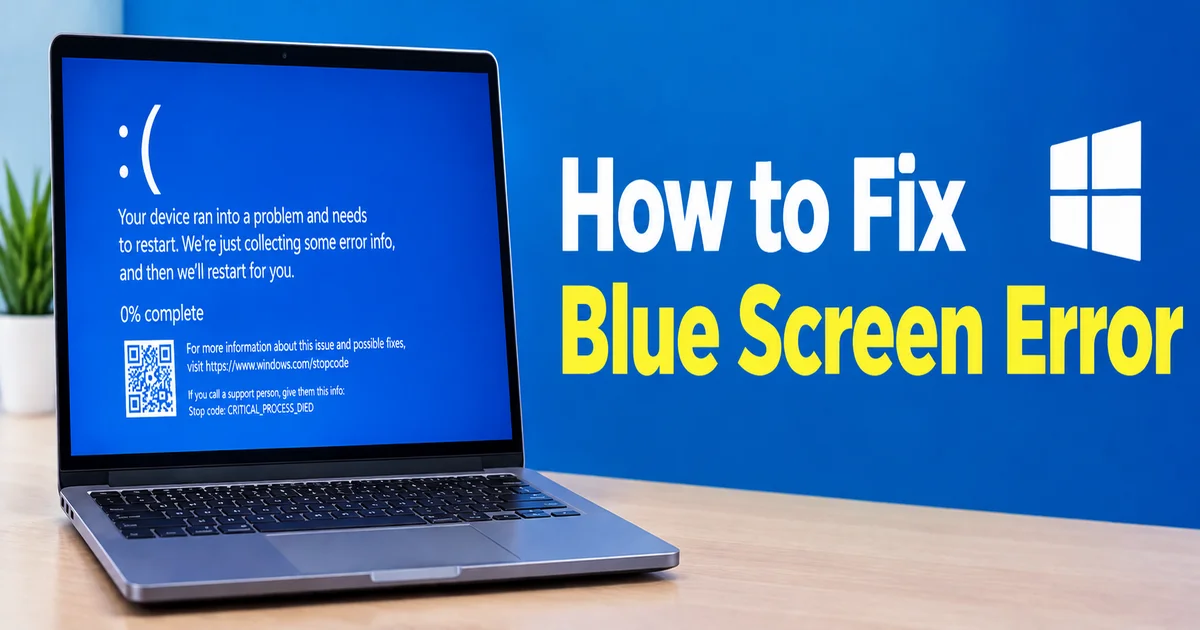
Learn how to fix blue screen error with 7 powerful solutions to troubleshoot Windows crashes, repair system issues, and restore reliable PC performance.
A blue screen error can be worrying, especially when your computer suddenly stops working and displays a blue screen with an error message. This problem is commonly known as the Blue Screen of Death, or BSOD. It usually means Windows has encountered a serious problem and needs to stop to protect the system.
A blue screen does not always mean your computer is permanently damaged. In many cases, the problem is caused by a faulty driver, a recent software update, damaged system files, or a hardware issue. With a few troubleshooting steps, you may be able to fix the problem and use your computer normally again.
This guide explains how to fix blue screen error on Windows in simple language. The steps are suitable for beginners and cover both computers that start normally and those that keep restarting.
What Causes a Blue Screen Error?

Windows can show a blue screen when it detects a problem that it cannot safely recover from. The error may appear while starting the computer, opening an application, playing games, or using the internet.
Some common causes include:
- Outdated or damaged device drivers
- Windows update problems
- Faulty RAM or other hardware
- Overheating
- Damaged Windows system files
- Recently installed software
- Storage drive problems
The blue screen often displays a stop code. This code can help identify the reason for the crash. For example, errors such as MEMORY_MANAGEMENT, CRITICAL_PROCESS_DIED, and IRQL_NOT_LESS_OR_EQUAL may point toward different system problems.
Restart Your Computer
The first thing to try is a normal restart. Sometimes a temporary software problem causes the blue screen, and restarting the computer resolves it.
If Windows starts normally after restarting, continue using the computer for a while and check whether the error returns. If the blue screen appears again, note the stop code shown on the screen.
Avoid repeatedly switching off the computer using the power button unless it is completely unresponsive. Forced shutdowns can sometimes cause additional problems.
Disconnect Recently Connected Devices
A new USB device, external hard drive, printer, or other accessory may cause compatibility problems.
Turn off the computer and disconnect recently connected devices. Leave the keyboard, mouse, and monitor connected if needed. Start Windows again and check whether the blue screen has disappeared.
If the problem stops, reconnect the devices one at a time. This can help identify which device may be causing the issue.
Update Windows and Device Drivers

Outdated drivers are a common reason for blue screen errors. Drivers help Windows communicate with hardware such as graphics cards, network adapters, and storage devices.
To check for Windows updates:
- Open Settings.
- Select Windows Update.
- Click Check for updates.
- Install available updates.
- Restart your computer.
You can also open Device Manager and check for driver updates. Pay particular attention to recently installed hardware or devices that show a warning symbol.
If the blue screen started immediately after a driver update, rolling back that driver may help. You can usually find the Roll Back Driver option in the device’s properties.
Check Recently Installed Software
Sometimes a newly installed application causes conflicts with Windows. This may happen with antivirus software, system utilities, or programs that change hardware settings.
Think about what you installed shortly before the blue screen began. If the problem started after installing a particular program, try uninstalling it.
Open Settings, select Apps, and look for the application. Remove it if you no longer need it, then restart the computer.
If Windows cannot start normally, you may need to use Safe Mode.
Start Windows in Safe Mode
Safe Mode starts Windows with a limited set of drivers and services. It can help you determine whether a third-party program or driver is causing the crash.
To access Safe Mode:
- Open the Windows recovery options.
- Select Troubleshoot.
- Choose Advanced options.
- Select Startup Settings.
- Click Restart.
- Choose Safe Mode.
The exact steps may vary depending on your Windows version and whether the computer can start normally.
If Windows works properly in Safe Mode, a recently installed driver or application may be responsible for the blue screen.
Check Windows System Files
Damaged system files can also cause Windows to crash. Windows includes built-in tools that can check and repair these files.
Open Command Prompt as administrator and run:
sfc /scannow
Wait for the scan to finish. It may take some time.
You can also use the Deployment Image Servicing and Management tool if Windows system files need additional repair:
DISM /Online /Cleanup-Image /RestoreHealth
Restart the computer after the repairs are complete. These tools may fix problems caused by corrupted Windows files.
Read more:-How to Fix Microphone Not Working on Mac: 7 Easy Powerful Solutions
Check RAM and Storage

Hardware problems should not be ignored if the blue screen keeps returning.
Windows includes a memory diagnostic tool that can check your RAM. Search for Windows Memory Diagnostic and follow the instructions to restart and test the memory.
You should also check your storage drive for errors. If the computer is unusually slow, freezes often, or shows repeated blue screens, the storage drive may need attention.
If you suspect a hardware failure, back up important files before performing major repairs.
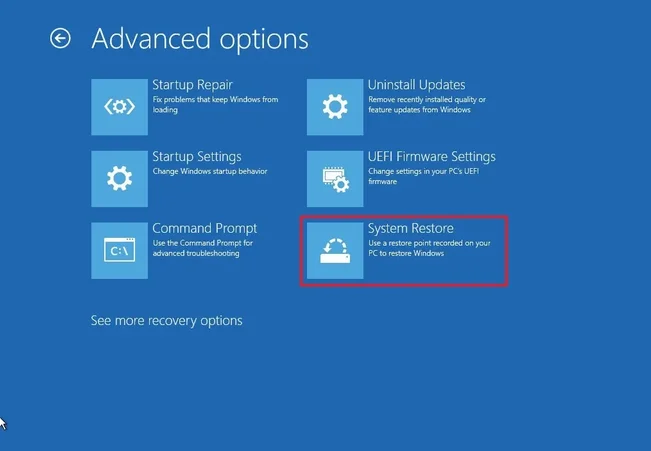
Use System Restore
System Restore can return Windows to an earlier restore point. This may help if the blue screen began after installing software, drivers, or updates.
Search for System Restore in Windows and follow the available recovery instructions. System Restore does not normally remove personal documents, but it can remove recently installed programs and drivers.
When to Contact a Technician
If the blue screen continues after updating drivers, repairing system files, and checking hardware, professional help may be necessary.
Repeated crashes can indicate faulty RAM, a damaged storage drive, overheating, or another hardware problem. A technician can test the components and identify the cause.
Before resetting or reinstalling Windows, back up your important files whenever possible.
FAQ
What is the Blue Screen of Death?
The Blue Screen of Death is a Windows error screen that appears when the operating system encounters a serious problem and stops to protect the computer.
Can a blue screen damage my laptop?
A single blue screen does not usually mean the laptop is permanently damaged. However, repeated crashes may indicate an underlying hardware or software problem.
How do I find the blue screen stop code?
The stop code usually appears on the blue screen. You can write it down or take a photo before restarting the computer.
Can updating drivers fix a blue screen?
Yes. If a faulty or outdated driver is causing the problem, updating or rolling back that driver may resolve the error.
What should I do if Windows keeps restarting?
Try Safe Mode, disconnect recently added devices, and check for recent software or driver changes. If the problem continues, use Windows recovery tools or seek technical help.
Final Thoughts
A blue screen error can interrupt your work, but it does not always mean your computer has a serious hardware failure. Start with simple steps such as restarting Windows, disconnecting new devices, and checking for updates. If the problem continues, investigate drivers, system files, RAM, and storage.
The most useful information is the stop code displayed on the blue screen. Keep a record of it, especially if the error happens repeatedly. With careful troubleshooting, many blue screen problems can be fixed without reinstalling Windows.