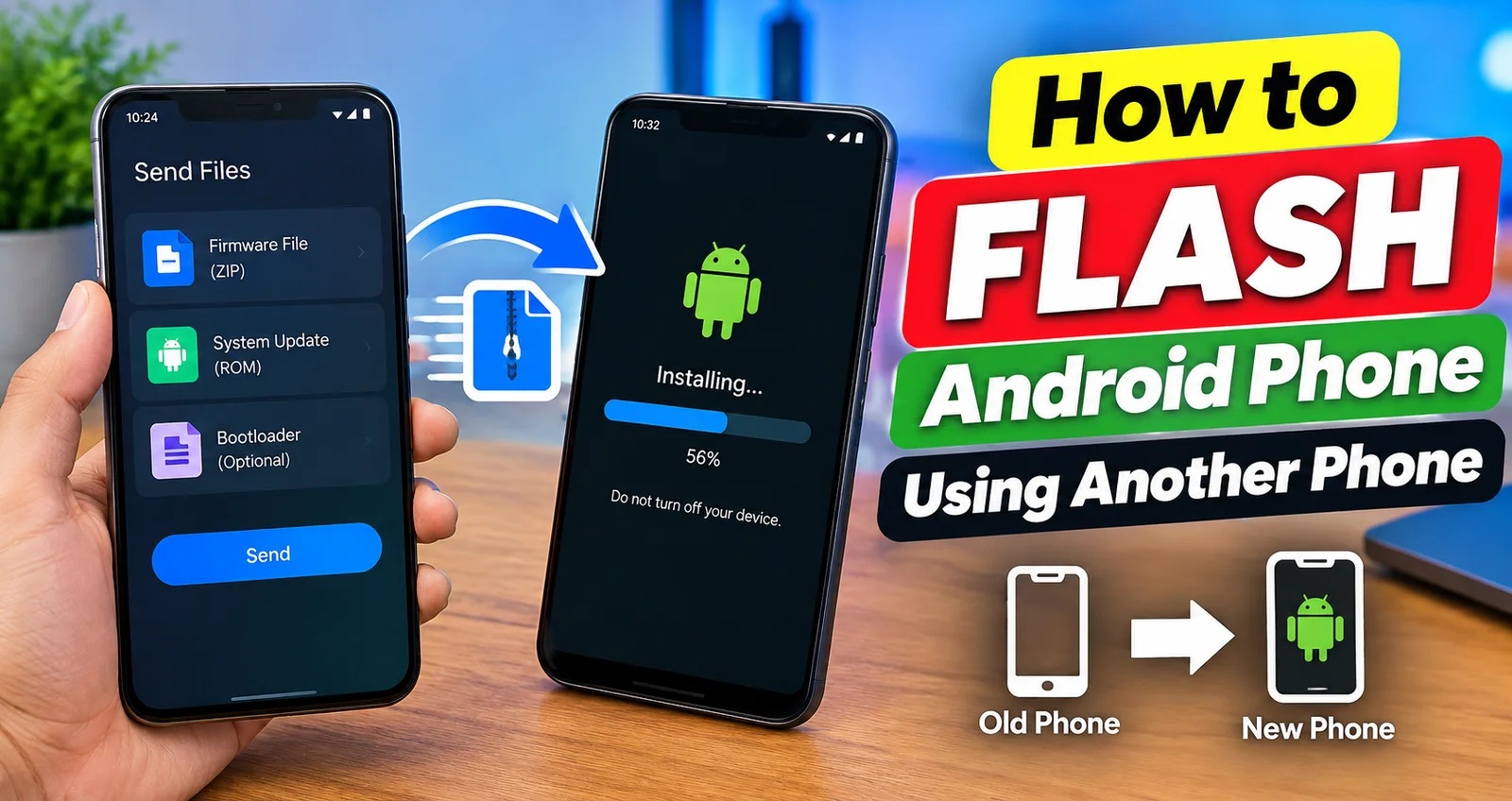
How to Flash Android Phone Using Another Phone is possible in some situations when you do not have access to a computer. With the right tools, a second Android phone can help transfer firmware files, recovery files, or other required data to the target device. The process depends on your phone model, bootloader status, available apps, and the type of firmware you want to install. Before starting, always back up important data and make sure the firmware matches your exact device model. In this guide, you will learn the basic process, required tools, important precautions, and common problems you may face while flashing an Android phone using another phone.
If you do not have a computer, you may still be able to flash an Android phone using another phone. A second Android device can sometimes work as a basic tool for ADB and Fastboot operations. One commonly used option is Bugjaeger, which can communicate with a target Android phone through a USB OTG connection. Its current app information says it can perform ADB commands, reboot devices into bootloader mode, and support Fastboot operations on compatible devices.
However, flashing is different from simply transferring files. The exact method depends on the phone manufacturer, chipset, bootloader status, Android version, and firmware format. Using the wrong firmware can cause boot problems or make the phone unusable.
What Does Flashing an Android Phone Mean?
Flashing means installing or replacing system software, firmware, recovery images, or other Android system partitions on a phone. People may do this to reinstall official software, repair certain software problems, install a compatible custom ROM, or recover a phone that is stuck in a boot loop.
A second Android phone can act like a small computer for compatible ADB and Fastboot tasks. This method normally requires a USB OTG connection and a phone that supports the required protocol.
What You Need Before Flashing
Before starting, prepare the following items:
| Requirement | Purpose |
|---|---|
| Host Android Phone | Works like the computer |
| Target Android Phone | Phone that you want to flash |
| USB OTG Adapter/Cable | Connects both phones |
| Correct Firmware | Software made for your exact model |
| Flashing App | Used for ADB/Fastboot operations |
| Good USB Cable | Provides a stable connection |
| Battery | Keep both phones sufficiently charged |
| Backup | Protects important personal data |
The firmware should match the exact device model and, where applicable, its regional or carrier variant.
Step 1: Back Up Your Important Data

Before flashing, create a backup of your photos, videos, contacts, documents, and other important files.
Some operations, especially bootloader unlocking or factory-reset commands, can erase the target phone. Therefore, do not start the process assuming your personal data will remain safe.
If the phone is still working normally, back up your files before entering bootloader or recovery mode.
Step 2: Prepare the Second Android Phone
The second Android phone will act as the host device.
Install a compatible ADB/Fastboot utility such as Bugjaeger on the host phone. The app supports connecting to another Android device through USB OTG and can perform various ADB operations.
Make sure the host phone has enough free storage if you need to keep the firmware file on it.
Step 3: Enable Developer Options
If the target phone still starts normally, open:
Settings → About Phone → Build Number
Tap Build Number several times until Developer Options becomes available.
Then open Developer Options and enable USB Debugging.
The target phone may display an authorization message when you connect it to the host phone. Approve the connection if you recognize the host device.
Bugjaeger’s documentation also notes that USB debugging and authorization are required for normal ADB communication.
Step 4: Connect Both Phones With OTG
Connect the two Android phones using a suitable USB OTG adapter or USB-C cable.
The phone running the ADB/Fastboot utility is the host, while the phone being controlled is the target.
If the target phone does not appear, check the cable, OTG settings, USB mode, and USB debugging authorization. Some phones also have an OTG setting that must be enabled manually.
Step 5: Check the Connection
Open the flashing utility on the host phone and check whether the target phone is detected.
For Fastboot-compatible devices, the target may need to be restarted into bootloader or Fastboot mode.
Once the device is recognized, you can use the appropriate Fastboot operation supported by your specific phone and firmware.
Do not continue if the device is not correctly identified.
Read more:-How to Flash Android Phone: A Step-by-Step Guide for Beginners
Step 6: Flash the Correct Firmware

This is the most important part of the process.
Do not use a firmware file simply because it has the same brand name. The firmware should be compatible with the exact model and required partition layout.
Depending on the device, flashing may involve files such as:
- Boot image
- Init boot image
- Recovery image
- System image
- Vendor image
- Other manufacturer-specific firmware files
The exact commands and files are different between devices, so there is no single universal flashing command for every Android phone.
For compatible Fastboot devices, Android-to-Android tools can execute Fastboot commands directly from the host phone.
Important: Samsung Phones Are Different
Samsung phones generally do not use the standard Fastboot protocol used by many other Android devices. Bugjaeger’s FAQ specifically states that Samsung devices do not support Fastboot and use their own flashing approach instead.
Therefore, a method designed for a Pixel, OnePlus, Xiaomi, Motorola, or another Fastboot-compatible phone should not automatically be applied to a Samsung device.
Always check the manufacturer’s specific flashing method before proceeding.
Step 7: Wait for the Process to Finish
Once the correct flashing process begins, keep both phones connected and stable.
Do not:
- Disconnect the USB cable
- Restart the host phone
- Close the flashing application
- Allow the host phone to shut down
- Interrupt the flashing process
A connection failure during a critical partition operation can create additional software problems.
If Fastboot reports a write error, possible causes include an incompatible image, bad cable, connection problems, or device-specific compatibility issues. Bugjaeger’s troubleshooting guidance recommends checking the image, cable, connection, and device compatibility.
Can You Flash Any Android Phone With Another Phone?
No. Android-to-Android flashing is not universal.
Some devices support Fastboot, while others use manufacturer-specific flashing systems. Bootloader restrictions can also prevent certain operations.
For example, Bugjaeger requires the target device to support the necessary communication protocol, and some privileged operations cannot be performed on a non-rooted device because the application does not bypass Android security mechanisms.
Flashing vs Data Transfer
It is also important to understand that flashing is not the same as transferring data.
If your goal is simply to move photos, contacts, apps, or other personal information from one Android phone to another, you may not need flashing at all. Google’s Android setup process supports transferring data between Android phones using a cable or wireless connection.
For normal phone-to-phone migration, using the built-in transfer process is much simpler than flashing firmware.
Final Thought
Learning how to flash Android phone using another phone can be useful when a computer is not available, but the process requires careful preparation. A second Android phone can perform some ADB and Fastboot tasks through USB OTG, but compatibility depends heavily on the target device. Always use the correct firmware, back up important data, and follow instructions specifically made for your phone model.
FAQ
Can I flash an Android phone without a computer?
Yes, some Android phones can be controlled and flashed using another Android phone through USB OTG and compatible ADB or Fastboot tools.
Can I use Bugjaeger to flash an Android phone?
Bugjaeger supports ADB operations, Fastboot commands, and flashing certain compatible Android images. Support depends on the target device and its protocol.
Do I need USB OTG to flash one Android phone from another?
For a direct Android-to-Android connection, USB OTG or a suitable USB-C connection is commonly required.
Will flashing erase my Android phone?
It can. Some operations, particularly bootloader unlocking or factory-reset procedures, may erase user data. Always create a backup first.
Can I flash a Samsung phone using Fastboot?
Samsung devices generally do not use the standard Fastboot protocol. They use a different flashing approach, so Fastboot instructions for other Android brands should not be applied to Samsung automatically.
What should I do if the second phone does not detect my Android phone?
Check USB debugging, authorization, OTG settings, the USB cable, and whether the target phone supports the required connection method.