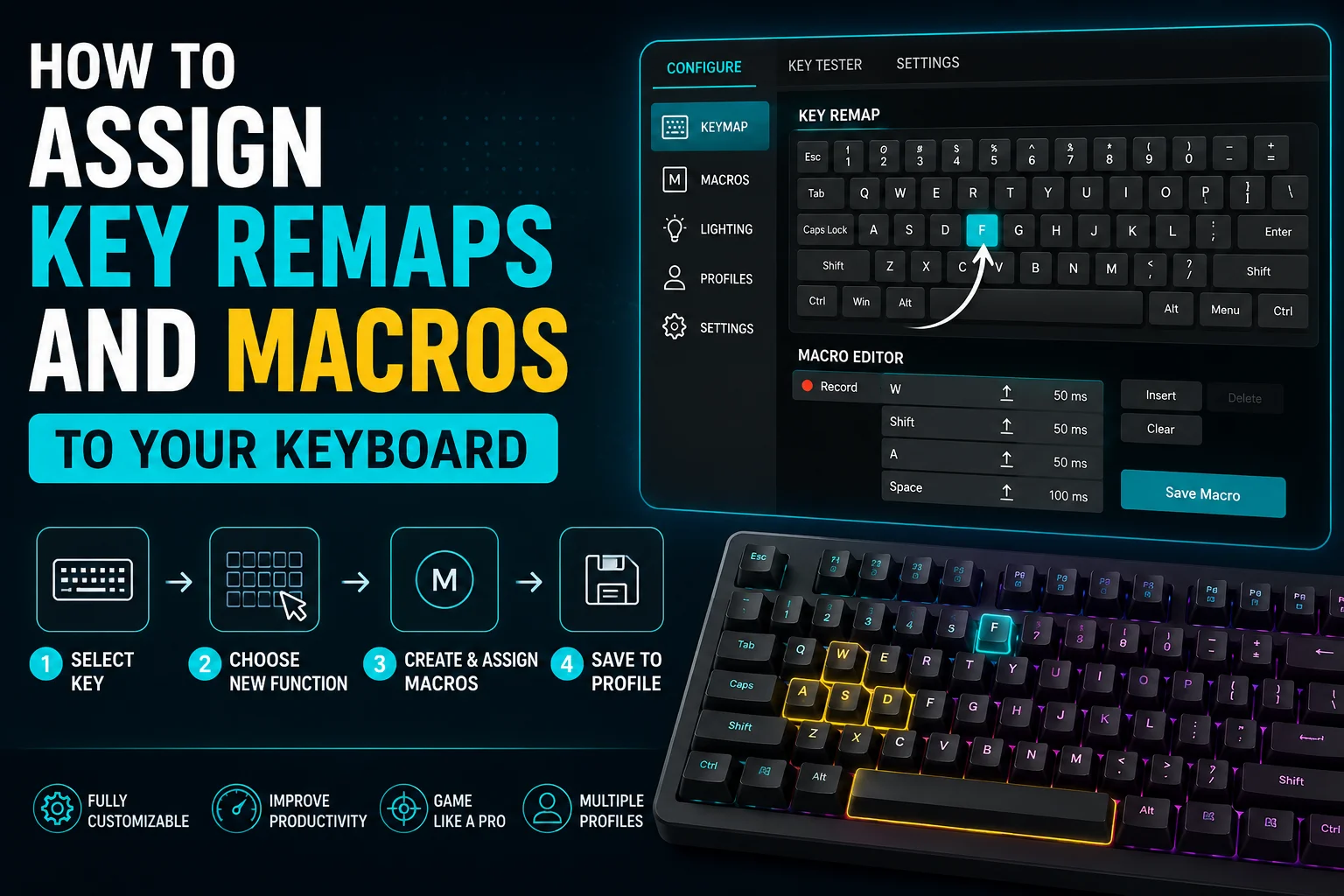
Learn How to Assign Key Remaps and Macros to Your Keyboards with easy steps. Customize keys, create macros, improve workflow, and boost gaming performance.
Modern keyboards offer far more than simple typing. Today’s mechanical and programmable keyboards allow users to customize key functions, create shortcuts, and automate repetitive actions. If you want better productivity, faster gaming controls, or a personalized typing experience, learning How to Assign Key Remaps and Macros to Your Keyboard can completely transform how you use your computer.
Whether you are a gamer, programmer, office worker, video editor, or content creator, keyboard customization can save time and improve efficiency.
In this complete guide, you’ll learn How to Assign Key Remaps and Macros to Your Keyboard, what remapping means, how macros work, and how to configure them safely.
How to Assign Key Remaps and Macros to Your Keyboards
What Is Keyboard Remapping?
Before learning How to Assign Key Remaps and Macros to Your Keyboard, it’s important to understand key remapping.
Keyboard remapping means changing the original function of a key.
For example:
- Changing Caps Lock into Ctrl
- Changing Right Alt into Enter
- Changing an unused key into Play/Pause
- Assigning Print Screen to open Calculator
Remapping gives you more control over your keyboard layout.
This is especially useful for:
- Gamers
- Programmers
- Video editors
- Writers
- Designers
A custom keyboard layout can make daily tasks much faster.
What Are Keyboard Macros?
A macro is a recorded sequence of actions assigned to a single key.
Instead of pressing multiple keys every time, one key can perform the whole action.
Examples of macros:
- Copy + Paste commands
- Opening favorite apps
- Inserting frequently used text
- Gaming combos
- Editing shortcuts
- Browser navigation commands
This is why learning How to Assign Key Remaps and Macros to Your Keyboard is valuable for both work and entertainment.
Why Customize Your Keyboard?
Many users customize their keyboard for better control.
Common Benefits Include:

- Faster workflow
- Better gaming response
- Reduced repetitive strain
- Easier shortcuts
- Personalized controls
- Improved productivity
- More efficient typing
Once you understand How to Assign Key Remaps and Macros to Your Keyboard, everyday computing becomes smoother.
Things You Need Before Starting
Before customization, make sure you have:
Compatible Keyboard
Some keyboards support full customization, especially:
- Mechanical keyboards
- Gaming keyboards
- QMK keyboards
- ZMK keyboards
- Wireless programmable keyboards
Keyboard Software
Most programmable keyboards use dedicated software for customization.
Some keyboards also support browser-based configuration tools.
Stable Connection
Connect your keyboard using:
- USB cable
- Wireless receiver
- Bluetooth connection
A stable connection helps avoid setup problems.
How to Assign Key Remaps and Macros to Your Keyboard
Now let’s go step by step.
Step 1: Connect Your Keyboard
Connect your keyboard to your computer.
If your keyboard supports multiple connection modes, use the supported mode for configuration.
Usually, a wired connection offers the most stable setup.
Wait for the device to be recognized.
Step 2: Open Keyboard Configuration Software

Launch your keyboard customization software.
Most modern programmable keyboards provide software where you can:
- Remap keys
- Create macros
- Manage layers
- Update firmware
- Control lighting
Once the software opens, your keyboard should appear on screen.
Step 3: Open the Keymap Section
Inside the software, locate the Keymap section.
This shows a virtual image of your keyboard.
Each key can be selected individually.
Click the key you want to customize.
The selected key usually changes color or becomes highlighted.
Step 4: Assign a New Key Function

After selecting a key, choose its new function.
Common remap options include:
Basic Keys
You can assign:
- Letters
- Numbers
- Symbols
- Function keys
Control Keys
Assign keys like:
- Ctrl
- Alt
- Shift
- Enter
- Escape
Navigation Keys
Useful navigation keys include:
- Home
- End
- Page Up
- Page Down
- Arrow keys
This step completes the remapping process.
Step 5: Create a Macro
Now let’s create a macro.
Open the Macro section.
You can either:
- Record a new macro
- Use preset macros
Recording a Macro
Press record.
Now perform your desired sequence.
Example:
Ctrl + C → Alt + Tab → Ctrl + V
Stop recording.
Save the macro.
Now assign it to your chosen key.
This is one of the most powerful parts of learning How to Assign Key Remaps and Macros to Your Keyboard.
Step 6: Configure Media Controls
Many keyboards allow multimedia assignments.
You can assign keys for:
- Volume up
- Volume down
- Mute
- Play
- Pause
- Next track
- Previous track
This improves convenience during music, videos, and gaming.
Step 7: Use Function Layers
Advanced keyboards support layers.
A layer changes key behavior based on active mode.
Example:
Layer 1
Standard typing layout.
Layer 2
Gaming shortcuts.
Layer 3
Editing commands.
Layers allow one keyboard to perform multiple roles.
Step 8: Save Your Configuration
After remapping keys and assigning macros:
Click:
Save
or
Apply
Your keyboard will now store the configuration.
Some keyboards save profiles directly into onboard memory.
This means your settings stay active even on another computer.
Exporting and Backing Up Your Settings
Many advanced keyboards allow:
- Exporting keymaps
- Importing profiles
- Resetting layouts
Backing up your settings is always recommended.
If something goes wrong, you can restore your layout instantly.
Common Mistakes to Avoid
When learning How to Assign Key Remaps and Macros to Your Keyboard, avoid these mistakes:
Read more:-How to Turn Off Caps Lock on Chromebook: The Complete Keyboard Settings Guide
Overwriting Important Keys
Do not accidentally disable:
- Escape
- Enter
- Ctrl
- Spacebar
These keys are essential.
Creating Confusing Layouts
Keep your shortcuts logical.
Random remaps can reduce productivity.
Using Too Many Macros
Too many macros may become hard to remember.
Focus on tasks you use daily.
Best Uses for Keyboard Macros
Macros work best for repetitive tasks.
Examples include:
For Office Work
- Email templates
- Copy and paste
- Spreadsheet shortcuts
For Gaming
- Weapon switching
- Skill combinations
- Quick inventory actions
For Content Creation
- Editing shortcuts
- Timeline navigation
- Render commands
For Programming
- Code snippets
- Terminal commands
- Debug shortcuts
Final Thoughts
Learning How to Assign Key Remaps and Macros to Your Keyboard is one of the best ways to improve productivity, gaming performance, and workflow efficiency.
Whether you want faster shortcuts, personalized layouts, or automated commands, keyboard customization gives you complete control over how your keyboard works.
Start with simple remaps, build useful macros, and create a keyboard setup that works perfectly for your daily needs.
Frequently Asked Questions
What is keyboard remapping?
Keyboard remapping changes the original function of a key to perform a different action.
Are keyboard macros safe?
Yes, keyboard macros are safe when created through trusted software.
Can I reset my keyboard settings?
Yes, most programmable keyboards allow factory reset or profile reset.
Do macros work on all computers?
If your keyboard has onboard memory, macros usually work across multiple devices.
Can I use macros for gaming?
Yes, many gamers use macros for faster and more consistent actions.