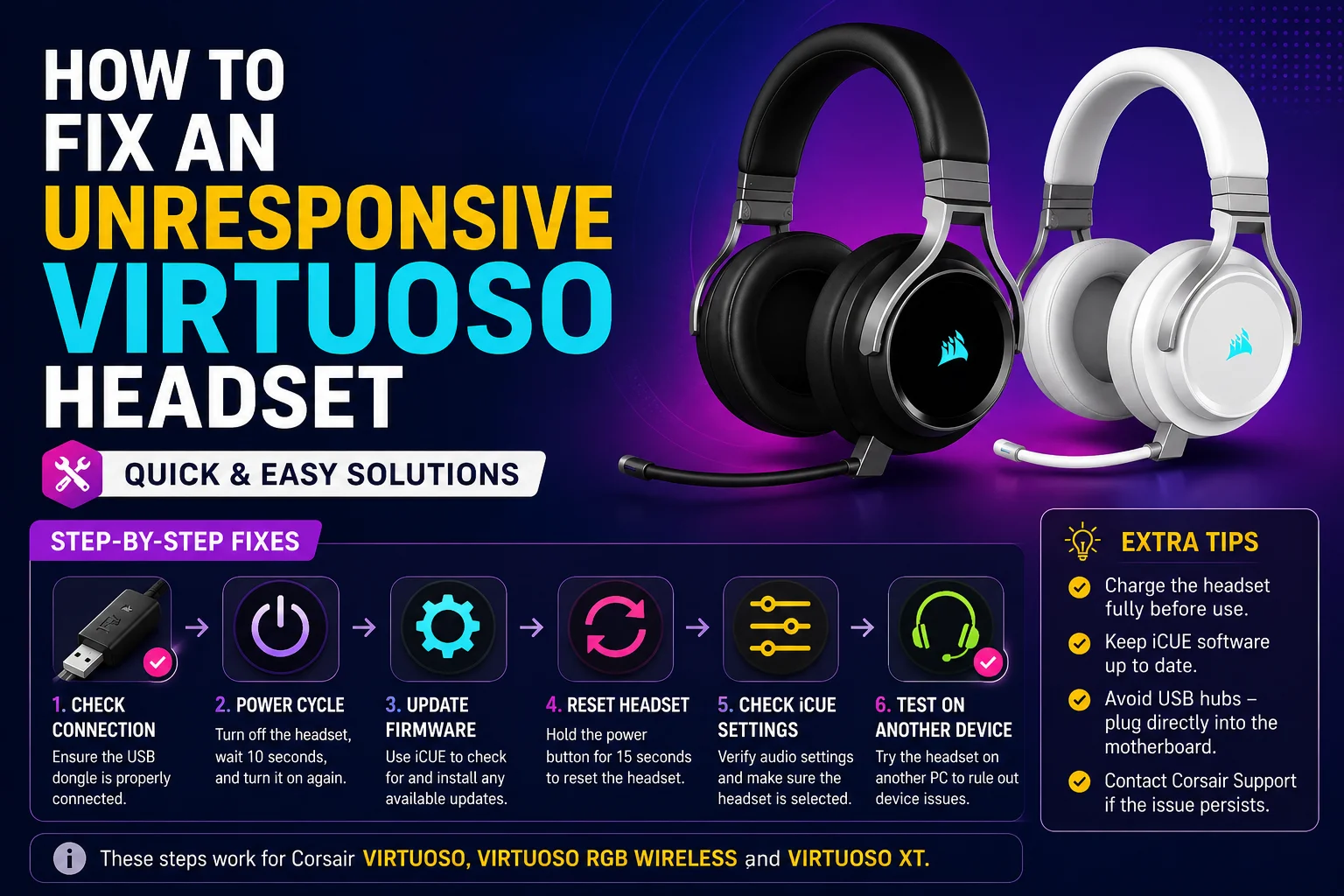
A premium gaming headset like the Corsair VIRTUOSO is designed to deliver crystal-clear audio, high-quality microphone performance, and reliable connectivity. Whether you use it for gaming, streaming, online meetings, or content creation, it is built to provide a professional audio experience.
However, sometimes users face frustrating problems such as the headset not turning on, the microphone not working, audio cutting out, or the computer failing to detect the device. If you are facing these issues, learning How to Fix an Unresponsive VIRTUOSO Headset can help restore your headset quickly without spending money on repairs or replacement.
In most cases, the problem is related to Windows settings, drivers, audio configuration, or connection errors not hardware failure.
This complete guide will walk you through every proven solution.
Common Signs Your VIRTUOSO Headset Is Not Working
Before fixing the issue, identify the exact problem.
You may notice:
- Headset not detected by Windows
- Microphone not picking up your voice
- No sound from speakers
- Wireless connection not working
- RGB lights not turning on
- Audio keeps disconnecting
- Mic works but headphones do not
- USB headset not recognized
If your headset shows any of these symptoms, the solutions below can help.
Why Does a VIRTUOSO Headset Become Unresponsive?
Understanding the cause helps solve the issue faster.
Common reasons include:
- Loose USB connection
- Wrong audio port usage
- Disabled microphone settings
- Outdated audio drivers
- Corrupted headset drivers
- Windows sound conflicts
- Unsupported audio format
- Firmware issues
- Low battery in wireless mode
Now let’s fix the issue step by step.
Method 1: Check All Physical Connections

The first step in How to Fix an Unresponsive VIRTUOSO Headset is checking all hardware connections.
The VIRTUOSO headset supports:
- USB connection
- 3.5mm audio connection
- Wireless USB dongle
Make sure you are using the correct connection method.
Check USB Connection
If using USB mode:
- Disconnect the cable
- Wait 10 seconds
- Plug it back in securely
If it still doesn’t work, try another USB port.
Some USB ports may not deliver stable power.
Check Wireless Connection
If using wireless mode:
- Make sure the wireless dongle is connected properly
- Turn the headset off and back on
- Check battery charge level
Reconnect both devices.
Check the Microphone
The detachable microphone must be connected properly.
Remove it carefully and reconnect it firmly.
Look for the status LED to confirm the microphone is active.
A loose mic connection often causes voice issues.
Method 2: Set VIRTUOSO as the Default Recording Device

Sometimes Windows detects the headset but doesn’t use it as the default device.
This can stop your microphone from working.
Follow These Steps:
Step 1
Right-click the speaker icon in the taskbar.
Step 2
Open Sound Settings.
Step 3
Go to Input Devices.
Step 4
Select your VIRTUOSO microphone.
Step 5
Set it as the default device.
Now test your microphone.
Speak into the mic and check if the input bar moves.
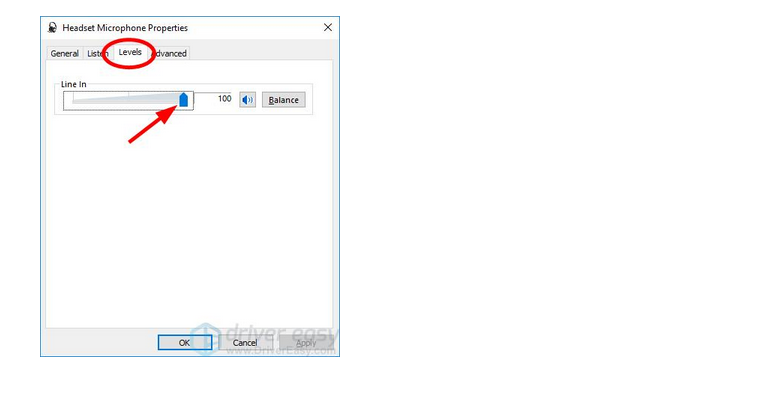
Method 3: Increase Microphone Volume
Sometimes the microphone works, but input volume is too low.
To Fix It:
Step 1
Open Sound Settings.
Step 2
Select your microphone.
Step 3
Open device properties.
Step 4
Increase microphone volume.
Set it between 80% and 100%.
Now test again.
Method 4: Reinstall Headset Drivers
Driver corruption is one of the biggest reasons users search for How to Fix an Unresponsive VIRTUOSO Headset.
Reinstalling drivers often solves detection issues.
Steps:
Step 1
Press:
Windows + X
Open Device Manager.
Step 2
Expand:
Audio Inputs and Outputs
Step 3
Find your VIRTUOSO headset.
Step 4
Right-click and choose:
Uninstall Device
Step 5
Restart your computer.
Windows will reinstall the drivers automatically.
Method 5: Update Audio Drivers
Outdated drivers can cause:
- Microphone failure
- Sound distortion
- Connection drops
- Device detection issues
Update Drivers:
Step 1
Open Device Manager.
Step 2
Locate your headset.
Step 3
Right-click and choose:
Update Driver
Step 4
Let Windows search automatically.
Install updates and restart your PC.
Method 6: Change Audio Format to DVD Quality
Sometimes Windows audio settings create compatibility issues.
Changing sound quality can fix this.
Steps:
Step 1
Right-click the speaker icon.
Step 2
Open Sound Settings.
Step 3
Choose your microphone.
Step 4
Open Additional Device Properties.
Step 5
Go to the Advanced tab.
Step 6
Select:
DVD Quality
Step 7
Click Apply and restart.
Many users fix microphone issues this way.
Method 7: Run Windows Sound Troubleshooter
Windows has a built-in repair tool.
It can automatically detect:
- Audio service problems
- Driver conflicts
- Configuration errors
- Device detection issues
Steps:
Step 1
Right-click the speaker icon.
Step 2
Choose:
Troubleshoot Sound Problems
Step 3
Follow the on-screen instructions.
Restart your PC when finished.
Method 8: Restart Windows Audio Services
Audio services sometimes freeze.
Restarting them can restore your headset.
Steps:
Step 1
Press:
Windows + R
Step 2
Type:
services.msc
Step 3
Find:
Windows Audio
Step 4
Right-click and select:
Restart
Now test your headset again.
Method 9: Check Battery Level
If you use wireless mode, low battery may cause:
- Disconnections
- Audio lag
- Microphone issues
- Power failures
Charge your headset fully before testing again.
Method 10: Update Headset Firmware
Firmware updates improve:
- Stability
- Connectivity
- Audio performance
- Mic compatibility
Installing the latest firmware can fix many issues.
Read more:-How to Fix Unresponsive iPhone Screen: The Complete Guide to Screen Troubleshooting
Tips to Prevent Future Headset Problems
To avoid future headset issues:
Keep Drivers Updated
Updated drivers improve compatibility.
Avoid USB Hubs
Connect directly to the PC whenever possible.
Clean Ports Regularly
Dust can interrupt connection.
Charge Wireless Headsets Properly
Avoid letting battery levels reach zero often.
Restart Your PC Occasionally
This helps prevent audio conflicts.
Final Thoughts
Learning How to Fix an Unresponsive VIRTUOSO Headset can save you time, frustration, and unnecessary repair costs. Most headset issues are caused by software settings, driver conflicts, or connection problems rather than hardware failure.
Start with the basic fixes like checking connections and audio settings. Then move to driver updates, audio troubleshooting, and firmware updates if needed.
In most cases, these solutions will get your VIRTUOSO headset working perfectly again.
FAQ
Why is my VIRTUOSO headset not detected?
This usually happens because of outdated drivers, USB connection issues, or incorrect Windows sound settings.
Why is my VIRTUOSO microphone not working?
Your microphone may not be set as the default recording device, or the input volume may be too low.
Can drivers cause VIRTUOSO headset problems?
Yes, corrupted or outdated audio drivers are one of the most common reasons behind headset issues.
Does changing the audio format help fix the headset?
Yes, switching the audio format to DVD quality often solves compatibility and microphone problems.
Should I reinstall VIRTUOSO headset drivers?
Yes, reinstalling drivers can fix device detection issues, microphone errors, and connection problems.