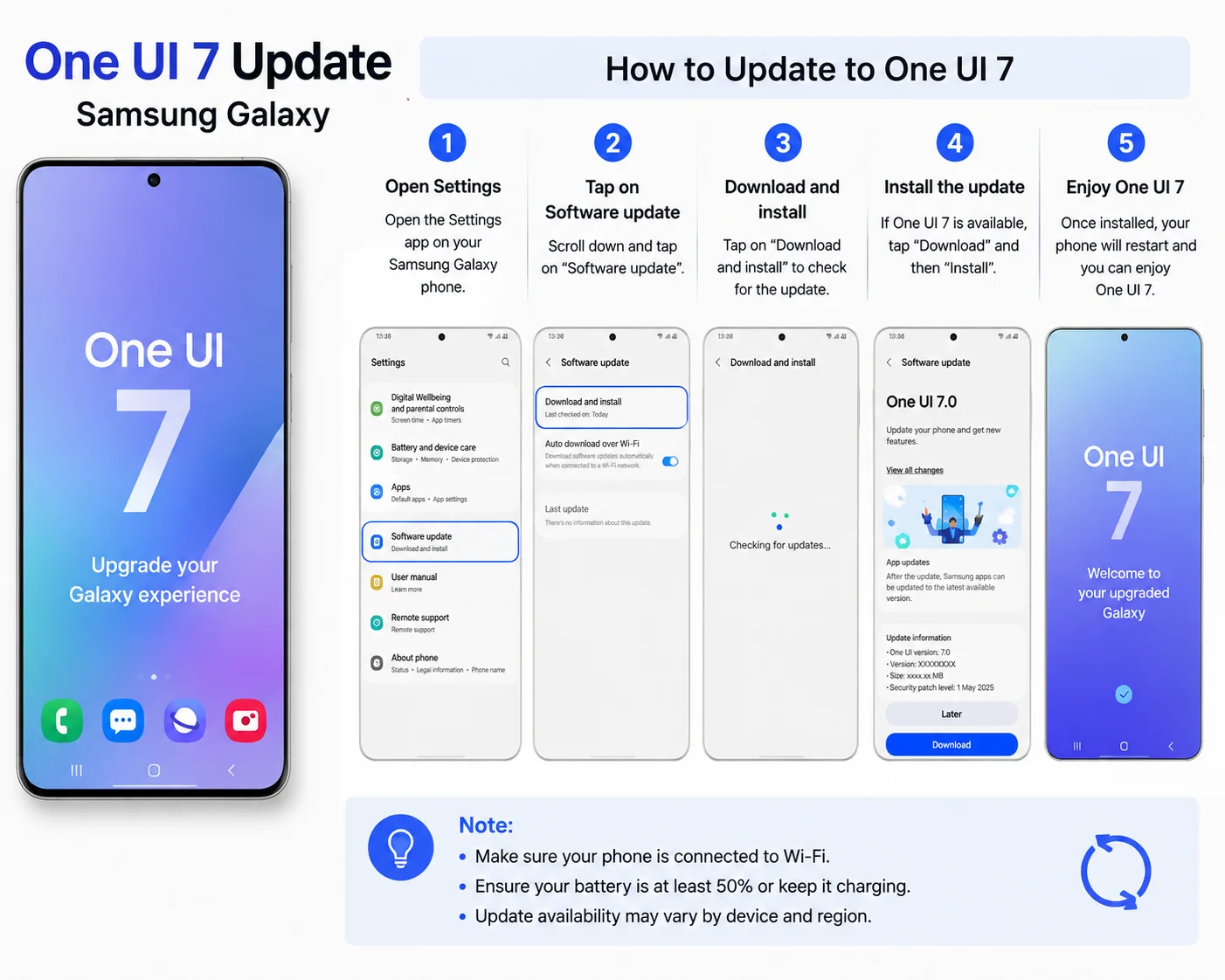
The One UI 7 update Samsung Galaxy users are looking for brings a refreshed software experience with new design improvements, better customization, smoother performance, and updated features. Samsung regularly provides One UI updates to improve the way Galaxy smartphones and tablets work.
If you own a compatible Samsung Galaxy device, the One UI 7 update can bring changes to the interface, notifications, settings, security, and overall user experience. However, the exact features available may depend on your Galaxy model and region. In this article, you will learn what the One UI 7 update offers and how to check, download, and install it safely.
What Is the One UI 7 Update for Samsung Galaxy?
One UI is Samsung’s custom software interface used on Galaxy devices. It works on top of Android and gives Samsung phones their own design, settings, features, and customization options.
The One UI 7 update Samsung Galaxy experience focuses on making the interface easier to use while adding improvements to different parts of the system. Depending on the device, users may notice visual changes, updated controls, improved performance, and new software tools.
Major software updates can also include security improvements and better compatibility with newer applications.
New Features You May See in One UI 7
The available features can vary between Galaxy devices. A flagship model may receive more advanced functions than an older or budget device.
Some changes users may notice include improvements to:
- User interface design
- Quick settings and notifications
- Home screen customization
- System performance
- Battery management
- Privacy and security
- Camera software
- Galaxy AI features on supported devices
Samsung may also make small changes to menus and settings. Therefore, some options may look different after installing the update.
One UI 7 Compatible Samsung Galaxy Devices

Samsung software support depends on the model, release year, and update policy. Not every Galaxy phone receives every major Android or One UI version.
Newer Galaxy flagship phones, selected Galaxy A series devices, Galaxy tablets, and foldable phones may be eligible for the update. The final availability can also depend on your country, carrier, and device variant.
The easiest way to check whether your device has received the update is directly from its software settings.
Open Settings, select Software update, and choose Download and install. Your Samsung Galaxy device will check for available updates.
If no update appears, it may not yet be available for your device or region.
How to Check for the One UI 7 Update Samsung Galaxy
Checking for an update is simple and only takes a few moments.
First, connect your Samsung Galaxy phone to a stable Wi-Fi network. A software update can be large, so Wi-Fi is usually the better option.
Open the Settings app on your phone.
Scroll down and tap Software update.
Select Download and install.
Your phone will search for the latest available software.
If the One UI 7 update is available, you can review the update information and follow the instructions on the screen.
How to Download One UI 7 on Samsung Galaxy
Before downloading the update, check that your phone has enough battery power and storage space.
A good practice is to charge your device before starting. You should also keep enough free storage available because major updates may require temporary space during installation.
After finding the update in Software update settings, tap the available download option.
The download time depends on your internet speed and the size of the update.
Do not turn off your internet connection while the update is downloading.
Read more:-Samsung Galaxy A04: 7 Amazing Powerful Features You Should Know
How to Install the One UI 7 Update
After the download is complete, your Samsung Galaxy phone will give you the option to install the update.
Before installation, save any important work and close apps you are using.
Follow these steps:
- Open Settings.
- Tap Software update.
- Select Download and install.
- Download the available One UI update.
- Tap the install option when the download is ready.
- Allow the phone to restart and complete the installation.
During the process, the device may restart more than once. This is normal for a major software update.
Do not force the phone to turn off while the installation is in progress.
Back Up Your Data Before Updating
Although software updates normally keep your personal files safe, backing up important data is always a good idea.
Your photos, contacts, documents, and other important information should be protected before installing a major update.
A backup can be helpful if you experience an unexpected problem during or after the installation.
You can also check your important apps and account information before updating.
Taking a few minutes to prepare can provide extra peace of mind.
Why Is the One UI 7 Update Not Showing?
Sometimes users search for the One UI 7 update Samsung Galaxy version but cannot find it on their device.
There can be several reasons for this.
The update may not yet be released in your region. Samsung often makes updates available in stages, which means some users receive them earlier than others.
Your specific Galaxy model may also have a different update schedule.
Carrier versions can sometimes receive updates on a separate timeline.
Finally, make sure you are checking for updates correctly through Settings > Software update > Download and install.
If the update is not available, waiting for the official rollout is the safest choice.
What to Do After Installing One UI 7
After the update is installed, give your phone some time to complete background optimization.
The battery may appear to drain faster immediately after a major update because the phone can perform background tasks such as optimizing apps and organizing system data.
This may improve after normal use.
Check that your important apps are working correctly and install available app updates if needed.
You can also explore the updated Settings menu and new One UI features to understand the changes on your Galaxy device.
How to Fix Problems After the Update

If your phone feels slow after installing One UI 7, restart it first.
A restart can help refresh the system after a major software installation.
If a specific app has problems, check whether an updated version of that app is available.
You should also check your available storage because very low storage can affect phone performance.
If a serious issue continues, review the available device support options before making major changes to your phone.
Avoid installing unofficial firmware simply because you have not received the update yet.
Is It Safe to Install One UI 7?
Installing an official software update is generally the safest way to receive new system features, improvements, and security updates.
Before installing, make sure the update appears through your phone’s official Software update settings.
Avoid downloading unknown firmware files or using unofficial installation tools unless you fully understand the risks.
For most users, waiting for the official update notification is the easiest and safest option.
Conclusion
The One UI 7 update Samsung Galaxy experience can bring useful changes to compatible devices, including a refreshed interface, improved features, system enhancements, and updated software tools.
You can check for the update by opening Settings, selecting Software update, and choosing Download and install. Before updating, charge your phone, connect to a stable Wi-Fi network, and back up important information.
If One UI 7 is not showing on your Samsung Galaxy phone, do not worry. Updates can be released gradually depending on your device model, region, and carrier. Checking regularly through the official software update settings is the best way to know when it becomes available.
FAQ
What is One UI 7 on Samsung Galaxy?
One UI 7 is a Samsung software interface update that brings system improvements, design changes, and updated features to compatible Galaxy devices.
How do I check for the One UI 7 update?
Open Settings, tap Software update, and select Download and install.
Why is One UI 7 not available on my phone?
The update may not be available yet for your specific model, country, or carrier.
Should I back up my phone before installing One UI 7?
Yes. Backing up important photos, contacts, and files is recommended before installing a major update.
How long does the One UI 7 update take to install?
The time depends on the update size and your device. Downloading may take longer with a slow internet connection.
Can I use my phone while One UI 7 is installing?
No. Your phone usually restarts during installation, so wait until the process is complete.