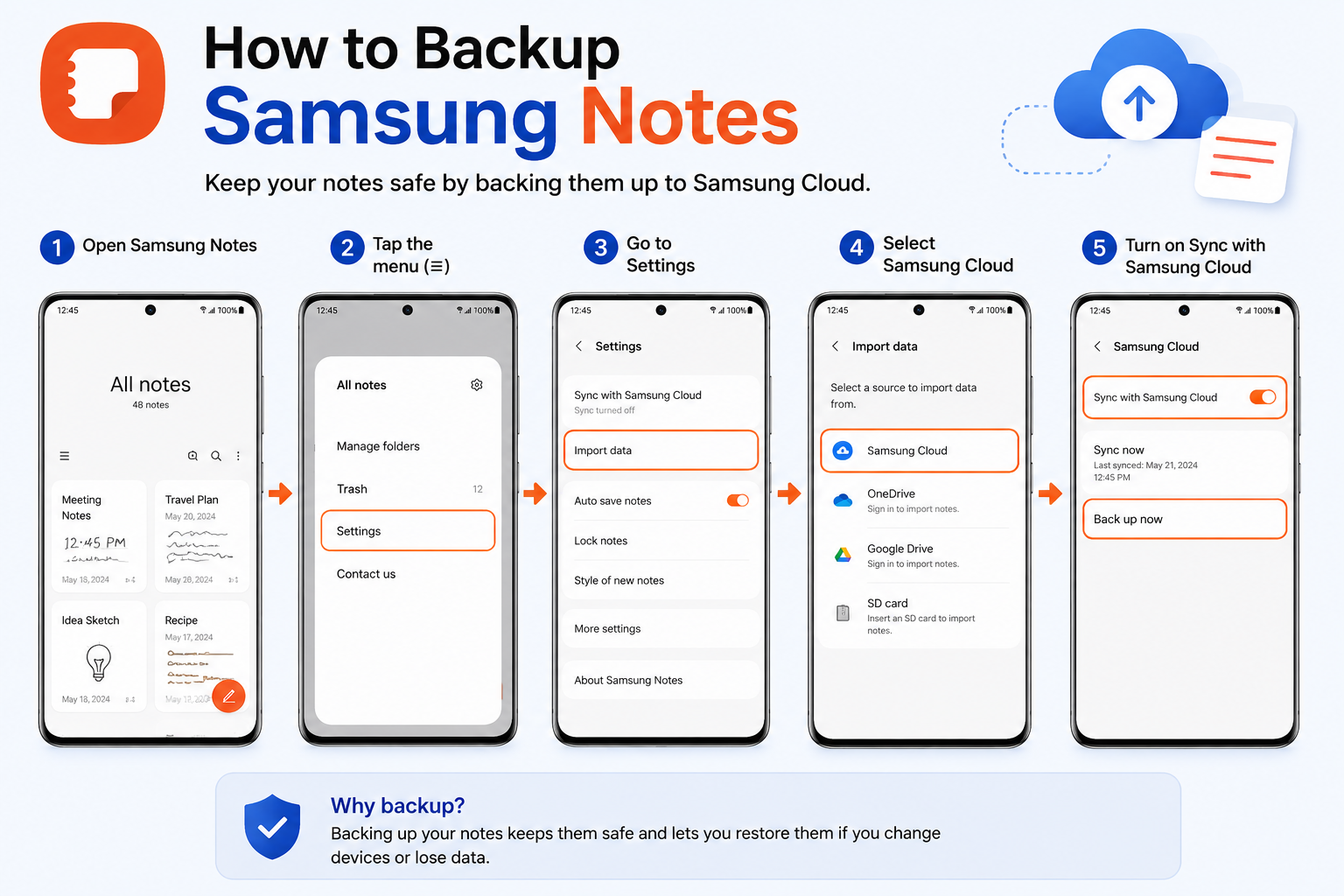
Samsung Notes is one of the most useful apps for storing important information, meeting notes, study materials, ideas, and personal reminders. However, many users lose valuable notes when they switch phones, perform a factory reset, or experience software issues. That’s why learning How to Backup Samsung Notes is essential.
A proper backup ensures that your notes remain safe and accessible whenever you need them. Whether you’re upgrading to a new Samsung Galaxy device or simply want extra protection against data loss, backing up Samsung Notes is a smart habit.
In this guide, you’ll learn multiple methods to backup Samsung Notes, including Samsung Cloud, Microsoft OneDrive, local storage, and exporting notes manually.
Why You Should Backup Samsung Notes
Before discussing How to Backup Samsung Notes, it is important to understand why backups matter.
Your notes may contain:
- Business information
- Class notes
- Personal journals
- Password hints
- Project planning documents
- Shopping lists
- Important reminders
Without a backup, all this information could be lost permanently if your phone is damaged, stolen, or reset.
Benefits of backing up Samsung Notes include:
- Protection from accidental deletion
- Easy phone migration
- Quick note restoration
- Cloud synchronization
- Better data security
Method 1: Backup Samsung Notes Using Samsung Cloud

Samsung Cloud is one of the easiest ways to backup Samsung Notes.
Step 1: Open Settings
Open the Settings app on your Samsung phone.
Step 2: Tap Samsung Account
Scroll down and select your Samsung Account.
Step 3: Open Samsung Cloud
Select Samsung Cloud from the available options.
Step 4: Enable Notes Backup
Locate Samsung Notes in the list of apps and enable synchronization.
Step 5: Start Backup
Tap Sync Now or Backup Now.
Samsung Cloud will automatically upload your notes to your Samsung account.
Advantages
- Automatic syncing
- Secure storage
- Easy restoration
- Works across Samsung devices
Method 2: Backup Samsung Notes to OneDrive

Modern Samsung devices support Microsoft OneDrive integration.
Step 1: Open Samsung Notes
Launch the Samsung Notes application.
Step 2: Open Settings
Tap the menu icon and select Settings.
Step 3: Connect Microsoft Account
Choose Sync with Microsoft OneNote.
Step 4: Sign In
Log in using your Microsoft account credentials.
Step 5: Enable Synchronization
Turn on note syncing.
Your Samsung Notes will now be available through Microsoft’s cloud services.
Benefits
- Access notes from multiple devices
- Cloud protection
- Easy note management
- Works with Windows PCs
Method 3: Export Samsung Notes as PDF
If you want a local backup, exporting notes as PDF files is a great option.
Step 1: Open Samsung Notes
Launch the Samsung Notes app.
Step 2: Select a Note
Choose the note you want to save.
Step 3: Tap Share
Open the Share menu.
Step 4: Choose PDF File
Select Save as PDF.
Step 5: Store the File
Save the PDF to:
- Internal storage
- SD card
- USB drive
- Cloud storage
Read more:-Restore Samsung Notes: 5 Easy Ways to Recover Your Important Data Quickly
This method creates a readable backup that can be opened on almost any device.
Method 4: Save Samsung Notes as Microsoft Word Files

Many users prefer editable backups.
Steps
- Open Samsung Notes.
- Select a note.
- Tap Share.
- Choose Word Document.
- Save the file.
The exported document can be edited later using Microsoft Word.
This is especially useful for students and professionals.
Method 5: Backup Samsung Notes to an SD Card
If your Samsung phone supports expandable storage, you can save notes directly to an SD card.
How to Do It
- Open Samsung Notes.
- Select the desired note.
- Tap Export.
- Choose PDF or TXT format.
- Save the file to the SD card.
An SD card backup provides offline protection and can be moved easily between devices.
Method 6: Backup Samsung Notes Using Smart Switch
Samsung Smart Switch is another reliable backup solution.
Step 1: Install Smart Switch
Open Smart Switch on your computer.
Step 2: Connect Your Phone
Use a USB cable to connect your Samsung device.
Step 3: Select Backup
Click the Backup button.
Step 4: Wait for Completion
The software will copy supported data, including Samsung Notes.
Why Use Smart Switch?
- Full device backup
- Fast transfer speeds
- Easy restoration
- Ideal before factory reset
How to Restore Samsung Notes
After learning How to Backup Samsung Notes, restoration is equally important.
Restore from Samsung Cloud
- Open Settings.
- Select Samsung Account.
- Open Samsung Cloud.
- Tap Restore Data.
- Choose Samsung Notes.
- Start restoration.
Restore from OneDrive
- Sign into your Microsoft account.
- Enable note synchronization.
- Wait for notes to download automatically.
Restore Exported Files
Open the saved PDF or Word files from your storage location.
Common Backup Problems and Solutions
Samsung Notes Not Syncing
Try the following:
- Check internet connection
- Update Samsung Notes
- Re-login to Samsung account
- Restart your phone
Backup Failed
Possible reasons include:
- Insufficient cloud storage
- Weak network connection
- Outdated software
Notes Missing After Restore
Verify:
- Correct Samsung account
- Sync settings enabled
- Latest app version installed
Tips for Keeping Samsung Notes Safe
To avoid losing important notes:
- Enable automatic cloud sync
- Export important notes monthly
- Use both cloud and local backups
- Keep your Samsung account secure
- Update Samsung Notes regularly
Following these practices can significantly reduce the risk of data loss.
Best Backup Method for Samsung Notes
The best approach is combining multiple backup methods.
Recommended setup:
- Samsung Cloud for automatic backups
- OneDrive for cross-device access
- PDF exports for permanent records
This combination provides maximum protection for your data.
Conclusion
How to Backup Samsung Notes is something every Samsung user should know. Notes often contain valuable personal and professional information that can be difficult or impossible to recreate if lost.
Using Samsung Cloud, Microsoft OneDrive, Smart Switch, or manual exports ensures your notes remain protected and accessible whenever needed. Creating regular backups takes only a few minutes but can save hours of frustration in the future.
If you rely on Samsung Notes daily, setting up an automatic backup system today is one of the smartest decisions you can make.
FAQ
What is the easiest way to backup Samsung Notes?
Samsung Cloud is the easiest method because it automatically syncs and backs up your notes.
Can I backup Samsung Notes to Google Drive?
Samsung Notes does not directly support Google Drive backup, but you can export notes and upload them manually.
How do I transfer Samsung Notes to a new phone?
Use Samsung Cloud, OneDrive sync, or Smart Switch to transfer your notes to a new device.
Can I save Samsung Notes as PDF files?
Yes. Samsung Notes allows you to export notes as PDF documents for easy backup and sharing.
Will Samsung Notes restore after a factory reset?
Yes, if your notes were backed up to Samsung Cloud or synchronized with OneDrive before the reset.
How often should I backup Samsung Notes?
For important notes, weekly backups are recommended. Automatic cloud sync provides continuous protection.
Can deleted Samsung Notes be recovered?
If a backup exists in Samsung Cloud or OneDrive, deleted notes can often be restored successfully.