
If you use an iPhone every day, you already know the small sound it makes when you plug it into charging. It works fine, but honestly, it feels very basic and boring after some time. That is why many users now search for how to change the charging sound on your iPhone so they can make their device more fun and personal.
The good news is that you do not need any third-party app to do this. Apple already provides a built-in way using the Shortcuts app. With this feature, you can make your iPhone speak a custom message or play a different sound whenever you connect the charger. It is simple, creative, and adds a unique touch to your device.
What Is Charging Sound Customization
Charging sound customization means changing the default sound your iPhone makes when you plug in the charger. Instead of the normal tone, your device can speak a message or perform a custom action. This works through automation, where your phone reacts automatically when a specific trigger happens.
In this case, the trigger is when the charger is connected. Once triggered, your iPhone can speak a phrase, play a sound, or do something else based on your settings. It is a small feature, but it can make your phone feel more personalized.
Why You Should Change the Charging Sound

Many people want to change their charging sound just for fun, but there are also practical reasons. A custom message can help you confirm that your phone is charging without even looking at the screen. It also makes your phone stand out from others.
You can create funny messages, motivational lines, or simple alerts like “Charging started.” It all depends on your creativity. This is why learning how to change the charging sound on your iPhone is becoming popular among users.
Steps to Create Charging Sound Automation
To start, open the Shortcuts app on your iPhone. At the bottom, tap on the Automation tab. Here, you will see an option to create a new automation. Tap on “Create Personal Automation” so the setup works only on your device.
After that, scroll down and select the Charger option. Then choose “Is Connected” because you want the action to happen when your charger is plugged in. Tap Next to continue.
Add Speak Text Action

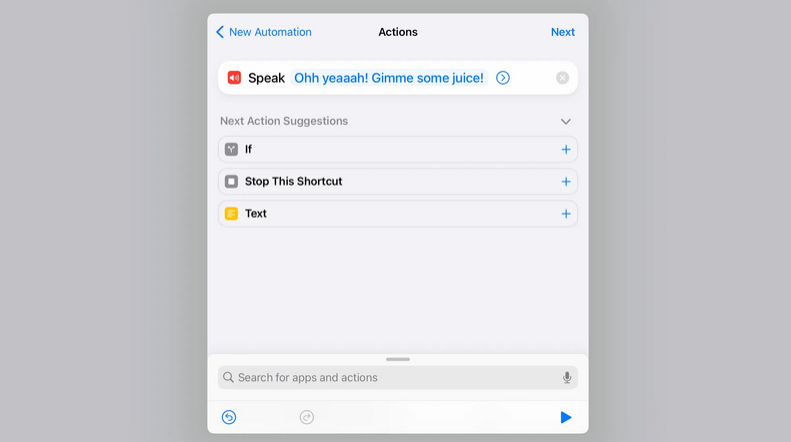
Now you need to decide what your iPhone will do when charging starts. Tap on “Add Action” and then go to “All Actions.” From the list, select “Speak Text.” This option allows your phone to read your message out loud.
Once you select it, tap on the text area and type the phrase you want. You can write anything you like, such as “Charging started” or something funny like “Power is coming in.” This is the main part of how to change the charging sound on your iPhone.
Customize Voice and Settings
After writing your message, you can customize how it sounds. Tap on the small arrow next to the text. Here, you can change the voice, speed, and pitch. Some voices sound natural, while others sound robotic or fun.
You can also test the sound by tapping the play button. This helps you adjust everything perfectly before saving it. Try different settings until you get the sound you like.
Read more:-How to Remove Duplicate Photos on iPhone: Smart Methods for Cleaner Storage
Turn Off Ask Before Running
This step is very important. You must turn off the “Ask Before Running” option. If you do not do this, your iPhone will ask permission every time you plug in the charger, which can be annoying.
Turn it off and confirm your choice. Then tap Done to save your automation. Now your custom charging sound will work automatically.
Test Your Custom Charging Sound

Once everything is set, plug your charger into your iPhone. You should hear your custom message immediately. If it does not work, go back and check your settings.
Testing is important because it helps you fix small issues quickly.
How to Edit or Remove Automation
If you want to change your message later, you can easily edit it. Open the Shortcuts app, go to Automation, and select your setup. From there, you can update the text or adjust the voice.
If you no longer want the feature, you can disable it or delete it completely. This gives you full control over your settings.
Tips for Better Experience
To get the best result, keep your message short and clear. Long sentences may feel annoying after some time. Also, avoid using loud or embarrassing phrases if you are often in public places.
Try different voice styles to find what suits you best. You can even change the message anytime, so do not be afraid to experiment.
Common Problems and Solutions
Sometimes users face issues where the sound does not play. This usually happens if the automation is disabled or the permission setting is still active. Make sure “Ask Before Running” is turned off.
If the problem continues, restart your iPhone or update your software. These simple steps fix most issues.
Conclusion
How to change the charging sound on your iPhone is a simple and fun way to personalize your device. With the help of the Shortcuts app, you can replace the default sound with a custom voice message that fits your style.
FAQ
How to change the charging sound on your iPhone easily
You can use the Shortcuts app to create an automation that speaks a custom message when charging starts.
Can I use any message for the charging sound
Yes, you can type any phrase, and your iPhone will speak it out loud.
Why is my charging sound not working
Check if automation is enabled and turn off the Ask Before Running option.
Can I remove the custom charging sound
Yes, you can disable or delete the automation anytime.
Is this feature safe to use
Yes, it is a built-in feature and completely safe.