Introduction
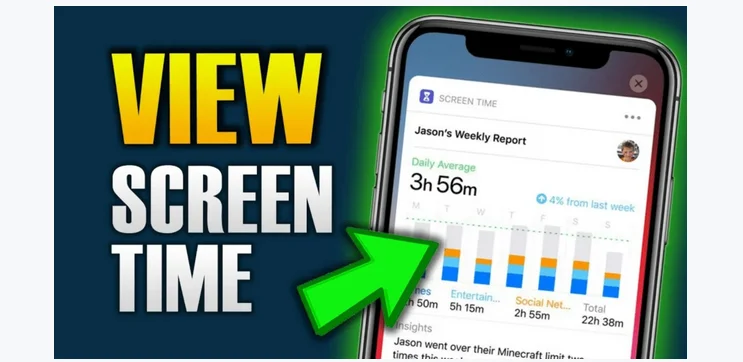
How to Check Screen Time To check screen time, go to your phone’s settings and look for the Digital Wellbeing or Screen Time option. It shows how long you’ve used each app and your total daily usage. This helps you manage your time better, reduce distractions, and build healthier digital habits easily.
Have you ever wondered how much time you actually spend staring at your phone, computer, or tablet each day? With the rise of social media, online work, and entertainment apps, it’s easy to lose track of hours without realizing it. Thankfully, every major operating system now includes a feature to check screen time — a simple tool that helps you understand your daily habits and manage your device use wisely.
Whether you use an Android, iPhone, or Windows PC, knowing your screen time can help you take control of your digital life, reduce eye strain, and even boost productivity. In this guide, you’ll learn how to check screen time step-by-step on all popular devices — in the simplest way possible.
Why Checking Screen Time Matters

Your screen time says a lot about your daily lifestyle. Here’s why monitoring it is important:
- Improves focus: You’ll recognize where your time goes and cut down distractions.
- Prevents eye strain: Limiting prolonged screen use keeps your eyes healthier.
- Encourages balance: Helps you spend more time on real-life activities.
- Boosts productivity: Less scrolling means more meaningful work and rest.
- Supports mental wellbeing: Reduces digital fatigue and information overload.
By checking screen time regularly, you take the first step toward mindful technology use.
How to Check Screen Time on Android Phones
Most Android phones have built-in features to track how long you use your device.
Using Digital Wellbeing:
- Open Settings on your phone.
- Scroll down and tap Digital Wellbeing & Parental Controls.
- Tap Dashboard or Screen time.
- Here you’ll see:
- Total screen time for the day
- App usage time
- Unlock count and notifications received
You can also set daily app timers or use Focus Mode to reduce distractions.
✅ Tip: You can also add the Digital Wellbeing widget on your home screen for a quick glance.
Alternative Method (for older Android versions):
- Go to Settings → Battery → Battery Usage.
- Some devices display screen-on time under power statistics.
How to Check Screen Time on iPhone (iOS Devices)

Apple’s Screen Time feature gives detailed insights into how much you use your device.
Steps:
- Open Settings.
- Scroll down and tap Screen Time.
- Tap Turn On Screen Time (if not already enabled).
- You’ll now see:
- Daily and weekly average screen time
- Time spent on specific apps
- Most used categories (e.g., social, productivity, entertainment)
Tap See All Activity to get detailed graphs and compare usage across days.
✅ Bonus Tip:
You can set App Limits, schedule Downtime, and even manage screen time for family members via Family Sharing.
How to Check Screen Time on Windows PC
If you spend a lot of time on your computer, it’s also useful to track your screen time on Windows.
Using Windows Settings:
- Go to Settings → Accounts → Family & Other Users.
- If you’re using a Microsoft Family account, click Manage Family Settings Online.
- Select your account and go to Activity Reporting.
- You’ll see how much time you’ve spent on apps and websites.
Using Focus Sessions (Windows 11):
- Open the Clock app.
- Use Focus Sessions to monitor and limit your screen activity for better balance.
✅ Tip: If you want more detail, you can use third-party apps like RescueTime or ManicTime for full reports.
How to Check Screen Time on macOS
Apple also offers the same Screen Time feature on MacBooks and iMacs.
Steps:
- Click the Apple menu → System Settings → Screen Time.
- Turn it on if it’s not already enabled.
- Choose your user profile to view:
- Total usage time
- Most used apps and websites
- Notifications and pickups
You can even sync Screen Time data across your Apple devices for a complete view of your digital habits.
How to Check Screen Time on Smart TVs and Tablets
For Tablets:
The process is identical to phones — Android tablets use Digital Wellbeing, and iPads use Screen Time.
For Smart TVs:
Some modern TVs (like Samsung Smart TVs or Android TVs) show viewing history or screen time under Settings → Device Care → Usage Time.
This helps track how long your TV has been on, promoting mindful viewing habits.
Read also:-Restore Samsung Notes: 5 Easy Ways to Recover Your Important Data Quickly
How to Reduce Screen Time (Bonus Tips)
If your screen time is higher than you’d like, here’s how to bring it down naturally:
- Set app limits: Use built-in tools to restrict social media or gaming time.
- Schedule breaks: Follow the 20-20-20 rule — look away from your screen every 20 minutes.
- Use Focus or Do Not Disturb mode: Block notifications during work hours.
- Create screen-free zones: Avoid using your phone during meals or before bed.
- Replace habits: Read a physical book, go for a walk, or spend time offline.
Reducing screen time isn’t about cutting technology completely — it’s about using it wisely.
FAQs About Checking Screen Time
Q1: Can I check screen time on all devices?
Yes, most modern Android, iOS, and Windows devices include built-in tools for tracking screen time.
Q2: Does screen time include time spent watching videos?
Yes, any active use of apps or media contributes to total screen time.
Q3: Can I see my child’s screen time?
Absolutely. You can use Family Link (Android) or Family Sharing (Apple) to monitor your child’s usage.
Q4: Is it possible to reset screen time data?
Yes, you can reset statistics by turning the screen time feature off and then back on again.
Q5: How much screen time is considered healthy?
Experts recommend keeping daily recreational screen time under 2 hours for better physical and mental health.
Video:-
Conclusion
In today’s digital era, knowing how to check screen time is more than just a tech trick — it’s a lifestyle skill. Whether you’re managing your own habits, helping a child build discipline, or simply curious about your daily routine, screen time tracking gives you valuable insight into your digital wellbeing.
So, take a few minutes today to open your settings and check your screen time. You might be surprised — and inspired — to make small but meaningful changes toward a healthier balance between online and offline life.