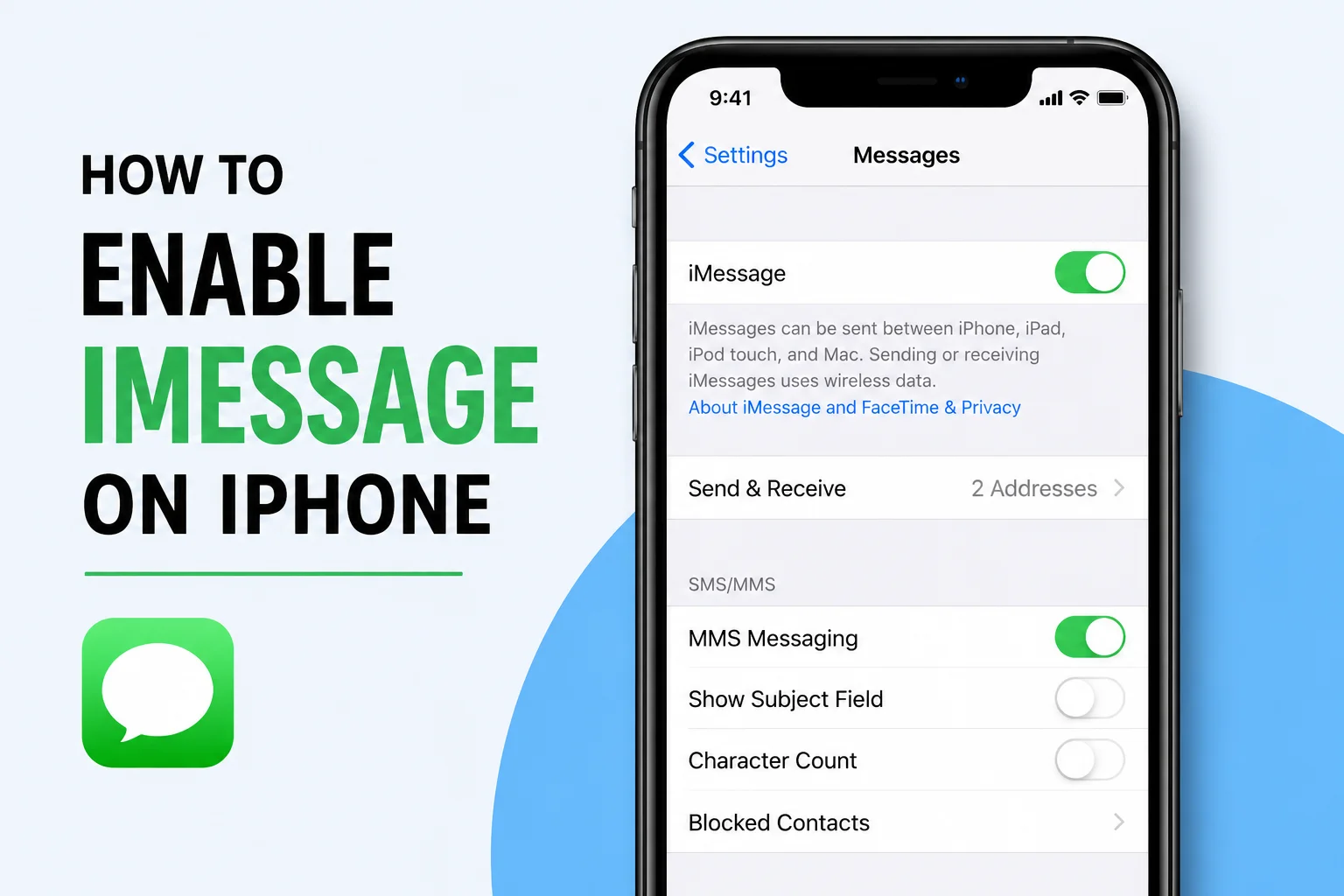
If you recently purchased a new iPhone or switched to a different Apple ID, you may be wondering how to enable iMessage on iPhone. iMessage is Apple’s built-in messaging service that lets you send text messages, photos, videos, documents, voice messages, and more over Wi-Fi or mobile data instead of using traditional SMS.
Enabling iMessage only takes a few minutes, but sometimes activation problems can prevent it from working properly. In this guide, you’ll learn how to enable iMessage, fix common activation issues, and make sure everything is working correctly.
What Is iMessage?
iMessage is Apple’s messaging platform available on iPhone, iPad, Mac, and other Apple devices.
Unlike regular SMS messages, iMessage allows you to send:
- Text messages
- High-quality photos
- Videos
- Voice messages
- Documents
- Stickers
- Live Location
- Group chats
Messages sent through iMessage appear in blue bubbles, while regular SMS messages appear in green.
Requirements Before Enabling iMessage

Before you enable iMessage, make sure you have:
- A compatible iPhone
- A stable Wi-Fi or mobile data connection
- An active SIM card (recommended)
- An Apple ID
- The correct date and time settings
Having these ready will help the activation process complete smoothly.
How to Enable iMessage on iPhone
Follow these simple steps:
- Unlock your iPhone.
- Open the Settings app.
- Scroll down and tap Messages.
- Turn on the iMessage switch.
- Wait while your iPhone activates the service.
Activation usually takes a few seconds, but in some cases it may take several minutes.
Once activation finishes, iMessage is ready to use.
Sign In With Your Apple ID

If prompted, sign in using your Apple ID.
To check:
- Open Settings.
- Tap Messages.
- Select Send & Receive.
- Verify that your Apple ID is listed.
Your Apple ID allows iMessage to sync across all your Apple devices.
Choose Your Sending Address
After enabling iMessage, choose where people can contact you.
Go to:
Settings > Messages > Send & Receive
Here you can select:
- Your phone number
- Your Apple ID email address
You can also choose which address is used when starting new conversations.
Test iMessage
To make sure iMessage is working:
- Open the Messages app.
- Start a conversation with another iPhone user.
- Send a message.
If the message bubble is blue, iMessage is working correctly.
If it is green, your phone is sending a regular SMS instead.
How to Fix iMessage Not Activating
Sometimes iMessage displays:
“Waiting for Activation”
or
“Activation Unsuccessful”
Try these solutions.
Check Your Internet Connection
iMessage requires an internet connection.
Connect to:
- Wi-Fi
- Mobile data
Then try activating again.
Restart Your iPhone
A simple restart often fixes temporary software issues.
Turn your iPhone off.
Wait about 30 seconds.
Turn it back on and try enabling iMessage again.
Check Date and Time
Incorrect date or time settings may prevent activation.
Go to:
Settings > General > Date & Time
Enable:
Set Automatically
Then try activating iMessage again.
Verify Your Phone Number
Make sure your SIM card is properly inserted.
Open:
Settings > Phone
Confirm your phone number appears correctly.
If it doesn’t, contact your mobile carrier.
Sign Out and Back Into Apple ID
Sometimes refreshing your Apple ID fixes activation issues.
Go to:
Settings > Messages > Send & Receive
Sign out.
Restart your iPhone.
Sign back in.
Try enabling iMessage again.
Update iOS
Older iOS versions may contain activation bugs.
To update:
- Open Settings.
- Tap General.
- Select Software Update.
- Install any available updates.
After updating, try enabling iMessage again.
Read more:-How to Turn Off Read Receipts on iPhone
Reset Network Settings
Network problems may stop iMessage from activating.
Open:
Settings > General > Transfer or Reset iPhone > Reset
Choose:
Reset Network Settings
Reconnect to Wi-Fi afterward.
Common Reasons iMessage Does Not Work

Here are some common causes:
- No internet connection
- Apple server issues
- Incorrect Apple ID
- SIM card problems
- Outdated iOS
- Wrong date and time
- Carrier activation delays
Checking each of these usually solves the problem.
Tips for Using iMessage
Once enabled, you can enjoy several useful features.
These include:
- Read receipts
- Message reactions
- Group conversations
- Voice messages
- Photo sharing
- Screen effects
- Message editing
- Message unsending (supported iOS versions)
Keeping iOS updated ensures you always have the latest iMessage features.
Conclusion
Learning how to enable iMessage on iPhone is simple and only takes a few minutes. By turning on iMessage in the Messages settings, signing in with your Apple ID, and verifying your phone number, you can start sending messages through Apple’s secure messaging service. If activation problems occur, checking your internet connection, updating iOS, or restarting your device usually resolves the issue quickly.
FAQ
How do I enable iMessage on my iPhone?
Open Settings > Messages, then turn on the iMessage switch and wait for activation.
Why is iMessage not activating?
This usually happens because of internet connection problems, Apple ID issues, SIM card errors, or incorrect date and time settings.
Do I need an Apple ID for iMessage?
Yes. An Apple ID is recommended to use iMessage across Apple devices.
Can I use iMessage without Wi-Fi?
Yes. iMessage works with either Wi-Fi or mobile data.
Why are my messages green instead of blue?
Green messages are sent as SMS, while blue messages are sent through iMessage.
How long does iMessage activation take?
Most activations finish within a few minutes, although some carrier activations may take up to 24 hours.