Introduction
Learn how to install a Lighting Node Core in your PC. Follow this step-by-step guide to connect RGB fans and customize lighting effects easily.
RGB lighting has become one of the most popular features in modern gaming PCs. Whether you’re building a new computer or upgrading your current setup, adding RGB fans can dramatically improve the appearance of your system. To control and synchronize these lighting effects, many Corsair RGB fans use a device called the Lighting Node Core.
If you’re wondering How to Install a Lighting Node Core, the process is much easier than most people expect. The Lighting Node Core acts as a central hub that connects your RGB fans to your motherboard and allows you to manage lighting effects through software.
This guide will walk you through everything you need to know about installing a Lighting Node Core, connecting RGB fans, configuring the controller, and troubleshooting common issues.
What Is a Lighting Node Core?
A Lighting Node Core is an RGB lighting controller designed to manage compatible Corsair RGB fans. It allows multiple fans to connect to a single hub and provides centralized lighting control.
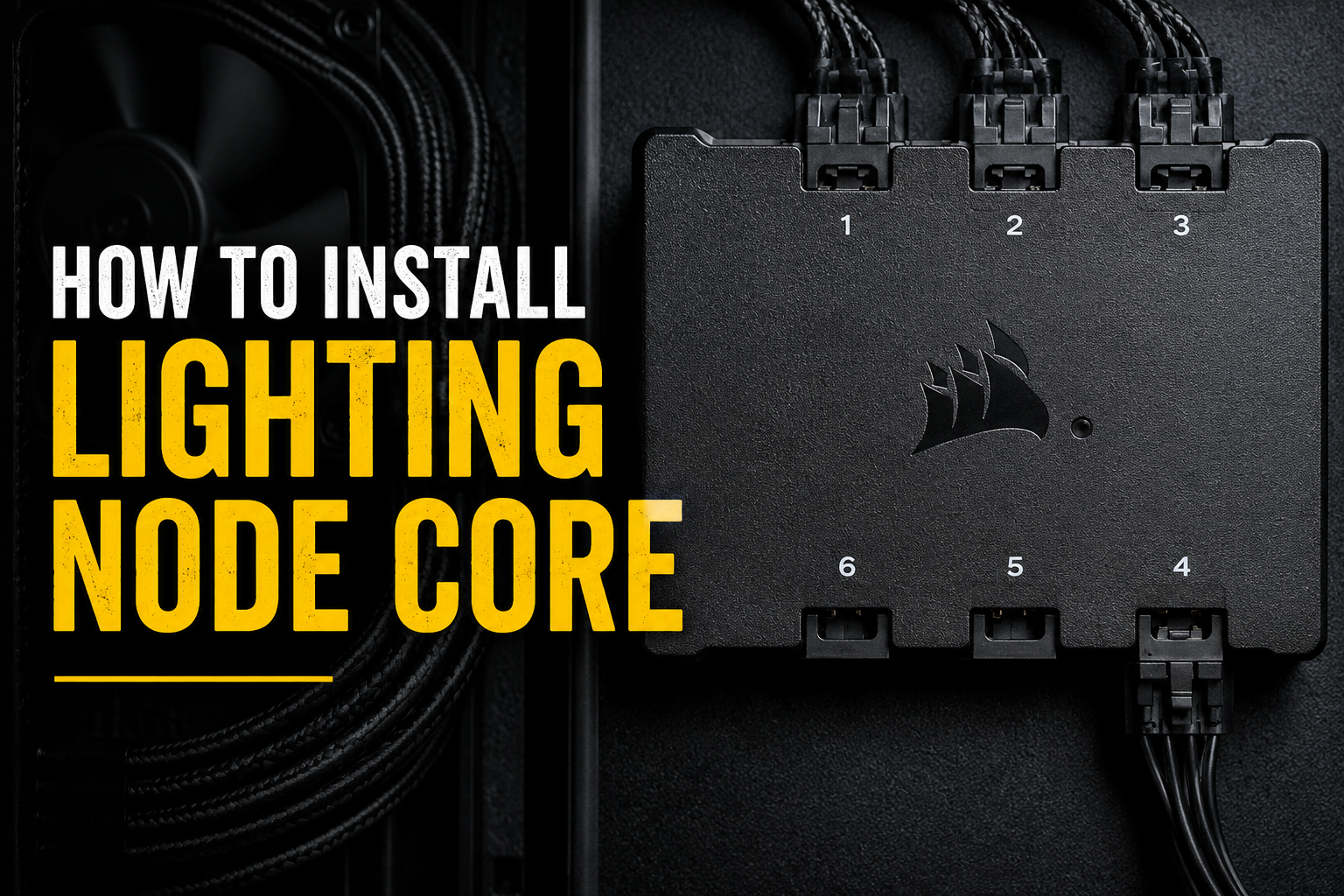
The controller typically supports up to six RGB fans and communicates with your PC through an internal USB connection.
Main Features
- Controls up to six RGB fans
- Synchronizes lighting effects
- Compatible with iCUE software
- Easy installation process
- Supports multiple RGB profiles
- Centralized lighting management
Image Suggestion: Corsair Lighting Node Core placed beside RGB cooling fans
What You Need Before Installation
Before learning How to Install a Lighting Node Core, gather the required components.
Required Hardware
- Lighting Node Core
- Compatible Corsair RGB fans
- SATA power connection
- Internal USB 2.0 motherboard header
- PC case with available mounting space
Recommended Tools
- Phillips screwdriver
- Cable ties
- Flashlight for cable management
Having everything prepared beforehand makes installation faster and cleaner.
Image Suggestion: PC components required for Lighting Node Core installation
Understanding the Lighting Node Core Ports

Before connecting cables, familiarize yourself with the controller layout.
RGB Fan Ports
The Lighting Node Core typically includes six numbered RGB ports.
SATA Power Connector
Provides power to the controller.
USB Connection
Allows communication between the controller and your PC.
Each port has a specific purpose, making proper connections important for successful installation.
Image Suggestion: Close-up image showing Lighting Node Core ports and labels
Step 1: Power Off Your Computer
The first step in How to Install a Lighting Node Core is shutting down your computer completely.
Safety Precautions
- Turn off the PC.
- Unplug the power cable.
- Press the power button once to discharge remaining electricity.
Working on powered hardware can cause damage to components.
Image Suggestion: Computer powered off before hardware installation
Step 2: Open Your PC Case
Remove the side panel of your computer case.
Most modern cases use thumb screws for quick access.
What to Look For
- Available mounting area
- RGB fan cables
- USB motherboard header
- SATA power cable
Organizing cables before installation simplifies the process.
Image Suggestion: Open gaming PC case showing internal components
Step 3: Mount the Lighting Node Core
Choose a secure mounting location inside your case.
Many PC cases include dedicated cable management areas behind the motherboard tray.
Installation Tips
- Keep the controller away from moving fans.
- Ensure cables can reach comfortably.
- Use included adhesive strips or mounting points.
A clean mounting location improves airflow and cable organization.
Image Suggestion: Lighting Node Core mounted behind motherboard tray
Step 4: Connect RGB Fans
This is one of the most important parts of How to Install a Lighting Node Core.
Connect Each Fan
Plug the RGB cable from each compatible fan into the controller.
Follow Port Order
Connect fans sequentially:
- Fan 1 → Port 1
- Fan 2 → Port 2
- Fan 3 → Port 3
Maintaining proper order helps the software detect fans correctly.
Verify Connections
Ensure every connector is fully seated.
Loose connections may prevent RGB lighting from functioning.
Image Suggestion: RGB fan cables connected to Lighting Node Core ports
Step 5: Connect SATA Power
The controller requires direct power from your power supply.
Locate SATA Power Cable
Find an unused SATA power connector from your PSU.
Connect to Controller
Insert the SATA connector firmly into the Lighting Node Core.
This connection supplies power to all connected RGB devices.
Image Suggestion: SATA power cable connected to Lighting Node Core
Step 6: Connect Internal USB Cable
The USB connection enables communication between the controller and software.
Locate USB Header
Find an available USB 2.0 header on your motherboard.
Attach USB Cable
Connect the Lighting Node Core USB cable securely.
Double-check alignment before inserting the connector.
Improper installation may prevent software detection.
Image Suggestion: Internal USB cable connected to motherboard header
Step 7: Organize Cables
Good cable management improves airflow and appearance.
Use Cable Ties
Bundle excess cables together.
Route Behind Motherboard Tray
Hide cables whenever possible.
Avoid Fan Blades
Keep cables away from moving components.
A neat installation makes future upgrades easier.
Image Suggestion: Clean cable-managed gaming PC interior
Step 8: Reassemble and Power On
Once all connections are complete:
- Replace the side panel
- Reconnect power cable
- Turn on the computer
The fans should illuminate during startup.
If lighting does not appear, verify all cable connections.
Image Suggestion: Gaming PC powered on with RGB fans illuminated
Read more:-How to Install macOS 26.5 Public Beta: Complete Guide for Safe Beta Setup
Setting Up Lighting Node Core Software

After hardware installation, software configuration is required.
Install RGB Control Software
Compatible software will detect the controller automatically.
Configure Fan Layout
Select the number of installed fans.
Customize Lighting
Popular lighting effects include:
- Rainbow
- Static color
- Color wave
- Spiral rainbow
- Temperature-based lighting
Personalization allows you to match your setup’s overall theme.
Image Suggestion: RGB software dashboard displaying lighting customization options
Common Installation Problems
While learning How to Install a Lighting Node Core, you may encounter minor issues.
Fans Not Lighting Up
Possible causes:
- Loose RGB connection
- Missing SATA power
- Incorrect fan order
Controller Not Detected
Possible causes:
- USB header connection issue
- Driver problem
- Software not installed
Only Some Fans Working
Possible causes:
- Incorrect port sequence
- Damaged cable
- Loose connector
Carefully checking connections usually resolves these issues.
Image Suggestion: Troubleshooting RGB fan connection issues inside a PC
Benefits of Using a Lighting Node Core
Installing a Lighting Node Core provides several advantages.
Centralized Control
Manage all RGB devices from one controller.
Better Cable Management
Reduces motherboard RGB cable clutter.
Advanced Lighting Effects
Create synchronized RGB patterns.
Easy Expansion
Supports multiple compatible RGB fans.
Improved System Appearance
Provides a cleaner and more professional-looking build.
Image Suggestion: Fully illuminated RGB gaming PC with synchronized lighting effects
Tips for Best Results
Use Compatible Fans
Ensure fans are designed for Lighting Node Core compatibility.
Update Software Regularly
Keep RGB control software updated.
Label Fan Positions
Makes future maintenance easier.
Maintain Proper Airflow
Avoid blocking ventilation with cables.
Test Before Closing Case
Verify lighting functionality before final assembly.
Following these practices helps ensure a successful installation.
Conclusion
How to Install a Lighting Node Core is a straightforward process that can significantly enhance your PC’s appearance and RGB customization options. By properly mounting the controller, connecting RGB fans, attaching SATA power, and configuring the software, you can create stunning synchronized lighting effects throughout your gaming system. Taking the time to manage cables and verify connections will ensure reliable performance and a professional-looking PC build for years to come.
FAQ
What is a Lighting Node Core used for?
It is used to control and synchronize RGB lighting on compatible Corsair fans.
How many fans can a Lighting Node Core support?
Most Lighting Node Core controllers support up to six RGB fans.
Do I need SATA power for the controller?
Yes, SATA power is required to provide power to connected RGB devices.
Why is my Lighting Node Core not detected?
This is usually caused by an internal USB connection issue or software configuration problem.
Can I connect non-compatible RGB fans?
The controller works best with compatible RGB fans designed for the system.
Do I need software to control lighting effects?
Yes, software is required to customize and manage RGB lighting profiles.
Can I install a Lighting Node Core in any PC case?
Yes, as long as there is enough space and the necessary motherboard connections are available.