How to Restore iPhone Without iTunes in Recovery Mode Free helps users fix system issues and restore their device easily without using iTunes, ensuring smooth performance and data recovery.
Restoring an iPhone can solve many serious problems like a frozen screen, software glitches, or a device stuck on the Apple logo. Many users think iTunes is the only option, but that is not true anymore. There are simple and free ways to restore your iPhone without using iTunes, even in recovery mode.
In this guide, you will learn easy and practical methods to restore your iPhone without iTunes. The steps are written in simple English so anyone can follow them without confusion.
Understanding Reset vs Restore
Before starting, it is important to understand the difference between reset and restore.
A reset only clears settings or small issues on your iPhone. It does not reinstall the system or fix major problems.
A restore is a deeper process. It removes all data, reinstalls iOS, and fixes serious issues like system crashes, disabled iPhone, or recovery mode errors.
If your iPhone is stuck or not working properly, restoring is the better option.
Method 1: Restore iPhone Without iTunes Using Settings

If your iPhone is still working and you can access settings, this is the easiest method.
First, open Settings on your iPhone. Then go to General and scroll down to find Transfer or Reset iPhone. Tap on it and choose Erase All Content and Settings.
You will need to enter your passcode and Apple ID password. After confirmation, your iPhone will start the restore process.
This method is simple and completely free. It works best when your device is not locked or frozen.
Method 2: Restore iPhone Without iTunes Using Recovery Mode (Free)

If your iPhone is stuck or not responding, you can use recovery mode without iTunes by using Finder on Mac or similar system tools.
First, connect your iPhone to a computer using a cable. Then force your iPhone into recovery mode.
For newer iPhones, press Volume Up, then Volume Down, and hold the Power button until you see the recovery mode screen.
Once your iPhone enters recovery mode, your computer will detect it. Instead of iTunes, you can use Finder (on Mac) or system tools available on your device.
Choose the Restore option when prompted. Your system will download and reinstall the iOS software.
This method is very effective for fixing serious problems like boot loops or frozen screens.
Method 3: Restore iPhone Without iTunes Using iCloud
You can also restore your iPhone remotely using iCloud if Find My iPhone is enabled.
Open iCloud on another device or browser and sign in with your Apple ID. Go to Find My and select your iPhone from the device list.

After selecting your device, click on Erase iPhone. Confirm your choice and enter your password.
This will erase all data and restore your iPhone to factory settings.
This method is useful when your iPhone is locked, lost, or not accessible.
Method 4: Restore iPhone Without Computer Using Built-in Features
If you do not have a computer, you can still restore your iPhone using built-in options.
Go to Settings, then General, and select Transfer or Reset iPhone. Choose Erase All Content and Settings.
Make sure your device is charged and connected to the internet. The process may take some time, depending on your device.
This is one of the easiest ways to restore your iPhone without any extra tools.
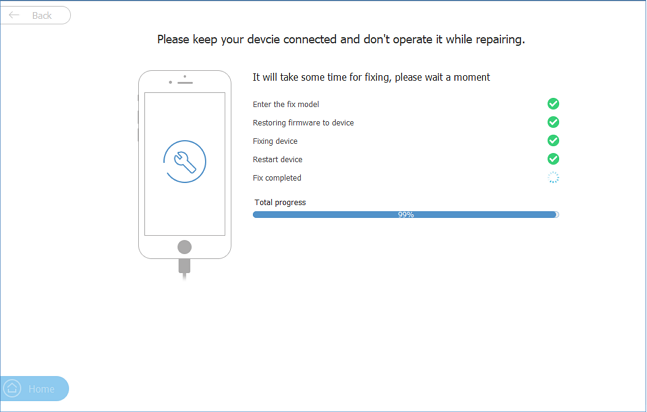
Method 5: Use Free Third-Party Tools
There are also free tools available that can help restore your iPhone without iTunes.
These tools are designed to fix system issues and restore devices with simple steps. Most of them provide clear instructions on the screen.
You just need to connect your iPhone, select a repair mode, and start the process.
This method is helpful when normal methods do not work. However, always choose trusted tools to avoid security risks.
Important Tips Before Restoring
Before restoring your iPhone, keep these important points in mind.
Always back up your data if possible. Restoring will delete everything from your device.
Make sure your iPhone has enough battery or is connected to a charger.
Use a stable internet connection, especially when downloading iOS software.
Double-check your Apple ID and password, as they will be required during the process.
Read more:-How to Fix Unresponsive iPhone Screen: The Complete Guide to Screen Troubleshooting
Common Problems During Restore
Sometimes, users face issues while restoring their iPhone.
The device may not enter recovery mode properly. In this case, try the button combination again.
The restore process may stop due to internet issues. Ensure your connection is stable.
If your computer does not detect the iPhone, try using another cable or USB port.
Most problems can be fixed with simple troubleshooting steps.
When Should You Restore Your iPhone
You should restore your iPhone in situations like these.
When your iPhone is stuck on the Apple logo
When apps keep crashing or the system is very slow
When your iPhone is disabled or locked
When you want to erase all data before selling your device
Restoring helps bring your iPhone back to normal working condition.
Benefits of Restoring Without iTunes
Restoring your iPhone without iTunes has several advantages.
It is easier and faster compared to traditional methods
You do not need to install extra software
It works even when iTunes shows errors
You can restore your device from anywhere using iCloud
These benefits make it a better option for many users.
Conclusion
How to restore iPhone without iTunes in recovery mode free is not as complicated as it sounds. With the right steps, you can fix major issues on your device easily. Whether you use settings, recovery mode, iCloud, or free tools, each method works effectively in different situations.
Choose the method that suits your condition and follow the steps carefully. Always remember to back up your data before starting the process. Restoring your iPhone can solve many problems and give your device a fresh start.
FAQ
Can I restore my iPhone without iTunes for free?
Yes, you can restore your iPhone for free using settings, iCloud, or recovery mode without iTunes. These methods are built into the system.
Does restoring iPhone delete everything?
Yes, restoring will remove all data including apps, photos, and settings. Always back up your data before restoring.
Can I restore iPhone without a computer?
Yes, you can use iCloud or the Settings app to restore your iPhone without a computer.
What is recovery mode in iPhone?
Recovery mode is a special state that helps fix serious issues by reinstalling the system software.
Why is my iPhone stuck in recovery mode?
It can happen due to software errors, failed updates, or system crashes. Restoring the device usually fixes this issue.