Screen recording has become one of the most useful features on modern smartphones. Whether you want to create a tutorial, save a video call, record gameplay, capture app activity, or show someone how to use a feature, screen recording makes the process simple and convenient.
If you own a Samsung Galaxy smartphone, you already have a built-in screen recorder that allows you to capture everything happening on your display without installing additional applications. Learning How To Screen Record On Samsung can help you create professional-looking recordings directly from your device.
In this guide, you will learn different methods to screen record on Samsung phones, adjust recording settings, troubleshoot common issues, and improve recording quality.
What Is Screen Recording?
Screen recording is a feature that captures everything displayed on your phone screen as a video file.
It can record:
- App demonstrations
- Mobile gameplay
- Video tutorials
- Online classes
- Video calls
- Social media content
- Software issues for troubleshooting
Unlike screenshots, screen recordings capture movement and audio in real time.
Why Use Screen Recording on Samsung?
Samsung users utilize screen recording for many purposes.
Common uses include:
- Creating educational tutorials
- Recording gaming sessions
- Saving live streams
- Capturing online meetings
- Sharing troubleshooting steps
- Recording social media content
The built-in Samsung screen recorder makes these tasks much easier.
Which Samsung Phones Support Screen Recording?
Most modern Samsung Galaxy devices include a built-in screen recording feature.
Popular supported models include:
- Samsung Galaxy S Series
- Samsung Galaxy Note Series
- Samsung Galaxy A Series
- Samsung Galaxy Z Fold Series
- Samsung Galaxy Z Flip Series
If your Samsung device runs a recent version of One UI, the screen recorder is likely available.
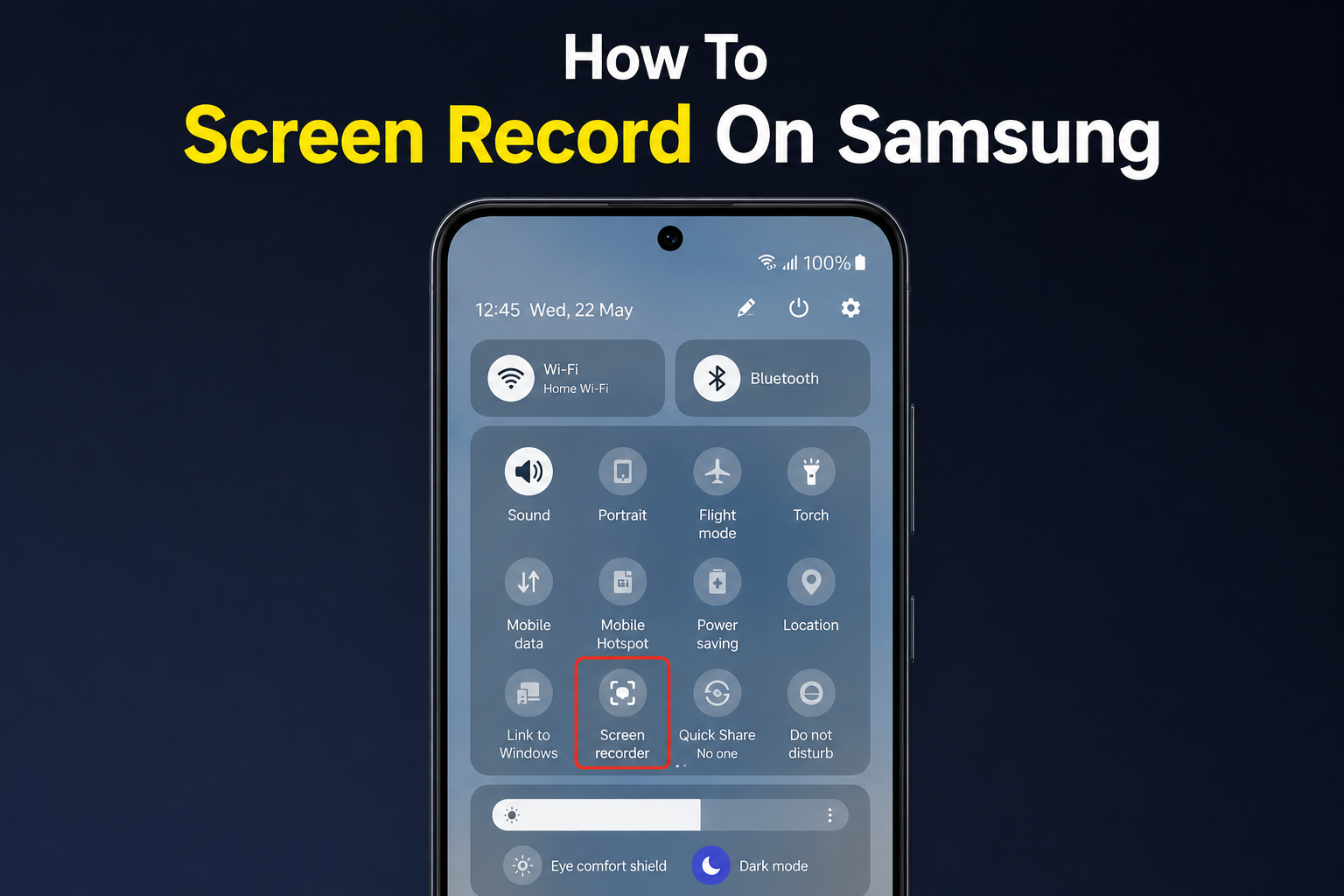
How To Screen Record On Samsung Using Quick Settings
The easiest way to start screen recording is through the Quick Settings panel.
Step 1: Open Quick Settings

Swipe down from the top of your screen to open the notification panel.
Swipe down again to expand the Quick Settings menu completely.
Step 2: Find Screen Recorder
Look for the Screen Recorder icon.
If you cannot find it immediately, swipe through the available icons.
Step 3: Tap Screen Recorder

Tap the Screen Recorder button.
A pop-up menu will appear asking you to choose audio settings.
Step 4: Select Audio Option
Samsung usually provides three audio options:
- No Sound
- Media Sounds
- Media Sounds and Microphone
Choose the option that best matches your recording needs.
Step 5: Start Recording

Tap Start Recording.
A countdown timer will appear before recording begins.
Everything displayed on the screen will now be captured.
How To Stop Screen Recording
Once your recording is complete, stopping it is simple.
Method 1: Use Floating Toolbar
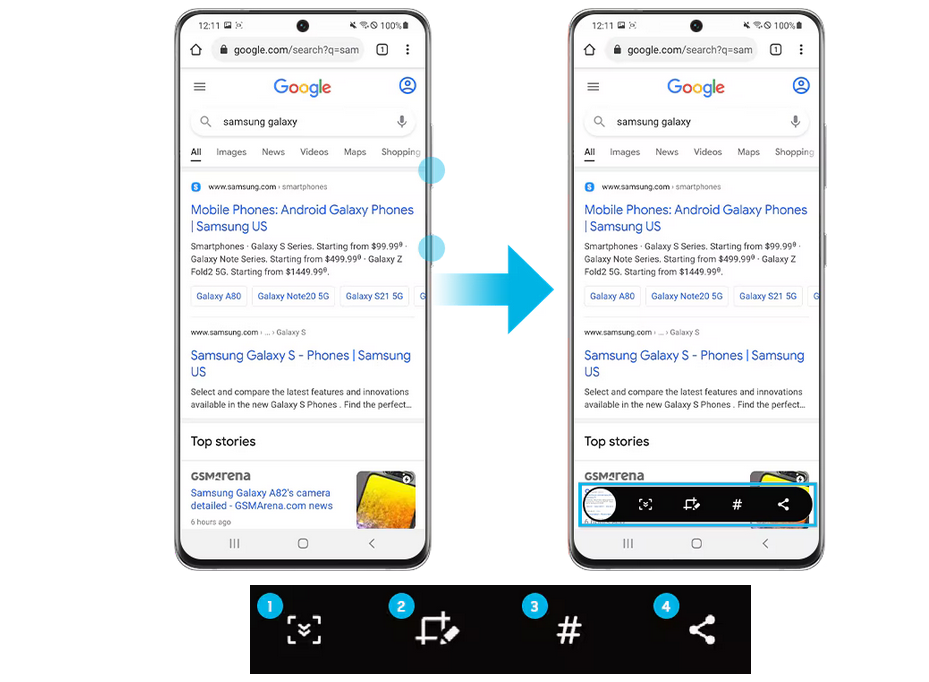
A small recording toolbar appears during recording.
Tap the Stop button to end recording.
Method 2: Use Notification Panel
Open the notification panel and tap Stop Recording.
Samsung automatically saves the video to your Gallery app.
How To Screen Record With Microphone Audio
Many users want to record their voice while demonstrating an app or explaining a process.
To enable microphone recording:
Step 1
Open Screen Recorder.
Step 2
Choose Media Sounds and Microphone.
Step 3
Begin recording.
Your voice and screen activity will be recorded simultaneously.
This feature is useful for:
- Tutorials
- Gaming commentary
- Product demonstrations
- Educational content
How To Draw on the Screen While Recording
Samsung includes a drawing tool during screen recording.
This feature allows users to:
- Highlight important areas
- Draw arrows
- Mark buttons
- Explain processes visually
To use it:
Step 1
Start screen recording.
Step 2
Tap the Pencil icon on the recording toolbar.
Step 3
Draw directly on the screen.
Read more:-How to Record Screen on Android: 5 Easy Methods for Complete Screen Recording
Where Are Samsung Screen Recordings Saved?
After recording is complete, Samsung automatically stores the file.
You can find recordings in:
- Gallery App
- Screen Recordings Folder
- Internal Storage
Open the Gallery app and look for the Screen Recordings album.
How To Change Samsung Screen Recording Settings
Samsung allows users to customize recording preferences.
Open Settings
Go to:
Settings > Advanced Features > Screenshots and Screen Recorder
Here you can adjust:
- Video quality
- Sound source
- Selfie video size
- Recording options
Best Video Quality Settings
For clear recordings, choose high-quality settings.
Recommended options include:
- High resolution
- Maximum video quality
- Stable frame rate
Higher quality produces clearer videos but uses more storage space.
How To Screen Record Games on Samsung
Screen recording is very popular among mobile gamers.
To record gameplay:
Step 1
Launch your game.
Step 2
Open Quick Settings.
Step 3
Tap Screen Recorder.
Step 4
Select audio preferences.
Step 5
Begin recording.
Samsung’s hardware handles gaming recordings smoothly on most modern devices.
Common Screen Recording Problems
Sometimes users encounter issues while recording.
Screen Recorder Missing
If the Screen Recorder icon is unavailable:
- Update your software
- Check One UI version
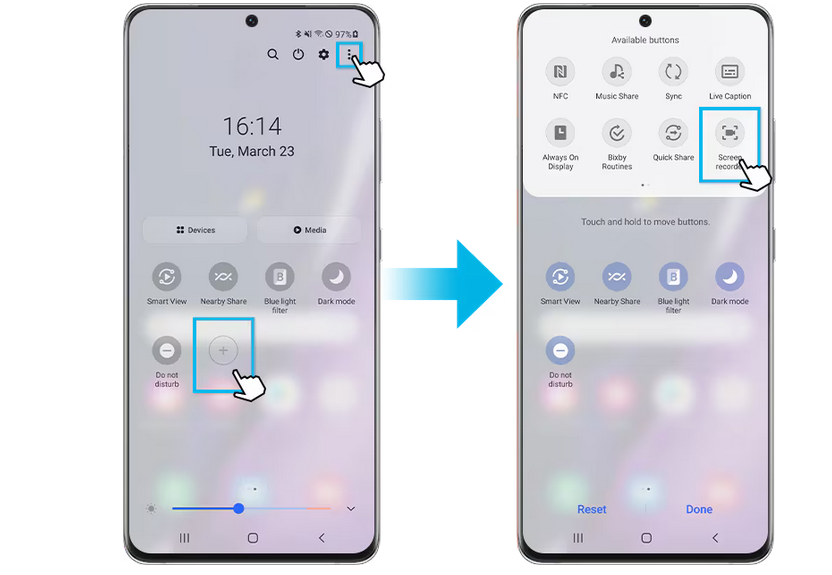
- Add the icon manually through Quick Settings customization
No Audio Recorded
Verify the selected audio source before recording.
Choose:
- Media Sounds
- Media Sounds and Microphone
depending on your needs.
Recording Stops Automatically
Possible causes include:
- Low storage space
- Battery optimization settings
- Software bugs
Free up storage and restart the device.
Poor Video Quality
Increase recording resolution in screen recorder settings.
Third-Party Screen Recording Apps
If your Samsung phone lacks a built-in recorder, third-party apps can help.
Popular screen recording applications often provide:
- Advanced editing
- Live streaming support
- Higher recording controls
- Additional audio options
However, Samsung’s built-in tool is usually sufficient for most users.
Tips for Better Screen Recordings
Follow these tips for professional results.
Clean Notifications
Enable Do Not Disturb mode before recording.
Close Background Apps
This improves performance and reduces lag.
Use Landscape Mode
Landscape recordings often look more professional.
Test Audio First
Perform a short test recording before creating important content.
Maintain Storage Space
Screen recordings can consume significant storage.
Benefits of Samsung’s Built-In Screen Recorder
The built-in recorder offers several advantages.
No Extra App Required
Everything is already installed.
Easy to Use
Recording starts with only a few taps.
Good Video Quality
Samsung provides excellent recording quality.
Secure and Reliable
No third-party permissions are required.
Conclusion
Learning How To Screen Record On Samsung is incredibly useful for creating tutorials, recording gameplay, saving important content, and sharing information with others. Samsung’s built-in screen recorder provides a simple and powerful solution that works directly from the Quick Settings panel.
With customizable audio options, drawing tools, and high-quality recording settings, Samsung users can easily capture professional-looking videos without installing extra software. By following the steps and tips in this guide, you can start creating clear and effective screen recordings whenever you need them.
FAQ
How do I screen record on Samsung?
Open Quick Settings, tap Screen Recorder, select audio options, and start recording.
Where are Samsung screen recordings saved?
They are usually saved in the Gallery app under the Screen Recordings folder.
Can I record my voice while screen recording?
Yes, choose the Media Sounds and Microphone option before starting.
Why can’t I find Screen Recorder on my Samsung phone?
Your device may need a software update or may not support the feature.
Can Samsung screen recorder capture internal audio?
Yes, it can record media sounds directly from the device.
Does screen recording reduce performance?
On older devices it may slightly affect performance, but most modern Samsung phones handle it well.
Can I record games using Samsung screen recorder?
Yes, Samsung’s built-in recorder works well for recording gameplay.
Is Samsung screen recording free?
Yes, the built-in screen recorder is completely free to use.