How to Turn Off Google Password Manager is useful if you don’t want Google to automatically save passwords or offer to fill them in when you sign in to websites and apps. By changing a few settings, you can disable password saving and manage your stored login information while keeping greater control over your account privacy.
How to Turn Off Google Password Manager
If you want to know how to turn off Google Password Manager, you can change the password-saving and autofill settings in Google Chrome. Google Password Manager can save passwords automatically, fill in login details, and help you access saved accounts across your devices.
These features are useful for many people, but you may prefer to enter passwords yourself or use a different password manager. In that case, you can turn off password saving and autofill from Chrome settings.
The steps are simple, but the options can look slightly different depending on your device and Chrome version.
What Is Google Password Manager?
Google Password Manager is a built-in password management service that can store login information for websites and apps.
When password saving is enabled, Chrome may ask whether you want to save a password after signing in to a website.
Later, Chrome can automatically fill in the saved username and password when you return to that website.
Google Password Manager can also sync saved passwords with your Google Account when syncing is enabled.
Why Turn Off Google Password Manager?

There are several reasons why someone may want to disable it.
You might already use another password manager and do not want two services saving the same passwords. You may also use a shared computer and prefer not to store personal login information in Chrome.
Other reasons include:
- You want to enter passwords manually
- You use another password manager
- You do not want Chrome saving new passwords
- You want to stop password autofill
- You share a computer with other people
- You want more control over saved login information
Turning off password saving does not automatically delete passwords that have already been saved.
How to Turn Off Password Saving in Chrome
The easiest way to stop Chrome from asking to save new passwords is through its password settings.
Open Google Chrome on your computer.
Click the three-dot menu in the upper-right corner.
Select Settings.
Find the Autofill and passwords section and open Google Password Manager.
Look for the option related to Offer to save passwords.
Turn this option off.
After you disable it, Chrome should stop asking whether you want to save new website passwords.
How to Turn Off Password Autofill
Turning off password saving and turning off autofill are related but separate settings.
If you do not want Chrome to automatically fill saved login information, open Google Password Manager again.
Look for the option related to automatically filling passwords.
Turn off the available autofill setting.
After doing this, Chrome should no longer automatically enter saved login information into websites.
The exact wording may vary depending on your Chrome version and operating system.
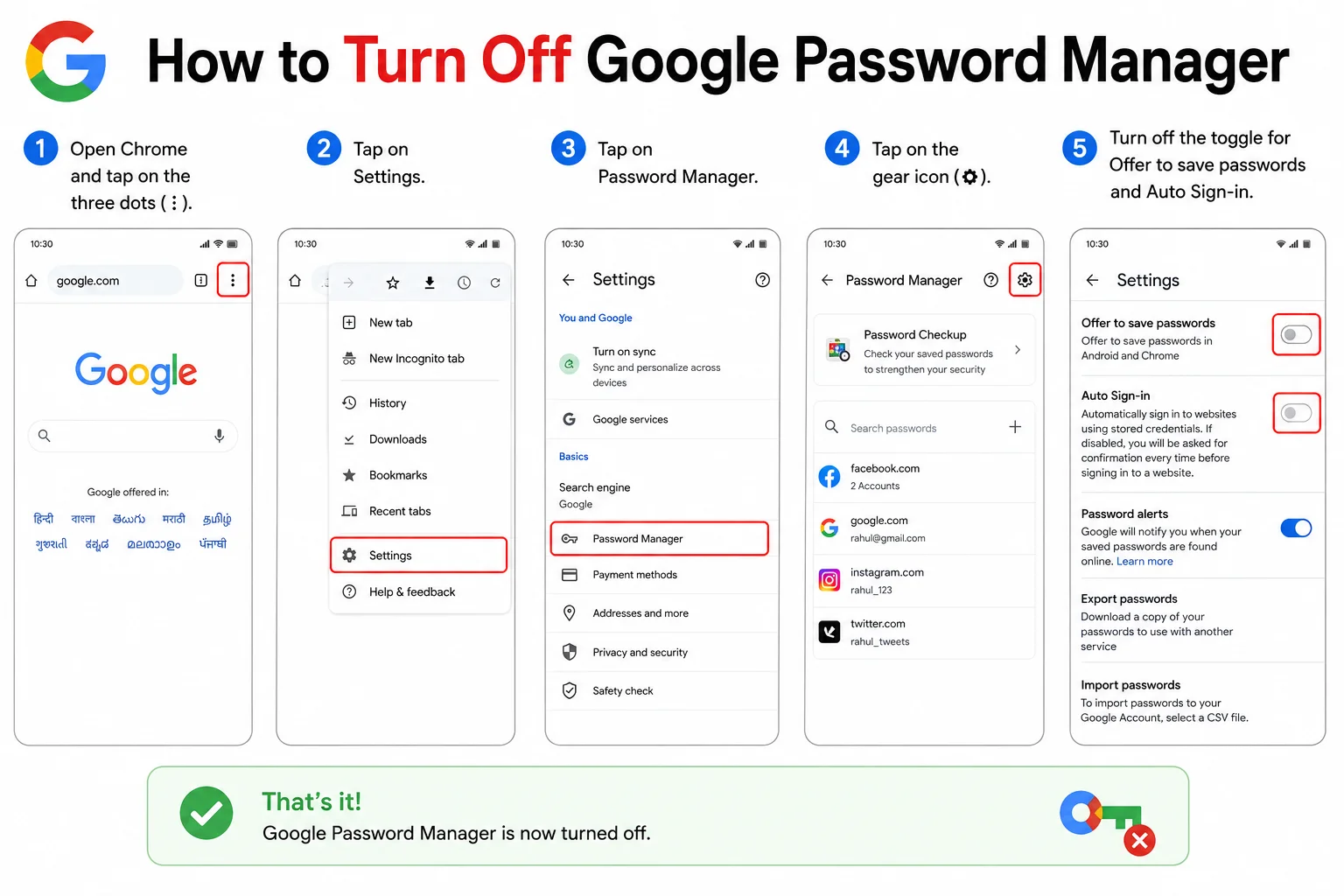
How to Turn Off Google Password Manager on Android

You can also manage password settings from an Android phone.
Open the Chrome app.
Tap the three-dot menu.
Select Settings.
Open Google Password Manager.
Find the password-saving or autofill settings.
Turn off the option for saving passwords.
You can also review the autofill settings if you do not want Chrome to automatically enter saved login information.
The settings may look slightly different on different Android versions.
How to Turn Off Password Manager on iPhone
On an iPhone, Google Password Manager settings can be managed through Chrome if you use Chrome for browsing.
Open the Chrome app.
Tap the three-dot menu and open Settings.
Select Google Password Manager.
Look for the password-saving and autofill options.
Turn off the settings you no longer want to use.
If another password manager is being used on your iPhone, you may also need to check the iPhone’s password and autofill settings.
Turning Off Google Password Manager Does Not Delete Saved Passwords

This is an important point.
When you turn off password saving, your previously saved passwords may remain in Google Password Manager.
The setting mainly controls whether Chrome should save new passwords.
If you want to remove passwords that are already saved, you need to delete them separately.
Open Google Password Manager and select the saved website account you want to remove.
You may be asked to verify your identity before viewing or deleting the saved password.
How to Delete Saved Passwords
If you want to completely stop using Google Password Manager, review your saved passwords before disabling the service.
Open Google Password Manager.
Choose a saved website from the list.
Verify your identity if requested.
Select the option to delete the saved password.
Repeat the process for other accounts you no longer want stored.
Be careful when deleting passwords. Make sure you know the passwords or have another secure way to access those accounts before removing them.
What Happens After You Turn It Off?
After disabling password saving, Chrome will generally stop offering to save new passwords.
If you also disable password autofill, Chrome will not automatically enter stored login information in the same way.
You can still sign in to websites manually by entering your username and password.
If you use a different password manager, you can configure that service to provide password autofill instead.
Read more:-Reset Android Phone Without Password or PIN: 5 Powerful & Safe Methods to Regain Access Quickly
Can You Use Another Password Manager?
Yes. You do not have to use Google Password Manager.
Many users choose a dedicated password manager because they want their passwords organized separately from their browser.
If you switch to another service, make sure your important passwords are safely transferred before deleting them from Google Password Manager.
Never store your passwords in an unsecured text file or share them through ordinary messages.
Should You Turn Off Google Password Manager?
There is no single answer for everyone.
Google Password Manager can make signing in faster and can help you create and manage strong passwords.
However, if you already use another password manager, disabling Google’s password-saving feature can prevent duplicate password prompts and autofill conflicts.
If you share your computer, you may also prefer greater control over which login details are stored in the browser.
Conclusion
Learning how to turn off Google Password Manager is simple. Open Chrome settings, go to Google Password Manager, and disable the password-saving and autofill options you do not want to use.
Remember that turning off password saving does not necessarily delete passwords that are already stored. If you want to remove existing login information, delete those saved passwords separately.
Before removing saved passwords, make sure you have another secure way to access your accounts. If you use a different password manager, configure it before deleting important login information.
FAQ
How do I turn off Google Password Manager?
Open Chrome Settings, go to Google Password Manager, and turn off the password-saving option.
Does turning off Google Password Manager delete saved passwords?
No. Turning off password saving generally prevents new passwords from being saved. Existing passwords need to be deleted separately.
How do I stop Chrome from asking to save passwords?
Open Google Password Manager and turn off the option that offers to save passwords.
Can I turn off password autofill?
Yes. Open Google Password Manager settings and disable the available autofill option.
Can I use another password manager after turning off Google Password Manager?
Yes. You can use another password manager and configure it to handle password storage and autofill.
How do I delete passwords already saved in Google Password Manager?
Open Google Password Manager, select the saved account, verify your identity if required, and choose the delete option.