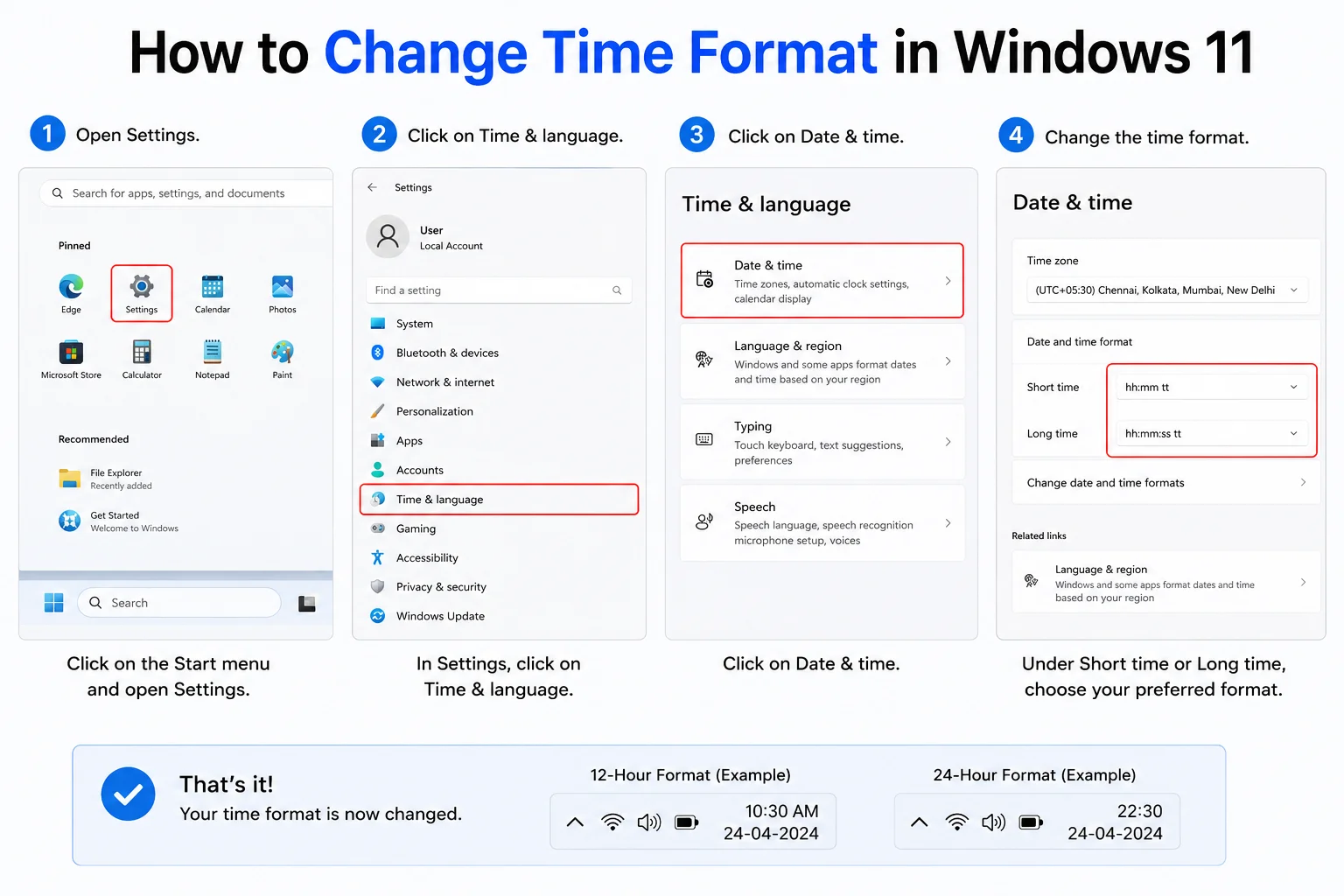
How to Change Time Format in Windows 11 is a simple way to customize how the clock appears on your computer. You can switch between the 12-hour format with AM/PM and the 24-hour format through Windows 11’s time and language settings. Changing the format takes only a few steps and lets you display the clock in the style you prefer.
How to Change Time Format in Windows 11
If you want to know how to change time format in Windows 11, you can easily switch between the 12-hour and 24-hour clock. Windows 11 normally displays the time in the taskbar, and you can customize how the time appears through the system settings.
Some people prefer the 12-hour format with AM and PM, while others find the 24-hour format easier to understand. Windows 11 gives you options to change the time format without installing any additional software.
What Is the Time Format in Windows 11?
The time format determines how the clock displays hours and minutes on your computer.
For example, the 12-hour format may show:
10:30 AM
The 24-hour format may show:
10:30
For an evening time, the difference becomes clearer. A 12-hour clock could show 8:30 PM, while a 24-hour clock would display 20:30.
You can choose the format that works best for you.
How to Change Time Format in Windows 11

The easiest way to change the time format is through Windows Settings.
Follow these steps:
- Press Windows + I to open Settings.
- Click Time & language.
- Select Language & region.
- Find Regional format and open the regional format options.
- Look for Change formats.
- Find the Short time option.
- Choose the time format you prefer.
Windows will apply the change to the clock format.
How to Use the 12-Hour Time Format
If you prefer seeing AM and PM, select a 12-hour time format.
For example, a 12-hour format can display:
9:15 AM
or
9:15 PM
This format is commonly used for everyday activities and is easy to understand at a glance.
After selecting the appropriate short-time format, check the taskbar clock to see the change.
How to Use the 24-Hour Time Format
If you prefer a 24-hour clock, choose a format that uses the 24-hour system.
For example:
09:15 means 9:15 in the morning.
21:15 means 9:15 in the evening.
The 24-hour format is often useful for work schedules, travel, transportation, and other situations where knowing whether a time is morning or evening is important.
Change the Long Time Format

Windows 11 also provides a long-time format.
The short-time format is normally used in places such as the taskbar, while the long-time format can include additional information such as seconds.
To change it, open:
Settings > Time & language > Language & region > Regional format > Change formats
Then look for Long time.
Choose the format you want from the available options.
How to Change Date and Time Settings
The time format is different from the actual system time.
If your Windows clock shows the wrong time, changing the format will not fix it.
To check the actual date and time, go to:
Settings > Time & language > Date & time
Make sure Set time automatically is enabled if you want Windows to update the clock automatically.
You can also check your time zone from the same section.
Why Is the Time Format Not Changing?
Sometimes users change a regional setting but do not immediately see the expected result.
If this happens, return to the Language & region settings and check the short-time format again.
Make sure you selected the correct option.
You can also sign out of Windows and sign back in if the taskbar does not immediately update.
A restart can also refresh the Windows interface.
Read more:-How to Open DAT Files in Windows 11: Complete Beginner’s Guide
Does Changing the Time Format Change the Time Zone?
No. Changing the time format does not change your time zone.
For example, switching from a 12-hour clock to a 24-hour clock only changes how the time is displayed.
Your location-based time remains the same.
If the clock itself is showing the wrong time, you need to check the Date & time settings instead.
Can You Change the Time Format Without Installing Software?

Yes. Windows 11 includes built-in options for changing the time format.
You do not need a third-party application to switch between supported 12-hour and 24-hour formats.
Using Windows Settings is also preferable because it avoids installing unnecessary software just to make a simple system change.
How to Make the Windows 11 Clock Easier to Read
Besides changing the time format, you can make the Windows clock easier to understand by choosing a format that matches your daily routine.
If you frequently work with schedules, appointments, or international times, the 24-hour format may be convenient.
If you normally use AM and PM when discussing time, the 12-hour format may feel more natural.
Choose the format that lets you recognize the time quickly.
What If You Want Seconds on the Clock?
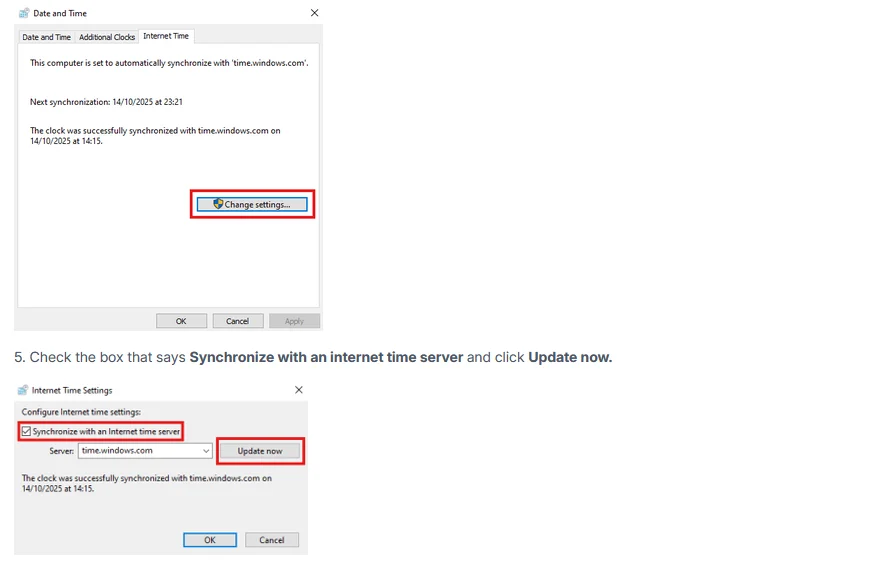
Windows 11 has also added options for displaying seconds in the taskbar clock on supported versions.
If the option is available on your Windows installation, you can look in the taskbar settings for the clock-related option.
Keep in mind that some Windows features can vary depending on the Windows 11 version and updates installed on your computer.
How to Change Time Format Back
If you do not like the new format, you can easily change it again.
Go back to:
Settings > Time & language > Language & region > Regional format > Change formats
Select a different option under Short time.
The Windows clock should then use the new format.
This makes it easy to switch between the 12-hour and 24-hour systems whenever you want.
Conclusion
Learning how to change time format in Windows 11 is simple and does not require any additional software. You can use the Language & region settings to choose between different short-time and long-time formats.
The 12-hour format is useful if you prefer AM and PM, while the 24-hour format can be more convenient for work, travel, and scheduling.
Remember that changing the time format only changes how the clock is displayed. If the actual time or time zone is incorrect, use the Date & time settings to correct it.
FAQ
How do I change the time format in Windows 11?
Open Settings, select Time & language, choose Language & region, open Change formats, and select your preferred short-time format.
How do I change Windows 11 from 24-hour to 12-hour time?
Open the regional format settings and choose a 12-hour option under Short time.
How do I change Windows 11 to a 24-hour clock?
Go to the regional format settings and select a 24-hour option under Short time.
Does changing the time format change my time zone?
No. It only changes how the clock displays the time. Your time zone remains unchanged.
Can I change the time format without software?
Yes. Windows 11 has built-in settings that allow you to change the time format.
Why is my Windows 11 clock showing the wrong time?
The problem may be related to automatic time, time zone, or synchronization settings rather than the time format.