If your inbox is filled with newsletters, promotions, and emails you no longer read, learning how to unsubscribe from emails on Gmail can help you keep your inbox clean. Gmail provides simple ways to stop unwanted messages from legitimate mailing lists without deleting your entire email account.
You can unsubscribe directly from an email, use Gmail’s unsubscribe option when available, or block a sender when you no longer want to receive messages from them. The best method depends on the type of email you are receiving.
Why Should You Unsubscribe From Unwanted Emails?
Over time, it is easy to subscribe to many newsletters, shopping updates, notifications, and promotional mailing lists. These messages can quickly fill your inbox and make important emails harder to find.
Unsubscribing can help you:
- Reduce inbox clutter
- Stop unnecessary newsletters
- Reduce promotional messages
- Find important emails more easily
- Keep your Gmail account organized
- Save time when checking your inbox
Instead of deleting unwanted messages every day, you can unsubscribe from mailing lists you no longer need.
How to Unsubscribe From Emails on Gmail
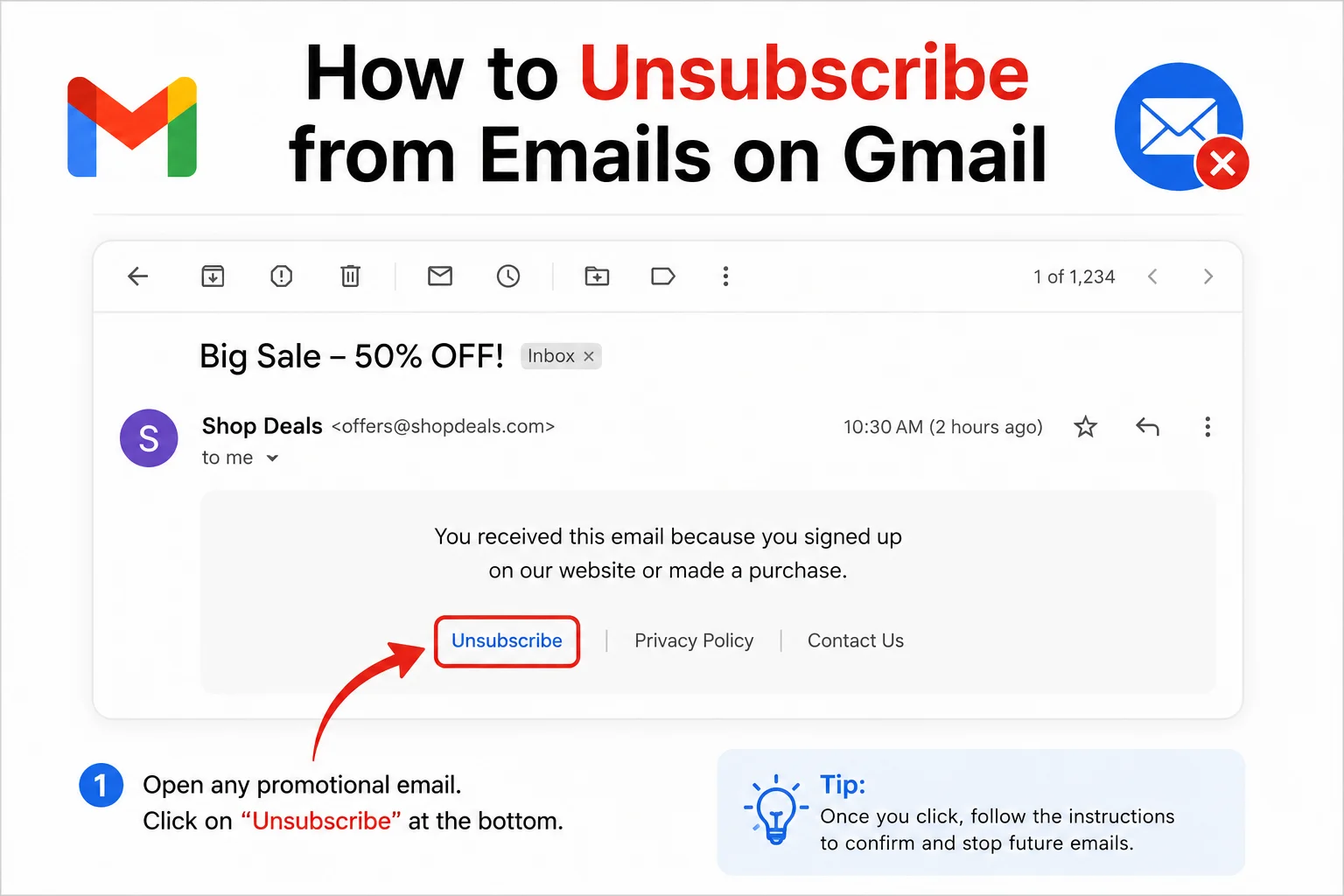
The easiest way to unsubscribe is to open the email you no longer want to receive.
Open Gmail and select the message from the sender.
Look near the sender’s name at the top of the email. If Gmail recognizes that the message comes from a mailing list, you may see an Unsubscribe option.
Select Unsubscribe and follow the instructions shown on the screen.
Depending on the sender, Gmail may unsubscribe you immediately or take you to a page where you need to confirm your choice.
After unsubscribing, it may take a little time before the emails completely stop.
Use the Unsubscribe Button in Gmail

Gmail can sometimes display an unsubscribe option directly in the email header.
This is useful because you do not have to search through the entire message for a small unsubscribe link.
Open the unwanted email and check near the sender information.
If the unsubscribe option is available, select it and confirm your choice.
This method is usually easier than manually searching for the unsubscribe link at the bottom of a newsletter.
How to Unsubscribe From a Newsletter
Many newsletters include an unsubscribe link at the bottom of every email.
If Gmail does not show its own unsubscribe option, scroll toward the bottom of the message.
Look for words such as:
Unsubscribe
Manage preferences
Email preferences
Update subscription
Select the appropriate option and follow the instructions.
Some websites may ask whether you want to stop all emails or only certain types of messages. Choose the option that matches your preference.
How to Stop Promotional Emails
Shopping websites, online services, and other companies may send promotional emails regularly.
If you no longer want these messages, open one of the emails and look for an unsubscribe option.
Some companies allow you to choose which emails you receive. For example, you may be able to stop promotional offers while continuing to receive important account notifications.
This can be useful if you still use the service but do not want marketing emails.
How to Block an Email Sender in Gmail
Sometimes an unsubscribe option may not be available.
In that situation, Gmail allows you to block a sender.
Open the email and select the menu icon near the sender’s information.
Choose the option to block the sender and confirm your choice.
Future messages from that sender may be directed to your spam folder instead of appearing normally in your inbox.
Blocking is different from unsubscribing. Unsubscribing asks the sender to stop sending messages, while blocking helps prevent messages from appearing in your regular inbox.
How to Report Spam in Gmail
If an email looks suspicious or unwanted, you should be careful before clicking any links inside it.
Instead, you can report the message as spam using Gmail’s spam option.
Gmail can use spam reports to help identify unwanted messages in the future.
This is especially useful for messages that do not appear to come from a legitimate newsletter or company.
Do not use an unsubscribe link in a suspicious email if you are unsure about the sender. In some cases, interacting with a suspicious message can confirm that your email address is active.
Unsubscribe From Emails on the Gmail App

You can also manage unwanted emails from your phone.
Open the Gmail app and select the email you want to stop receiving.
Check the area near the sender’s information for an unsubscribe option.
If it appears, tap it and follow the instructions.
If there is no unsubscribe option, check the bottom of the email for the sender’s own unsubscribe link.
The available options can vary depending on the email and the Gmail app version.
Read more:-How to Restore Contacts from Google: 5 Easy Powerful Steps to Recover Lost Contacts
What Happens After You Unsubscribe?
Unsubscribing does not always stop emails instantly.
Some mailing lists may take a few days to process your request.
You may also receive one or two messages that were already scheduled before your unsubscribe request was processed.
If emails continue for an extended period, check whether you unsubscribed from the correct mailing list.
You can also block the sender or report unwanted messages as spam when appropriate.
Be Careful With Unsubscribe Links

Not every email is trustworthy.
If you receive an unexpected message from an unknown sender, do not automatically click an unsubscribe link.
First, consider whether you recognize the company or mailing list.
For legitimate newsletters that you knowingly subscribed to, using Gmail’s unsubscribe feature is generally the simplest option.
For suspicious messages, reporting the email as spam is a safer approach.
How to Keep Your Gmail Inbox Clean
Unsubscribing is only one part of maintaining an organized inbox.
Try to unsubscribe from newsletters you no longer read. Avoid signing up for unnecessary mailing lists, and use Gmail’s spam controls when you receive suspicious messages.
You can also delete old promotional emails after you have unsubscribed.
Taking a few minutes each week to manage your inbox can prevent thousands of unnecessary messages from building up.
Conclusion
Learning how to unsubscribe from emails on Gmail is a simple way to reduce inbox clutter and make important messages easier to find. You can use Gmail’s built-in unsubscribe option, follow the unsubscribe instructions provided by a legitimate sender, or block a sender when necessary.
For suspicious messages, avoid clicking unknown links and consider reporting them as spam instead. With a few simple habits, you can keep your Gmail inbox cleaner and easier to manage.
FAQ
How do I unsubscribe from emails on Gmail?
Open the email and look near the sender’s name for the Unsubscribe option. Select it and follow the instructions.
Why can’t I see the unsubscribe option in Gmail?
The sender may not provide a recognized unsubscribe method. Check the bottom of the email for an unsubscribe or email preferences link.
How long does Gmail unsubscribe take?
It can take some time for the sender to process your request, so you may continue receiving messages temporarily.
Can I block unwanted emails in Gmail?
Yes. Gmail allows you to block individual senders so their future messages can be directed away from your normal inbox.
Should I unsubscribe from suspicious emails?
If you do not recognize the sender or the message looks suspicious, it is safer to report it as spam rather than clicking an unknown unsubscribe link.
Can I unsubscribe from emails using the Gmail app?
Yes. Open the email in the Gmail app and check whether an unsubscribe option is available near the sender information.