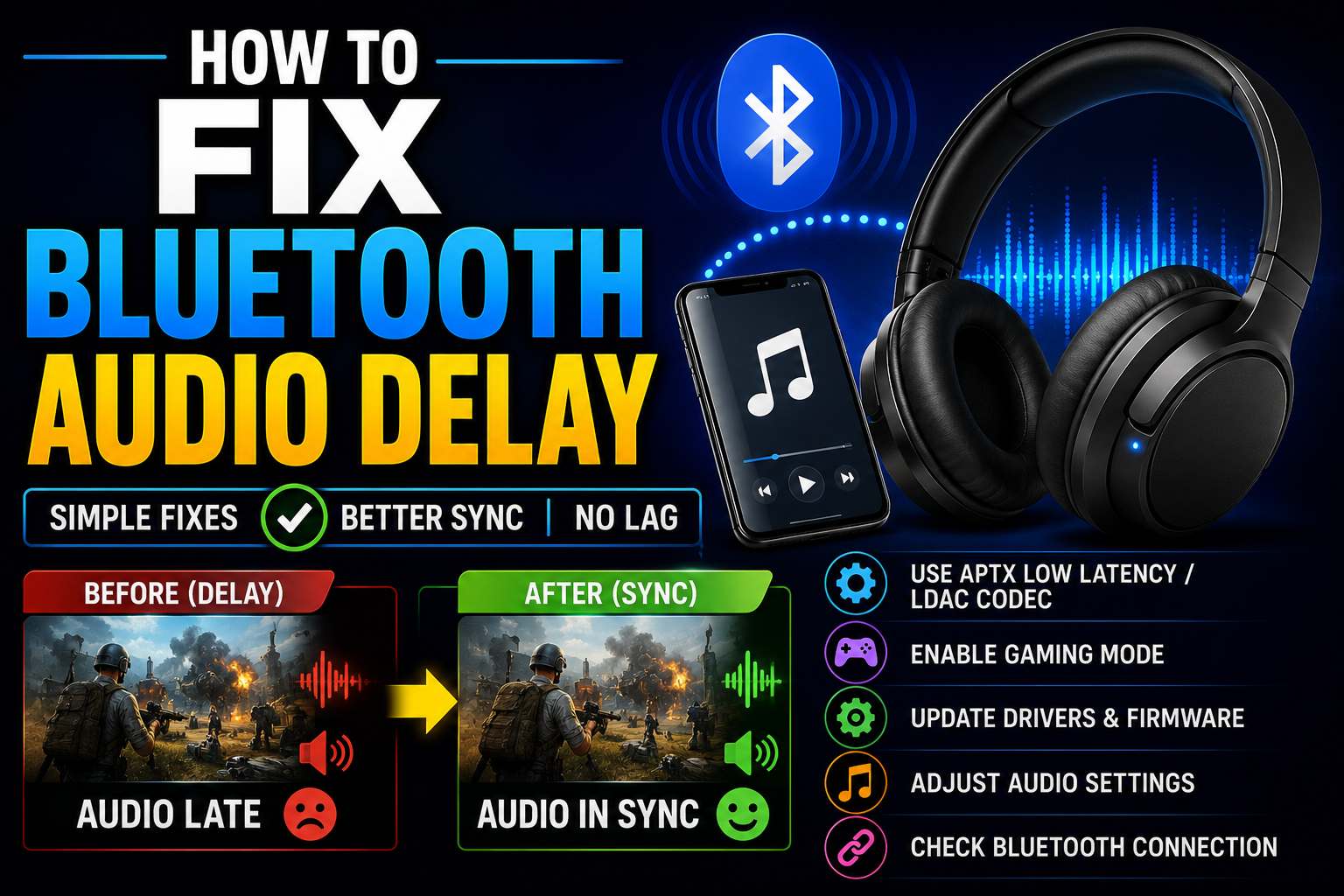
Introduction
If you are searching for how to fix Bluetooth audio delay, you are not alone. Bluetooth technology has made wireless audio more convenient than ever, but audio lag remains a common problem for many users. Whether you are watching videos, playing games, attending online meetings, or listening to music, delayed audio can be frustrating and affect the overall experience.
Bluetooth audio delay occurs when there is a noticeable gap between what you see on the screen and what you hear through your Bluetooth headphones, earbuds, speakers, or other wireless devices. Fortunately, there are several effective ways to reduce or eliminate this issue.
This guide explains the causes of Bluetooth audio delay and provides practical solutions to help you enjoy smoother and more synchronized sound.
What Causes Bluetooth Audio Delay?
Before learning how to fix Bluetooth audio delay, it is important to understand why it happens.
Bluetooth audio is transmitted wirelessly from one device to another. During this process, audio data must be compressed, transmitted, received, and decoded before playback. These steps create a small amount of latency.
Common causes include:
- Outdated Bluetooth drivers
- Older Bluetooth versions
- Audio codec limitations
- Weak wireless signals
- Software bugs
- Device compatibility issues
- Multiple connected Bluetooth devices
Understanding the root cause can help you choose the most effective solution.
Image Suggestion:
Bluetooth headphones connected to a smartphone with audio wave synchronization graphics.
Restart Your Devices
One of the simplest solutions is restarting both devices involved in the Bluetooth connection.
Steps
- Turn off your Bluetooth headphones or speaker.
- Restart your phone, tablet, laptop, or computer.
- Turn the Bluetooth device back on.
- Reconnect the devices.
This simple step can clear temporary software glitches that may be causing audio lag.
Update Your Device Software

Manufacturers frequently release software updates that improve Bluetooth performance and fix bugs.
Check for Updates
- Android: Settings → System Updates
- iPhone: Settings → General → Software Update
- Windows: Windows Update
- Mac: System Settings → Software Update
Installing the latest updates can often improve Bluetooth stability and reduce latency issues.
Image Suggestion:
A smartphone displaying a software update screen.
Update Bluetooth Drivers on Windows
If you use Bluetooth headphones on a Windows PC, outdated drivers may be responsible for audio delay.
How to Update Drivers
- Open Device Manager.
- Locate Bluetooth devices.
- Right-click the Bluetooth adapter.
- Select Update Driver.
- Follow the on-screen instructions.
Updated drivers often improve compatibility and wireless performance.
Reduce Distance Between Devices
Bluetooth connections work best when devices are close together.
Best Practices
- Keep headphones within a few feet of the source device.
- Avoid walls and large obstacles.
- Reduce interference from other wireless devices.
A stronger Bluetooth signal can reduce audio transmission delays.
Disconnect Unused Bluetooth Devices
Having multiple Bluetooth devices connected simultaneously can create performance issues.
Examples
- Smartwatches
- Wireless keyboards
- Wireless mice
- Bluetooth speakers
- Fitness trackers
Disconnecting unnecessary devices may improve Bluetooth audio performance and reduce lag.
Image Suggestion:
Multiple Bluetooth devices connected to a smartphone with one active connection highlighted.
Use Low-Latency Audio Codecs
Audio codecs determine how sound is compressed and transmitted.
Some codecs provide lower latency than others.
Popular Low-Latency Codecs
- aptX Low Latency
- aptX Adaptive
- AAC
- LC3 (Bluetooth LE Audio)
If both your audio device and source device support low-latency codecs, you may notice significant improvements in audio synchronization.
Disable Audio Enhancements

Some devices include sound enhancement features that can introduce additional processing delays.
Features to Disable
- Virtual surround sound
- Audio effects
- Equalizer enhancements
- Spatial audio settings
Testing audio playback with these features disabled can help identify whether they are contributing to the problem.
Clear Bluetooth Pairing Data
Corrupted Bluetooth settings can occasionally cause connection issues and audio delay.
Steps
- Remove the Bluetooth device from paired devices.
- Restart both devices.
- Pair them again.
Re-establishing the connection often resolves hidden configuration problems.
Read more:-How to Fix Audio Delay on Bluetooth Headphones Android Windows
Image Suggestion:
Bluetooth settings screen showing device removal and re-pairing process.
Check for Gaming Mode or Low-Latency Mode
Many modern Bluetooth earbuds and headphones include a dedicated gaming mode.
Benefits
- Reduced audio processing
- Lower latency
- Better audio-video synchronization
If your headphones support gaming mode, enabling it can significantly reduce Bluetooth audio delay during gaming and video playback.
Close Background Applications
Running too many applications can increase system workload and affect Bluetooth performance.
Applications to Close
- Streaming apps not in use
- Browser tabs
- Large downloads
- Video editing software
- Background utilities
Freeing system resources can improve overall Bluetooth responsiveness.
Use Compatible Bluetooth Versions
Bluetooth technology continues to improve with each generation.
Common Versions
- Bluetooth 4.0
- Bluetooth 4.2
- Bluetooth 5.0
- Bluetooth 5.2
- Bluetooth 5.3
Newer Bluetooth versions generally provide better stability, faster transmission, and lower latency.
If your hardware is outdated, upgrading to a newer Bluetooth device may provide noticeable improvements.
Optimize Streaming Applications
Some video streaming apps include audio synchronization settings.
Check for Features Like
- Audio delay adjustment
- Lip-sync correction
- Playback synchronization
These settings can help align audio and video when Bluetooth latency cannot be completely eliminated.
Image Suggestion:
Video player settings menu showing audio sync controls.
Avoid Wireless Interference
Bluetooth operates on the 2.4 GHz frequency band, which is also used by many other devices.
Common Sources of Interference
- Wi-Fi routers
- Wireless cameras
- Microwave ovens
- Smart home devices
- Wireless peripherals
Reducing interference can improve Bluetooth signal quality and decrease audio lag.
When to Replace Your Bluetooth Device
Sometimes the issue is caused by older hardware.
Consider replacing your Bluetooth device if:
- Audio delay persists after troubleshooting.
- The device uses outdated Bluetooth technology.
- Battery performance is poor.
- Connection stability is inconsistent.
Modern Bluetooth headphones and speakers typically offer improved latency performance and better overall audio quality.
Conclusion
How to fix Bluetooth audio delay often comes down to a combination of software updates, proper device settings, stronger connections, and compatible hardware. By restarting devices, updating software, reducing interference, enabling low-latency modes, and using modern Bluetooth technology, you can significantly improve audio synchronization and enjoy a smoother listening experience.
Most Bluetooth audio delay issues can be resolved with simple troubleshooting steps, allowing you to enjoy videos, games, music, and calls without annoying lag.
FAQ
Why is my Bluetooth audio delayed?
Bluetooth audio delay occurs because audio data must be compressed, transmitted, and decoded before playback. Software issues, outdated hardware, and wireless interference can increase latency.
How can I reduce Bluetooth audio latency?
You can reduce latency by updating software, using low-latency codecs, minimizing interference, and enabling gaming mode if available.
Do Bluetooth headphones always have audio delay?
Most Bluetooth devices have some latency, but modern devices with advanced codecs significantly reduce the delay.
Does Bluetooth 5.0 reduce audio lag?
Yes. Bluetooth 5.0 and newer versions generally offer improved transmission efficiency and lower latency compared to older versions.
Can software updates fix Bluetooth audio delay?
Yes. Software and firmware updates often include Bluetooth performance improvements and bug fixes.
Why is Bluetooth audio delayed when gaming?
Games require real-time audio processing, making Bluetooth latency more noticeable. Using gaming mode or low-latency codecs can help.
Can Wi-Fi affect Bluetooth audio quality?
Yes. Since Bluetooth and Wi-Fi often share the same frequency range, interference can cause connection problems and increased audio delay.