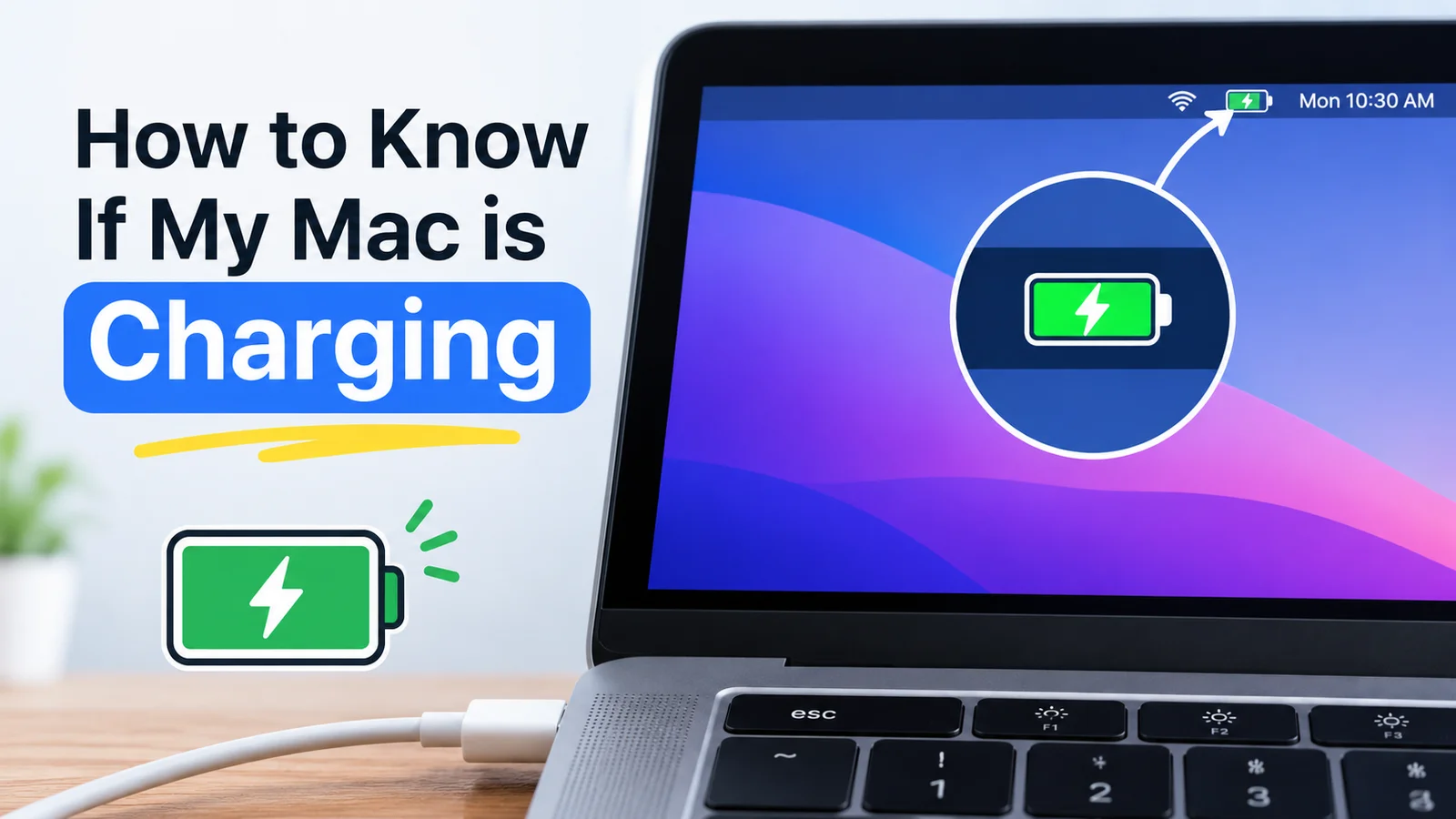
How to Know If My Mac Is Charging is useful when you want to confirm that your MacBook is properly connected to power. You can check the battery icon in the menu bar, charging symbol, or battery settings to see whether your Mac is receiving power. Knowing these simple signs can help you quickly identify charging problems and keep your MacBook’s battery in good condition.
If you are wondering how to know if your Mac is charging, there are several simple ways to check it. Whether you use a MacBook Air or MacBook Pro, macOS provides useful signs that show whether your battery is receiving power.
Sometimes the charging indicator may not be obvious, especially if the Mac is turned on or the battery is already nearly full. Checking the battery status can quickly tell you whether your Mac is connected to power.
Check the Battery Icon
The easiest way to know if your Mac is charging is to check the battery icon in the menu bar.
Look at the top-right corner of your Mac screen. You should see a battery symbol.
Click the battery icon to view more information.
If your Mac is connected to power, you may see a message indicating that the battery is charging or that the Mac is connected to a power source.
The battery percentage can also help you understand the current battery level.
Look for the Charging Symbol

A charging symbol can appear inside or near the battery indicator when your Mac is receiving power.
If you see a lightning bolt or charging message, the Mac is connected to a power source.
This is one of the quickest ways to check the charging status without opening additional settings.
Keep in mind that the appearance of the battery indicator can vary depending on your macOS version.
Check the Battery Percentage
The battery percentage gives you another useful clue.
If the percentage increases after you connect your Mac to its charger, the battery is charging.
For example, if the battery shows 45 percent and later reaches 50 percent while connected to power, the Mac is successfully charging.
If the percentage stays the same for a long time, check whether the Mac is actually connected to the charger and whether the charger is working properly.
Check System Settings

You can also check charging information through your Mac’s system settings.
Open the Apple menu and select System Settings.
Then choose Battery.
Here you can find information about battery usage, power settings, and other charging-related options.
Depending on your Mac and macOS version, you may see information about the current power source and battery condition.
This can be useful when the menu bar does not give you enough information.
Check the Charger Connection
If your Mac does not appear to be charging, check the physical connection first.
Make sure the charging cable is firmly connected to the Mac.
Then check the other end of the cable and make sure it is connected properly to the power adapter or power source.
A loose connection can prevent the battery from charging.
If your Mac uses MagSafe, check whether the connector is properly attached. You may also see a charging indicator on the connector depending on the Mac model.
Read also:-How to Connect AirPods to a MacBook: 5 Easy Steps for Quick Pairing
Check the Power Adapter
The power adapter is another important part of the charging system.
Make sure the adapter is connected to a working electrical outlet.
You can try another outlet if you are not sure whether the original one is providing power.
If the adapter becomes unusually hot, makes strange sounds, or appears damaged, stop using it and replace it with a suitable charger.
Do not use a damaged charging cable.
Check the USB-C Cable
Many MacBook models use USB-C charging.
A USB-C cable may look fine from the outside but still have a problem internally.
If your Mac is not charging, try another compatible charging cable if you have one available.
Make sure the replacement cable supports the required charging power. Not every USB-C cable is designed for charging a MacBook at the same level.
Your Mac May Say “Not Charging”

Sometimes your Mac can be connected to the charger but still show that it is not actively charging.
This does not always mean something is wrong.
macOS may temporarily stop charging when the battery is already at a high level. Battery health features can manage charging to reduce unnecessary battery wear.
If your Mac is connected to power and the battery level is high, the system may delay charging until it is needed.
Optimized Battery Charging
Modern Mac computers include battery management features designed to help maintain battery health.
Optimized Battery Charging can reduce the amount of time the battery remains fully charged.
This means your Mac may be connected to power but may not immediately increase the battery percentage.
This behavior can be normal.
If you need the battery to charge fully for travel or another reason, check your Battery settings for available charging options.
Check the Mac While It Is Turned Off
You can also check whether the Mac responds to the charger when it is powered off.
Connect the charger and wait for a short time.
Then turn the Mac on and check the battery status.
If the battery percentage increases after being connected to power, the charging system is working.
What If Your Mac Is Not Charging?
If the battery percentage does not increase, try some basic troubleshooting.
First, disconnect the charger and reconnect it securely.
Then try another power outlet.
If possible, test another compatible charging cable or adapter.
You can also restart your Mac and check the battery status again.
Make sure the charging port is clean and free from dust or debris. Do not insert sharp objects into the port.
Check Battery Health
If your Mac frequently has charging problems, check its battery health.
Open System Settings, select Battery, and look for the battery health information available on your Mac.
A battery that has significantly aged may not perform like a new battery.
If the system reports a service recommendation, professional inspection may be appropriate.
When to Get Professional Help
If your Mac still does not charge after checking the cable, adapter, outlet, and settings, there may be a hardware problem.
Possible causes include a damaged charging port, faulty adapter, damaged cable, or battery problem.
In these situations, professional service is safer than attempting to open the Mac yourself.
Conclusion
Knowing how to know if your Mac is charging is simple once you know where to look. Check the battery icon, charging indicator, battery percentage, and Battery settings.
If the battery percentage increases while connected to power, your Mac is charging normally. If it says that it is not charging while the battery is already high, battery management features may be controlling the charging process.
If the battery does not increase at all, check the charger, cable, outlet, and charging port. Persistent problems may require professional service.
FAQ
How do I know if my MacBook is charging?
Check the battery icon in the menu bar. A charging indicator or charging message usually means the Mac is receiving power.
Why is my Mac plugged in but not charging?
Your Mac may temporarily pause charging because the battery is already highly charged or because battery health management is active.
How can I check my Mac battery percentage?
Click the battery icon in the menu bar. Depending on your macOS version, you can also enable battery percentage in System Settings.
Why is my Mac battery percentage not increasing?
Check the charging cable, power adapter, outlet, and charging port. Battery health or charging management can also affect the percentage.
Can I use another USB-C cable to charge my Mac?
Yes, if the cable is compatible and supports the charging requirements of your Mac. Some USB-C cables may not provide enough power.
What should I do if my Mac still will not charge?
Try another compatible charger or outlet and restart the Mac. If the problem continues, the battery, cable, adapter, or charging port may need professional inspection.