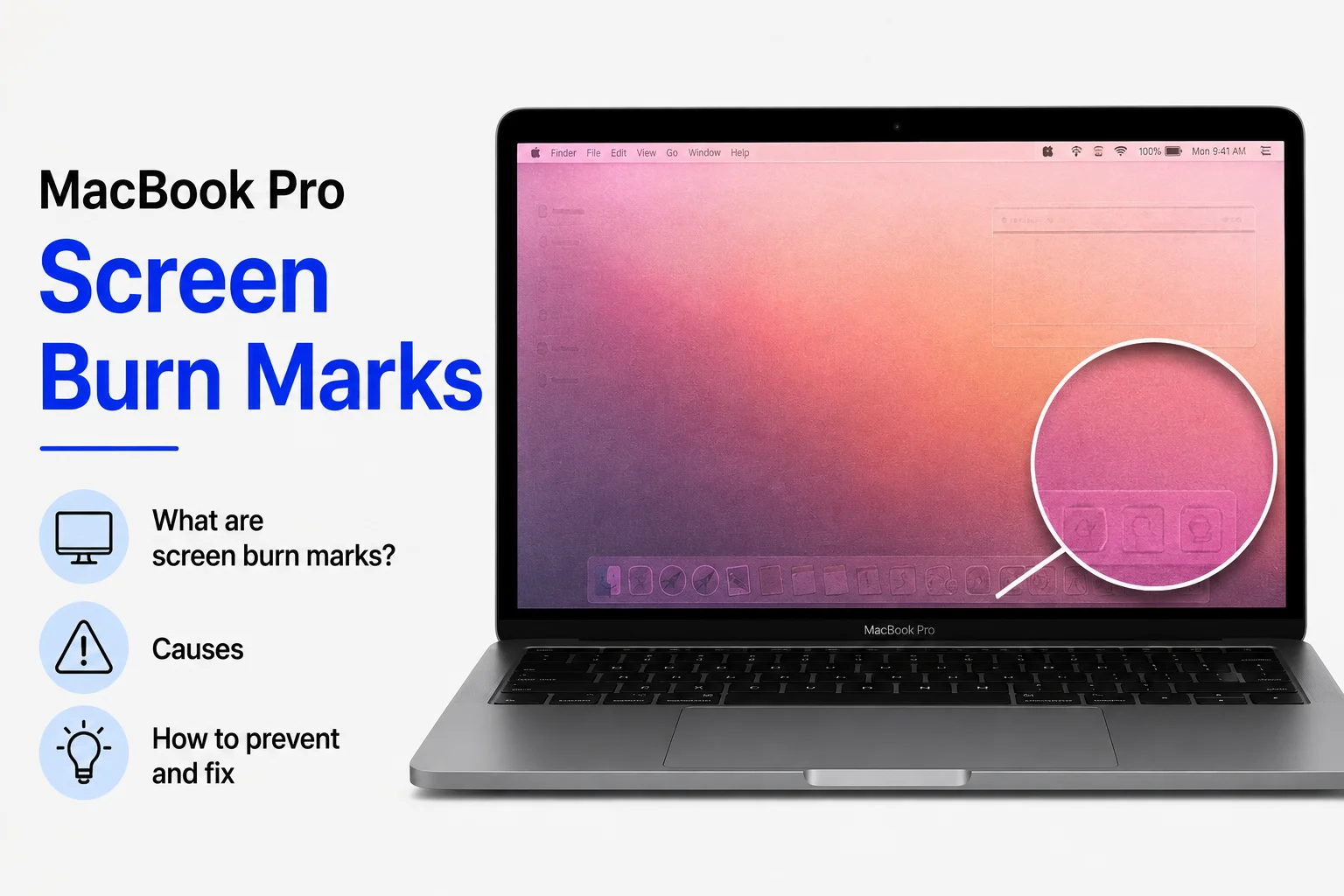
Seeing MacBook Pro screen burn marks can be worrying, especially when a faint logo, window outline, or toolbar seems to remain on the display after you close an app. In some cases, the problem is temporary image retention. In other situations, it may be permanent burn-in caused by long-term display use.
The good news is that not every mark on a MacBook Pro screen means the display is permanently damaged. Understanding the difference between image retention and true screen burn-in can help you choose the right solution.
What Are MacBook Pro Screen Burn Marks?
Screen burn-in happens when parts of a display show a persistent image or shadow even after the original content has disappeared.
For example, you might notice a faint outline of:
- A menu bar
- An application window
- A video player
- A browser toolbar
- A frequently used interface
- Other fixed elements
The mark may become easier to see when the screen displays a plain background.
However, what looks like burn-in can sometimes be image retention. Image retention is usually temporary and may disappear after the display changes or rests for some time.
Screen Burn-In vs Image Retention

It is important to understand the difference.
Image retention is usually temporary. A faint image may remain visible for a short period after displaying the same content. It can sometimes disappear naturally after normal use.
Burn-in is more serious because the visible pattern can remain for a long time or permanently.
If the mark disappears after switching between different types of content, you may be dealing with temporary retention rather than permanent burn-in.
Why Do Screen Burn Marks Appear?
Display problems can develop for several reasons.
One common cause is displaying the same static content for long periods. If the same interface elements stay in the same position every day, parts of the display may experience different levels of wear.
High brightness can also increase display stress over extended periods.
Other factors can include:
- Long periods of static content
- Very high screen brightness
- Continuous daily use
- Heat exposure
- Display aging
- Individual panel characteristics
The exact cause depends on the display technology and the condition of the particular MacBook Pro.
How to Check for Screen Burn-In
Before assuming that your MacBook Pro has permanent burn-in, perform a simple visual check.
First, close your open applications and display a plain background. A light or neutral background can make faint marks easier to see.
Look carefully at the areas where you previously noticed the problem.
Next, display different content for a while. Open a document, watch a video, or use another application.
If the mark becomes less visible over time, it may be temporary image retention.
If the same pattern remains clearly visible regardless of what is displayed, the display may have a more serious issue.
Restart Your MacBook Pro

A simple restart is worth trying if the display is behaving unusually.
Save your work, close your applications, and restart the MacBook Pro.
After the computer starts again, check whether the mark is still visible.
A restart will not repair permanent physical damage, but it can help rule out temporary software or display-rendering problems.
Reduce Screen Brightness
Running the display at maximum brightness for long periods is generally unnecessary for many indoor environments.
Lowering the brightness can make the screen more comfortable to use and may reduce display stress.
You can adjust the brightness using the keyboard controls or display settings.
For normal indoor work, choose a brightness level that is comfortable rather than keeping the display at its maximum setting all day.
Read also:-What Is the Cheapest MacBook: 5 Affordable Options You Should Know
Use a Screen Saver
A screen saver can help prevent the same static image from remaining on the display continuously.
Configure your MacBook Pro to start the screen saver when you are away from the computer.
This is particularly useful if you often leave your MacBook running while taking breaks.
A screen saver also provides a simple way to avoid keeping a fixed application window visible for hours.
Avoid Leaving Static Content on Screen

If you regularly use the same application for many hours, take short breaks and allow the display to show different content.
For example, if you work with a spreadsheet or editing application throughout the day, avoid leaving the same screen open when you are not actively using it.
When stepping away from your MacBook Pro, lock the screen or allow the display to turn off.
Keep Your MacBook Pro Cool
Excessive heat can affect electronic components and displays over time.
Avoid using your MacBook Pro on surfaces that block its ventilation. A hard, flat surface is generally better than a soft surface such as a bed or thick blanket.
Also avoid exposing the computer to unnecessary heat for extended periods.
Good thermal conditions are important for maintaining the overall health of your MacBook Pro.
Clean the Display Carefully
Sometimes what looks like a screen mark is simply dirt, fingerprints, or residue.
Turn off your MacBook Pro and use a clean, soft, lint-free cloth to gently clean the display.
Do not press hard against the screen.
Avoid spraying cleaning liquid directly onto the display. Moisture can enter gaps around the screen and cause other problems.
If the mark disappears after cleaning, it was not screen burn-in.
Can Screen Burn-In Be Permanently Fixed?
Unfortunately, genuine permanent burn-in cannot normally be removed through software settings.
If a display panel has developed permanent physical damage, changing brightness or restarting the computer will not restore the affected pixels.
In that situation, the practical solution is to have the display professionally inspected.
If your MacBook Pro is still covered by an applicable warranty or service program, check your coverage before paying for a repair.
When Should You Contact a Professional?
You should consider professional assistance if:
- The mark remains permanently visible
- The display has unusual discoloration
- Lines or flickering appear
- The screen has physical damage
- Cleaning does not remove the mark
- The problem continues after restarting
A technician can determine whether the problem is related to the display panel, software, or another component.
How to Prevent Future Screen Problems
Prevention is easier than dealing with a damaged display.
Use a comfortable brightness level, avoid leaving static images on the screen for extended periods, and allow the display to turn off when you are away.
Regularly changing what is displayed can also reduce the amount of time the same interface elements remain in exactly the same position.
If you notice temporary image retention, changing the displayed content and allowing the screen to rest may help.
Conclusion
MacBook Pro screen burn marks can be caused by either temporary image retention or permanent display damage. Before assuming that your screen has burn-in, clean the display, restart the MacBook, change the displayed content, and check whether the mark disappears.
Keeping brightness at a comfortable level, using a screen saver, avoiding long periods of static content, and keeping the MacBook in a suitable environment can help protect the display. If a mark remains permanently visible, professional inspection is the best option.
FAQ
What causes screen burn marks on a MacBook Pro?
Long periods of static content, high brightness, display aging, heat, and panel wear can contribute to visible screen marks.
Are MacBook Pro screen burn marks permanent?
Not always. Some marks are temporary image retention and may disappear. Permanent burn-in can remain visible.
How can I tell if my MacBook has burn-in?
Display different content or a plain background. If the same pattern remains clearly visible, it may indicate a display problem.
Can restarting a MacBook fix screen burn-in?
Restarting may help rule out temporary software problems, but it cannot repair permanent physical display damage.
Can screen burn-in be removed with software?
True permanent burn-in generally cannot be removed through software. Professional display service may be required.
How can I prevent screen burn marks on my MacBook Pro?
Avoid leaving static content on the screen for long periods, use a comfortable brightness level, and let the display turn off when you are away.