Introduction
If you often get distracted by calls, text messages, social media alerts, and app notifications, learning how to use Do Not Disturb on your iPhone can help you regain control of your time and attention. Apple’s Do Not Disturb feature is designed to reduce interruptions by silencing notifications while still allowing important contacts and apps to reach you when necessary.
Whether you’re sleeping, working, studying, attending a meeting, or simply taking a break from digital distractions, Do Not Disturb can create a quieter and more productive experience. Unlike turning your phone completely off, this feature allows you to stay connected while limiting unnecessary interruptions.
This guide explains everything you need to know about setting up, customizing, and using Do Not Disturb on your iPhone.
Image Suggestion:
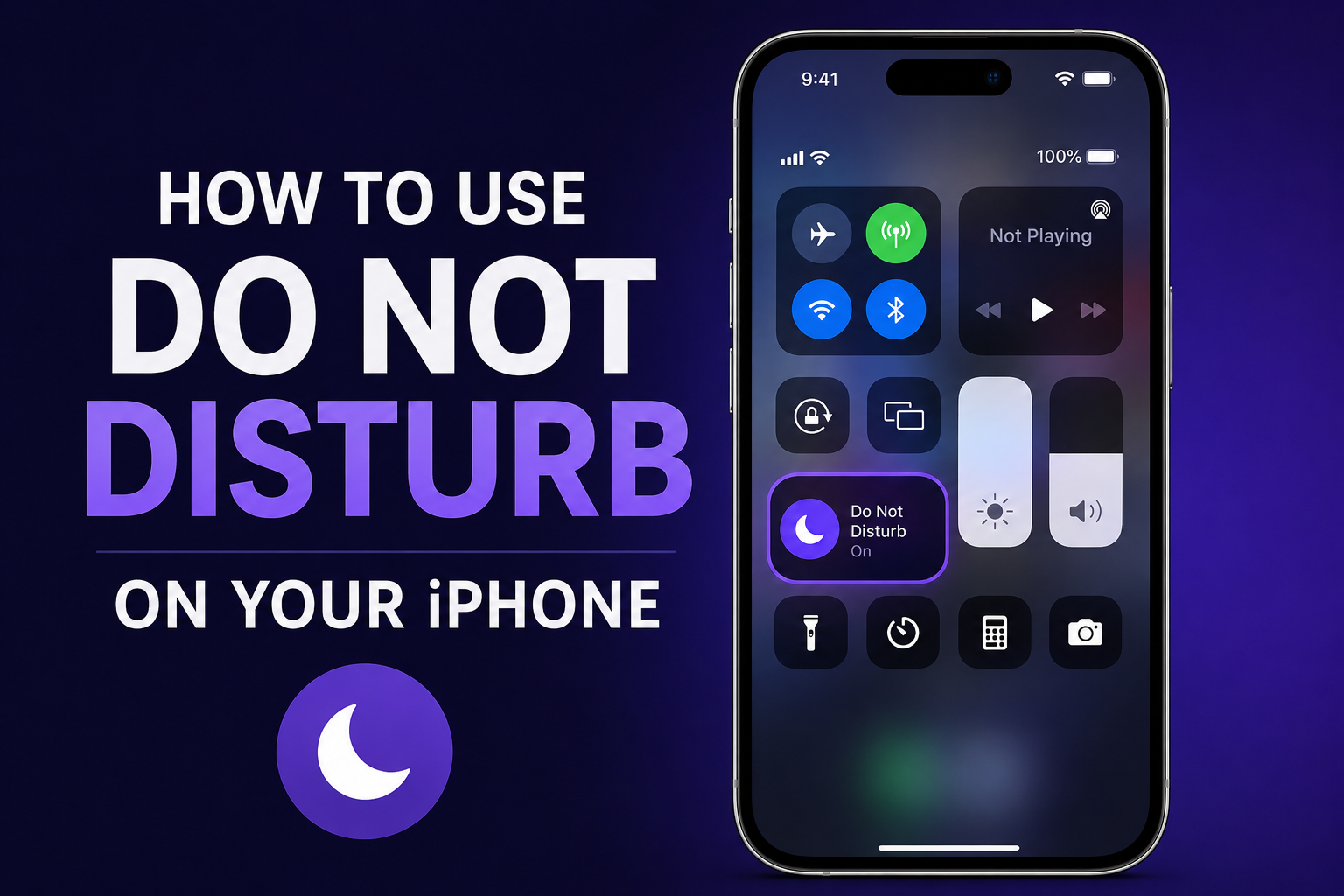
An iPhone displaying the Do Not Disturb icon with notifications muted.
What Is Do Not Disturb on iPhone?

Do Not Disturb is part of Apple’s Focus Mode system. It temporarily silences incoming calls, messages, alerts, and notifications based on your preferences.
When enabled, your iPhone can:
- Silence notifications
- Reduce distractions
- Allow selected contacts
- Permit important apps
- Schedule quiet hours
- Improve focus and productivity
This feature is especially useful during work, sleep, travel, or important meetings.
Why Use Do Not Disturb?
Many people receive hundreds of notifications every day. Constant interruptions can reduce productivity and increase stress.
Benefits of Do Not Disturb
- Better concentration
- Improved sleep quality
- Reduced distractions
- More control over notifications
- Enhanced productivity
- Greater peace of mind
Using Do Not Disturb regularly can help create healthier digital habits.
Image Suggestion:
A person working at a desk while the iPhone shows Do Not Disturb mode enabled.
How to Turn On Do Not Disturb on iPhone

Activating Do Not Disturb is simple.
Method 1: Through Control Center
- Swipe down from the top-right corner of the screen.
- Open Control Center.
- Tap the Focus button.
- Select Do Not Disturb.
The feature becomes active immediately.
Method 2: Through Settings
- Open Settings.
- Tap Focus.
- Select Do Not Disturb.
- Turn it on.
This method also provides access to advanced customization options.
Customize Do Not Disturb Settings
One of the best features of Do Not Disturb is flexibility.
Allow Specific Contacts
You can choose people who can still contact you while Do Not Disturb is enabled.
Examples include:
- Family members
- Emergency contacts
- Close friends
- Work supervisors
This ensures important calls are never missed.
Allow Specific Apps
Certain applications may still be allowed to send notifications.
Examples include:
- Calendar
- Health apps
- Security apps
- Business communication tools
This creates a balance between focus and accessibility.
Image Suggestion:
Do Not Disturb settings screen showing allowed contacts and apps.
Schedule Do Not Disturb Automatically
You don’t need to activate Do Not Disturb manually every day.
Set a Schedule
- Open Settings.
- Tap Focus.
- Select Do Not Disturb.
- Tap Add Schedule.
You can schedule it for:
- Bedtime
- Work hours
- School hours
- Meetings
- Personal time
Automatic scheduling helps maintain consistent routines.
Use Do Not Disturb While Sleeping

Many users rely on Do Not Disturb for better sleep.
Benefits During Sleep
- No notification sounds
- Reduced screen distractions
- Better sleep quality
- Fewer nighttime interruptions
Combining Do Not Disturb with Sleep Focus creates an even more effective nighttime experience.
Image Suggestion:
An iPhone on a bedside table with Sleep Focus and Do Not Disturb activated.
Allow Emergency Calls
One concern users often have is missing urgent calls.
Fortunately, Apple allows you to customize call settings.
Options Available
- Allow calls from favorites
- Allow calls from selected contacts
- Allow repeated calls
Repeated Calls lets a second call from the same number within a short period bypass Do Not Disturb.
This feature can be helpful during emergencies.
Use Do Not Disturb During Meetings
Meetings require focus and professionalism.
Benefits in Meetings
- Prevents notification sounds
- Avoids screen distractions
- Improves concentration
- Reduces interruptions
Many professionals schedule Do Not Disturb automatically during work hours.
Do Not Disturb and Focus Modes
Apple’s Focus system includes several specialized modes.
Available Focus Modes
- Do Not Disturb
- Personal
- Work
- Sleep
- Fitness
- Gaming
- Custom Focus
Each mode can have different rules and notification settings.
This flexibility allows users to create personalized experiences for different situations.
Read more:-How to Disable AMBER Alerts on iPhone: Smart Methods for Better Notification Control
Image Suggestion:
Various iPhone Focus Modes displayed on screen.
Customize Your Lock Screen
Modern versions of iOS allow Focus Modes to change lock screen behavior.
Customization Options
- Different wallpapers
- Notification filtering
- App visibility settings
- Home screen customization
These features make it easier to identify when Do Not Disturb is active.
Common Problems and Solutions
Sometimes users experience issues with Do Not Disturb.
Notifications Still Appear
Possible causes:
- Incorrect Focus settings
- Allowed apps
- Scheduled exceptions
Review your settings carefully.
Missing Important Calls
Check:
- Allowed contacts
- Emergency bypass settings
- Repeated call options
Do Not Disturb Turns On Automatically
This usually occurs because a schedule or automation has been configured.
Review Focus schedules within Settings.
Image Suggestion:
Troubleshooting screen showing notification settings adjustments.
Tips for Using Do Not Disturb Effectively
To get the most benefit from Do Not Disturb:
Create a Daily Schedule
Consistency helps reduce distractions and improve productivity.
Limit Allowed Notifications
Only allow essential contacts and apps.
Combine with Focus Modes
Use Work Focus and Sleep Focus alongside Do Not Disturb for better control.
Review Settings Regularly
Needs change over time, so update your notification preferences periodically.
Who Should Use Do Not Disturb?
Almost everyone can benefit from this feature.
Ideal Users Include
- Students
- Professionals
- Remote workers
- Parents
- Travelers
- Content creators
- Business owners
Do Not Disturb helps anyone who wants greater control over digital interruptions.
Privacy Benefits of Do Not Disturb
Beyond productivity, Do Not Disturb offers privacy advantages.
Privacy Advantages
- Fewer visible notifications
- Reduced lock-screen exposure
- Less accidental information sharing
- Improved control over communication
This can be especially useful in public places and professional environments.
Conclusion
How to Use Do Not Disturb on Your iPhone is an important skill for anyone looking to reduce distractions and improve focus. Whether you’re working, studying, sleeping, or simply taking a break from constant notifications, Do Not Disturb provides an easy and effective solution.
By customizing settings, scheduling quiet hours, allowing important contacts, and integrating Focus Modes into your daily routine, you can create a more productive and balanced digital experience. Taking a few minutes to configure Do Not Disturb today can lead to fewer interruptions and greater peace of mind every day.
FAQ
How do I turn on Do Not Disturb on my iPhone?
Open Control Center, tap Focus, and select Do Not Disturb.
Will calls be blocked during Do Not Disturb?
Calls are silenced by default, but you can allow calls from selected contacts.
Can emergency calls get through Do Not Disturb?
Yes. You can enable repeated calls and allow important contacts to bypass restrictions.
Does Do Not Disturb silence text messages?
Yes. Text messages and most notifications are silenced while the feature is active.
Can I schedule Do Not Disturb automatically?
Yes. You can create daily schedules through the Focus settings.
What is the difference between Focus Mode and Do Not Disturb?
Do Not Disturb is one type of Focus Mode specifically designed to reduce interruptions.
Does Do Not Disturb save battery life?
It may slightly reduce battery usage by limiting screen activations and notification activity.