Introduction
Knowing how to set up and use the Emergency SOS feature on an iPhone can be extremely important in emergency situations. Whether you’re facing a medical emergency, personal safety threat, accident, or any situation requiring immediate assistance, Emergency SOS is designed to help you quickly contact emergency services and notify trusted contacts.
Apple introduced Emergency SOS as a built-in safety feature that allows users to call emergency responders with just a few button presses. It can also automatically share your location with emergency contacts, helping family members know where you are during a crisis.
Many iPhone users are unaware of how powerful this feature is until they actually need it. Taking a few minutes to set up Emergency SOS properly can make a significant difference when every second counts.
This guide explains everything you need to know about setting up and using Emergency SOS on your iPhone.
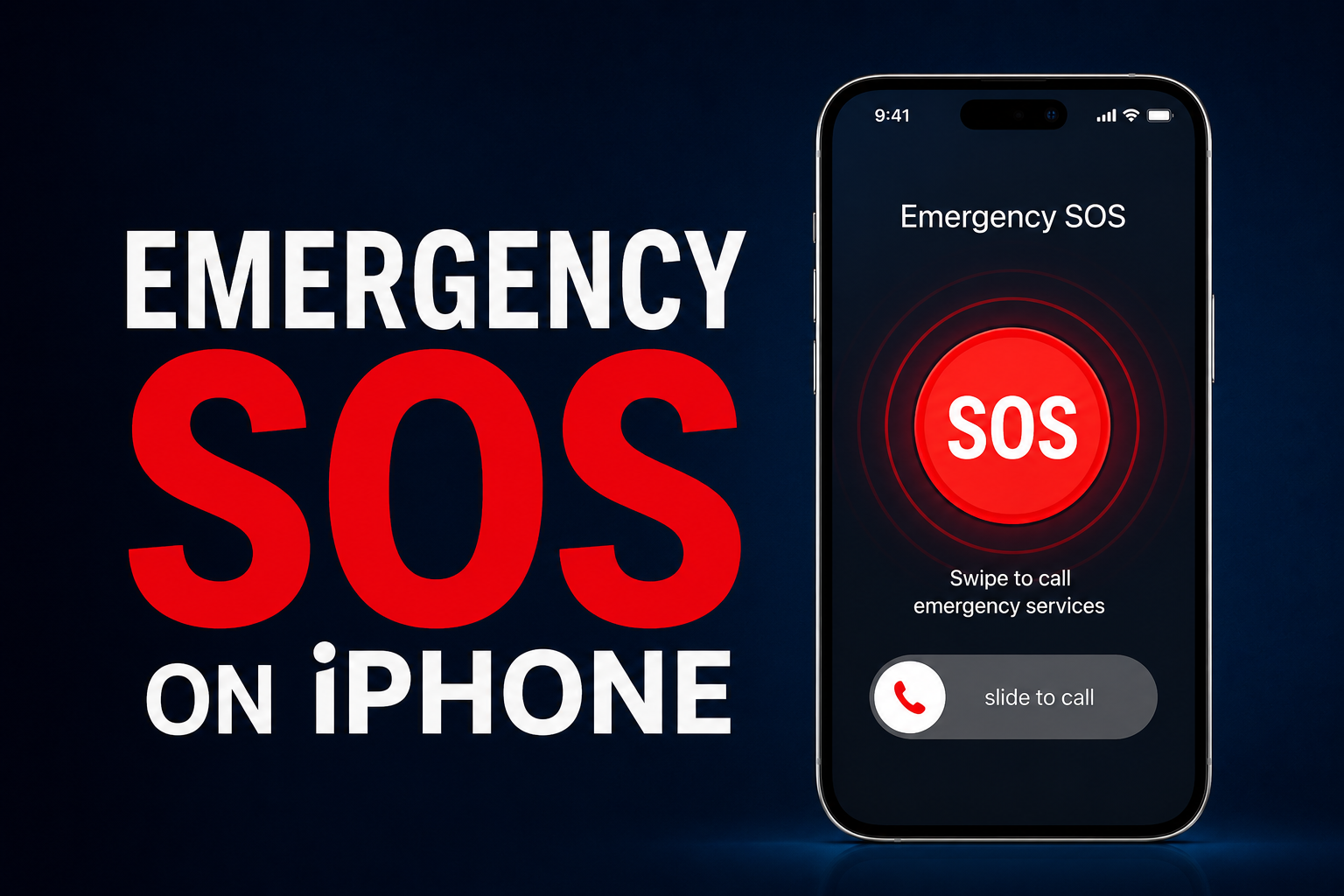
Image Suggestion:
An iPhone displaying the Emergency SOS screen with emergency call options visible.
What Is Emergency SOS on iPhone?
Emergency SOS is a safety feature built into iPhones that allows users to quickly call emergency services without manually dialing a phone number.
When activated, Emergency SOS can:
- Contact local emergency services
- Notify emergency contacts
- Share your current location
- Continue sharing location updates for a period of time
- Provide faster access to emergency assistance
The feature is available on most modern iPhone models and is included with iOS.
Why Emergency SOS Is Important

Emergencies often happen unexpectedly. In stressful situations, unlocking a phone and searching for emergency numbers may not be practical.
Emergency SOS helps by:
- Saving valuable time
- Providing quick access to help
- Alerting family members
- Improving personal safety
- Assisting during accidents or medical emergencies
Learning how to use this feature before an emergency occurs can help you respond more effectively when needed.
Image Suggestion:
A person using Emergency SOS during an emergency situation.
How to Set Up Emergency SOS on iPhone

Before using Emergency SOS, it is important to configure the feature correctly.
Step 1: Open Settings
Launch the Settings app on your iPhone.
Step 2: Select Emergency SOS
Scroll down and tap “Emergency SOS.”
Step 3: Review Available Options
You may see settings such as:
- Call with Side Button
- Call with Hold and Release
- Call Quietly
- Countdown Sound
Enable the options that best suit your preferences.
Step 4: Test Your Settings
Review the instructions provided by Apple so you understand how Emergency SOS will function on your specific iPhone model.
Set Up Emergency Contacts

Emergency contacts are people who will receive notifications if Emergency SOS is activated.
How to Add Emergency Contacts
- Open the Health app.
- Tap your profile picture.
- Select Medical ID.
- Tap Edit.
- Scroll to Emergency Contacts.
- Add trusted family members or friends.
You can add multiple contacts if desired.
Image Suggestion:
Medical ID setup screen showing emergency contact information.
Create a Medical ID
Medical ID is another important feature that works alongside Emergency SOS.
Information You Can Include
- Name
- Blood type
- Medical conditions
- Allergies
- Medications
- Emergency contacts
Emergency responders may be able to access this information from your lock screen.
Having accurate medical information available can help emergency personnel provide appropriate care.
How to Use Emergency SOS on iPhone
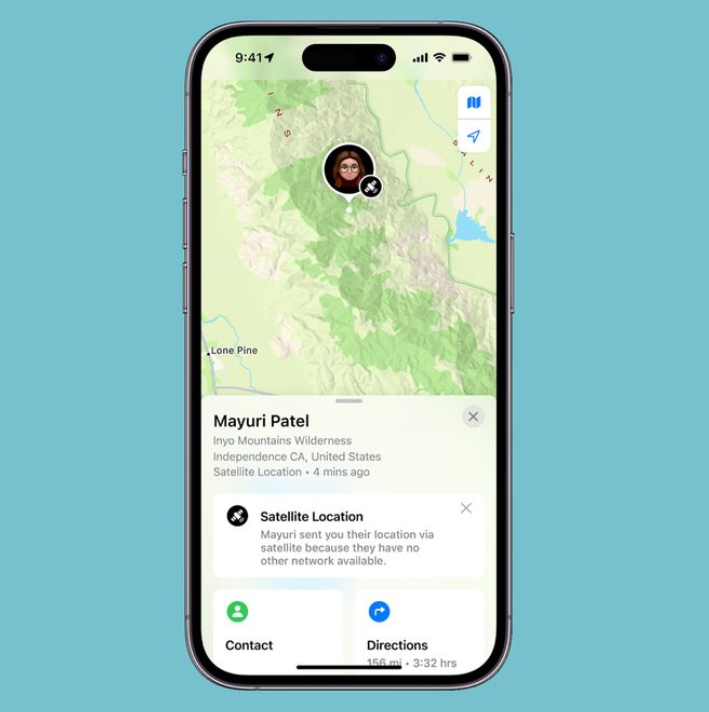
Once setup is complete, using Emergency SOS is simple.
Method 1: Side Button and Volume Button
For many modern iPhones:
- Press and hold the Side button and either Volume button.
- Emergency SOS slider appears.
- Drag the Emergency SOS slider.
The phone immediately contacts emergency services.
Method 2: Continue Holding Buttons
If enabled, continuing to hold the buttons will start a countdown.
After the countdown ends, the emergency call is placed automatically.
This method is useful when you cannot interact with the screen.
Image Suggestion:
iPhone displaying the Emergency SOS countdown timer.
What Happens After an Emergency Call?
After contacting emergency services, your iPhone may automatically notify emergency contacts.
Information Shared
- Your current location
- Notification that Emergency SOS was activated
- Location updates if you move
This helps trusted contacts understand your situation and potentially assist if necessary.
Read more:-How to Set Up Voicemail on Samsung S24: 5 Easy Steps for a Smooth Experience
Emergency SOS on Different iPhone Models
The activation process may vary slightly depending on your device.
Newer iPhones
Most recent models use:
- Side button + Volume button
- Automatic countdown
Older iPhones
Some older devices may require:
- Rapidly pressing the Side or Power button multiple times
Review your iPhone’s Emergency SOS settings to confirm the correct method.
Use Emergency SOS While Traveling
Emergency SOS can be especially valuable while traveling.
Benefits include:
- Access to local emergency services
- Faster emergency response
- Improved personal security
- Peace of mind in unfamiliar locations
Before traveling, verify that Emergency SOS is configured correctly and that your emergency contacts are up to date.
Image Suggestion:
Traveler using an iPhone with a map and Emergency SOS options displayed.
Tips for Using Emergency SOS Effectively
To get the most benefit from Emergency SOS:
Keep Emergency Contacts Updated
Review contact information regularly to ensure it remains accurate.
Update Medical Information
Health conditions and medications can change over time.
Practice the Activation Method
Understanding the activation process beforehand can reduce confusion during emergencies.
Keep Your iPhone Charged
A dead battery can prevent access to emergency features.
Enable Location Services
Location sharing helps emergency contacts and responders locate you quickly.
Common Mistakes to Avoid
Many users make small mistakes that reduce the effectiveness of Emergency SOS.
Not Adding Emergency Contacts
Without emergency contacts, family members may not receive notifications.
Ignoring Medical ID
Medical information can be critical during emergencies.
Disabling Location Services
Location sharing often improves emergency response times.
Forgetting Activation Methods
Knowing exactly how to trigger Emergency SOS is essential.
Avoiding these mistakes helps ensure the feature works when you need it most.
Privacy and Security Considerations
Emergency SOS is designed with privacy in mind.
Your location is only shared when Emergency SOS is activated and only with designated emergency contacts.
Apple also provides secure handling of emergency information, helping protect user privacy while maintaining access to essential safety features.
Benefits of Emergency SOS
Using Emergency SOS offers several advantages.
Key Benefits
- Immediate emergency assistance
- Quick emergency calling
- Automatic contact notifications
- Location sharing
- Improved personal safety
- Easy access during stressful situations
These features make Emergency SOS one of the most valuable safety tools available on the iPhone.
Conclusion
How to Set Up and Use the Emergency SOS Feature on an iPhone is something every iPhone user should learn. This powerful safety feature allows you to quickly contact emergency services, notify trusted contacts, and share your location during critical situations.
By setting up Emergency SOS, adding emergency contacts, creating a Medical ID, and understanding how the feature works, you can improve your personal safety and be better prepared for unexpected emergencies. Taking a few minutes to configure these settings today could make a significant difference when every second matters.
FAQ
What is Emergency SOS on iPhone?
Emergency SOS is a built-in iPhone safety feature that allows users to quickly call emergency services and notify emergency contacts.
How do I activate Emergency SOS on iPhone?
Most modern iPhones activate Emergency SOS by pressing and holding the Side button and a Volume button.
Can Emergency SOS notify family members?
Yes. Emergency SOS can send notifications and location updates to designated emergency contacts.
Does Emergency SOS work without unlocking the iPhone?
Yes. Emergency SOS can be activated directly from the lock screen.
What information does Emergency SOS share?
It can share your location and notify emergency contacts that Emergency SOS has been activated.
Can I use Emergency SOS internationally?
Yes. Emergency SOS generally works while traveling and can connect to local emergency services where supported.
Is Emergency SOS available on all iPhones?
Emergency SOS is available on most modern iPhone models, though activation methods may vary slightly depending on the device.