Introduction
If you’re wondering how to share location on iPhone, you’re not alone. Location sharing has become an important feature for staying connected with family, friends, coworkers, and loved ones. Whether you want someone to know your current whereabouts, coordinate a meeting, track a family member’s arrival, or provide your location during an emergency, the iPhone makes location sharing quick and convenient.
Apple offers several built-in methods to share your location, including Find My, Messages, and Apple Maps. These tools allow users to send their real-time location or a specific place with just a few taps.
In this guide, you’ll learn everything you need to know about sharing your location on an iPhone, including setup instructions, privacy settings, troubleshooting tips, and best practices.
Image Suggestion:
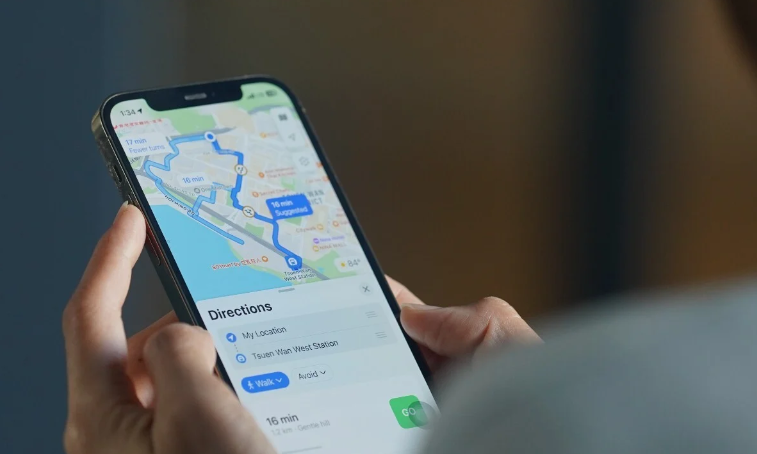
An iPhone displaying a map with a live location pin being shared with another user.
Why Share Your Location on iPhone?
Location sharing offers several benefits in everyday situations.
Common Reasons to Share Location
- Meeting friends or family
- Coordinating travel plans
- Ensuring personal safety
- Tracking family members
- Providing directions
- Finding lost devices
Location sharing can help simplify communication and improve peace of mind for everyone involved.
Enable Location Services First
Before learning how to share location on iPhone, you must ensure Location Services are enabled.
Steps to Enable Location Services
- Open the Settings app.
- Tap Privacy & Security.
- Select Location Services.
- Turn on Location Services.
Once enabled, apps such as Find My, Maps, and Messages can access your location when needed.
Image Suggestion:
Location Services settings screen on an iPhone.
How to Share Location Using Find My

Find My is Apple’s most popular location-sharing tool.
Step 1: Open Find My
Launch the Find My app on your iPhone.
Step 2: Select the People Tab
Tap the “People” tab located at the bottom of the screen.
Step 3: Tap Share My Location
Choose “Share My Location.”
Step 4: Enter Contact Information
Select the person you want to share your location with.
Step 5: Choose Sharing Duration
You can select:
- One Hour
- Until End of Day
- Indefinitely
After confirmation, the recipient can view your real-time location.
Benefits of Using Find My
Find My offers several advantages over other sharing methods.
Key Features
- Real-time tracking
- Long-term location sharing
- Family member tracking
- Device location services
- Location notifications
It is one of the most reliable ways to share location on an iPhone.
Image Suggestion:
Find My app displaying multiple family members on a map.
How to Share Location Through Messages
The Messages app provides another easy way to send your location.
Steps to Share Location in Messages
- Open the Messages app.
- Select the conversation.
- Tap the contact name at the top.
- Tap “Share My Location.”
- Choose the duration.
The recipient will receive access to your current location directly within the conversation.
This method is useful when coordinating meetings or travel plans.
How to Send Your Current Location
Sometimes you only need to send your current location once rather than sharing continuously.
Using Messages
- Open a conversation.
- Tap the contact information.
- Select “Send My Current Location.”
This sends a single location pin instead of ongoing tracking.
Image Suggestion:
An iPhone Messages conversation showing a shared location pin.
How to Share Location Using Apple Maps
Apple Maps also allows quick location sharing.
Steps
- Open Apple Maps.
- Tap the blue location dot.
- Select “Share My Location.”
- Choose your preferred sharing method.
You can send your location through:
- Messages
- AirDrop
- Other supported apps
This option works well when you need to share a specific place or destination.
Share Location with Family Sharing
Apple’s Family Sharing feature allows family members to automatically share locations with one another.
Benefits
- Monitor family travel
- Track children’s locations
- Locate family devices
- Improve family safety
Family Sharing is especially useful for parents and households with multiple Apple devices.
Manage Location Sharing Privacy

While location sharing is convenient, privacy remains important.
Privacy Tips
- Share only with trusted contacts.
- Review active location sharing regularly.
- Disable sharing when no longer needed.
- Keep your Apple ID secure.
- Use strong passwords and two-factor authentication.
These steps help ensure your location information remains protected.
Image Suggestion:
Privacy settings screen highlighting location permissions and controls.
How to Stop Sharing Your Location
If you no longer want someone to see your location, you can stop sharing at any time.
Through Find My
- Open Find My.
- Select the People tab.
- Choose the contact.
- Tap Stop Sharing My Location.
Through Messages
- Open the conversation.
- Tap the contact name.
- Select Stop Sharing My Location.
The change takes effect immediately.
Read more:-How to Delete Grindr Account: The Complete Account Deletion Guide
Common Problems When Sharing Location
Sometimes location sharing may not work correctly.
Location Not Updating
Possible causes:
- Weak internet connection
- Disabled Location Services
- Low Power Mode restrictions
- GPS signal issues
Contact Cannot See Location
Check:
- Sharing permissions
- Apple ID login status
- Internet connection
- Software updates
Most location-sharing issues can be resolved by restarting the device and checking settings.
Improve Location Accuracy
For more accurate location sharing, follow these tips:
Enable Precise Location
- Open Settings.
- Go to Privacy & Security.
- Select Location Services.
- Choose the app.
- Enable Precise Location.
Keep Software Updated
Regular updates improve GPS accuracy and overall device performance.
Maintain Strong Connectivity
Wi-Fi and cellular networks help improve location precision.
Image Suggestion:
A GPS map showing highly accurate real-time location tracking.
Safety Benefits of Location Sharing
Location sharing can be valuable in emergencies.
Examples
- Road trips
- Late-night travel
- Outdoor activities
- Meeting unfamiliar people
- Family safety monitoring
Knowing how to share location on iPhone can provide additional security and peace of mind in many situations.
Conclusion
How to share location on iPhone is simple thanks to Apple’s built-in tools like Find My, Messages, and Apple Maps. Whether you’re sharing your live location with family, sending a one-time location pin to a friend, or coordinating travel plans, iPhone offers multiple secure and convenient ways to stay connected.
By understanding location-sharing settings, privacy controls, and troubleshooting techniques, you can confidently use this feature whenever needed while maintaining control over your personal information.
FAQ
How do I share my location on iPhone?
You can share your location using Find My, Messages, or Apple Maps by selecting the contact and choosing a sharing duration.
Can I share my live location on iPhone?
Yes. Find My and Messages support real-time location sharing for a specified period or indefinitely.
Why can’t I share my location on iPhone?
Location Services may be disabled, internet connectivity may be unavailable, or sharing permissions may not be configured correctly.
How do I stop sharing my location?
Open Find My or Messages, select the contact, and choose “Stop Sharing My Location.”
Is location sharing on iPhone safe?
Yes. Apple provides privacy controls that allow you to choose who can view your location and for how long.
Can I share my location with Android users?
Yes. You can send your location through Apple Maps, Messages, or other compatible apps that support cross-platform sharing.
Does location sharing use battery?
Yes. Continuous GPS tracking can increase battery usage, especially during long-term location sharing sessions.